Setting up your blog
Wix Blog: Creating and Managing Blog Categories
Categories are a great way to sort your blog into different topics and give your readers a general idea what your blog posts are about. Once you've set up your categories, you'll be able to display them on your blog pages as a category menu. You can also set post feeds to display specific categories.
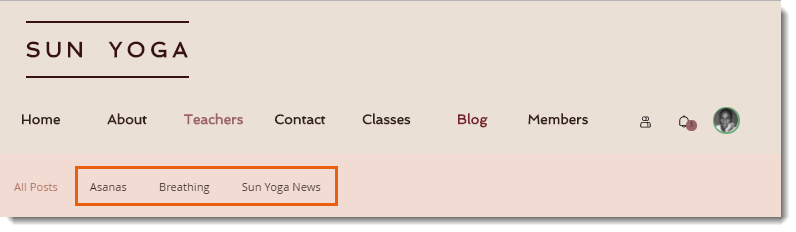
Creating blog categories
Create categories for each of the topics your blog covers. Your can assign posts to more than one category (up to 10 per post) so you have the freedom to divide your posts however you want. Give your categories easily understandable titles and descriptions so readers know what to expect.
To create a category:
Go to Categories in your site's dashboard.
Click New Category.
Note: Your blog comes with a few default categories, click Edit to customize one.Enter the category details:Category Label: The label appears on your blog menu and at the bottom of blog posts in this category. Make sure to keep it short and informative.
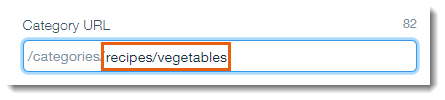
Category URL Slug: This is the URL of the blog category which readers can see in the browser bar (and use to access the category directly). By default, it takes the category label as the slug (end of the URL), but you can edit it if you need to.
Note:
The URL slug must be at least two characters long and can't have more than one slash. For example, you can change the slug to recipes/vegetables, but you cannot change it to recipes/vegetables/tomatoes
Enter the SEO and social sharing settings of the category. This info appears in search engines and when you share the category on social media.Category title: Enter a title that describes your category. It does not have to be the same as the category label.
Category description: Enter a description for the category so readers know what to expect when they find your category on Google or see it shared on social media.
Category image: Adding an image is optional, this image appears when you share the category on social media.
Click Save.
Tips:
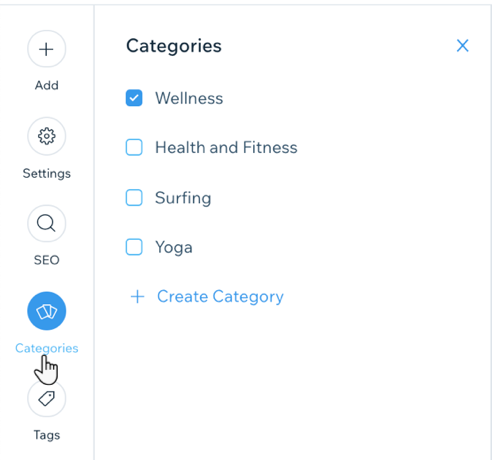
You can also create a new category as you're creating your blog post. Click the Categories tab on the left of any blog post to assign and create new categories.
Create categories using AI. Learn more about using AI in your blog.
Assigning posts to categories
You can assign posts to categories while you're writing the post, or you can come back to the Post Composer later to add it to categories.
To assign posts to categories:
Go to Blog in your site's dashboard.
Select the post that you want to edit, or click Create New Post to add a new one.
Select the categories you want to assign the post to. (Up to 10 categories).
Tip: Click Create Category to create a new category.Click Publish.
Reordering your categories
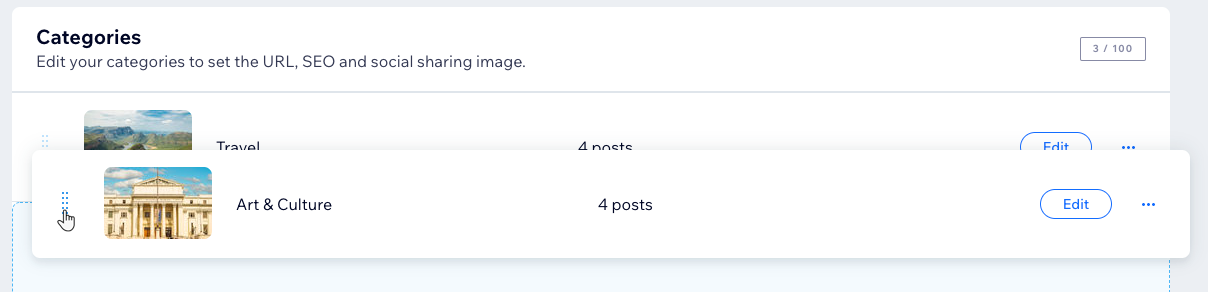
Your categories appear in the category menu and feed in the order that you create them. You can change this order by dragging them up and down the list on the Categories tab.
To reorder your categories:
Go to Categories in your site's dashboard.
Click and drag the handle to move the categories up or down.
Deleting a category
You can delete categories if you no longer need them. Deleting a category does not delete the posts inside it. The posts still appear under All Posts and any other categories they were assigned to.
To delete a category:
Go to Categories in your site's dashboard.
Hover over a category and click the More Actions icon
 .
.Click Delete.
Click Delete to confirm.

FAQs
How do I rename the "All Posts" category?
The "All Posts" category holds all of your blog posts, regardless of which categories they were assigned to. You can rename this category to change it on the blog menu.
To change the title of the "All Posts" category:
Go to Categories in your site's dashboard.
Click Rename next to All Posts.
Enter a new title and click Save.
How do I change my "main" category?
Although a post can belong to more than one category, it only appears with a single category label on your blog feed. This label is the "main" category.
To change the "main" category:
Go to Blog in your site's dashboard.
Do one of the following:Click Create new post.
Click Edit to edit an existing post.
Click the Categories tab in the panel on the left.
Click the checkbox next to the relevant category.
Click Set as main.

Some of my categories are missing, why can't I see them?
You can create as many categories as you want, however in some places, there is a limit to how many you can see:
Dashboard: You can see (and create) up to 100 categories from the Categories tab in your site's dashboard.
Category label drop-down: You can see up to 30 categories on the category label drop-down (where you select a category for a blog post)
Category menu: You can display up to 50 categories on the blog menu.
Can I create subcategories?
Currently, it is not possible to create subcategories in Wix Blog. Click here to vote for this feature.
This article is credited to the Wix team - https://support.wix.com/
