Connecting CMS collection content to your site
CMS: Working with Dataset Modes and Collection Permissions
Working with dataset modes and collection permissions in your CMS (Content Management System) allows you to control how elements on your site interact with your collections. By choosing between 'Read', 'Write', or 'Read & Write' dataset modes, you can determine whether elements like text, images, and buttons can display, add, or update collection content. This flexibility helps you manage how content is presented and collected on your site, enhancing user engagement.
For instance, if you run a recipe blog, you might use a 'Read' mode dataset to display recipes. You could use another 'Write' mode dataset to let members submit new recipes. This setup ensures that only verified members can add collection content, while all visitors can enjoy viewing the shared recipes.
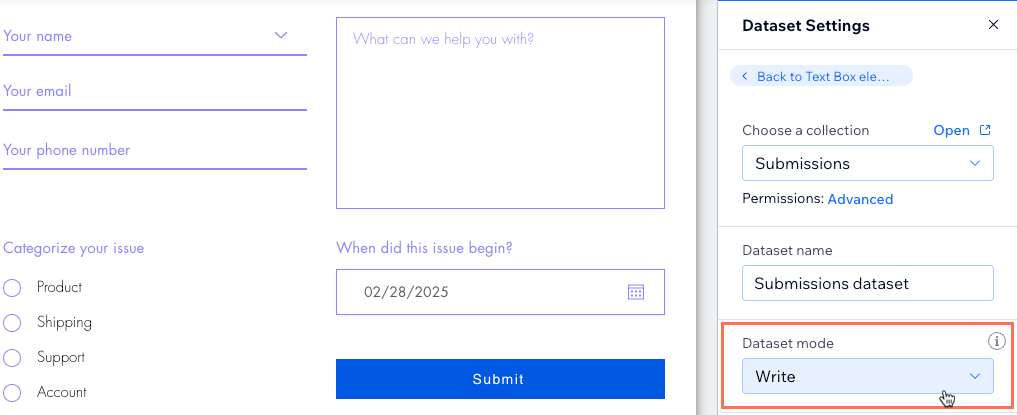
Dataset modes control how elements interact with collections
The dataset mode determines how elements like text, images, and buttons can access the dataset's connected collection. You can choose between three distinct dataset modes: 'Read', 'Write', or 'Read & Write'.
Learn more about each dataset mode below.
'Read' mode for displaying content
This mode allows the dataset's connected elements to retrieve, or 'read' data from your collection. 'Read' mode does not allow the dataset's connected elements to add new items or update existing items in the collection.
Use 'Read' mode when you want the dataset's connected elements to read collection content in order to display it on your site. Learn more about displaying content from your collection.
What collection permissions should I choose?
Set the collection permissions to 'Show content', 'Collect content', or 'Advanced'. Whichever you choose, make sure to set the 'View' permissions so only the appropriate visitors can view the collection content on your live site.
'Write' mode for adding new items to your collection
This mode allows the dataset's connected input elements to add new items to your collection. 'Write' mode does not allow the dataset's connected elements to display or 'read' the collection content. It also prevents the connected elements from updating existing collection items.
Use 'Write' mode when you want the dataset's connected elements to add new items to your collection. 'Write' mode is ideal for custom CMS forms that use input elements to collect content from site visitors.
What collection permissions should I choose?
Set the collection permissions to 'Collect content' or 'Advanced' to allow visitors to add or update content in your collection.
'Read & Write' mode to view and submit content
This mode allows for a two-way connection between the dataset's connected elements and the collection. The dataset can read collection content to display it in the connected elements. The elements can also add new items to your collection or update existing ones, depending on how you've set up your custom CMS form.
Use 'Read & Write' mode for an interactive experience where site members can view collection content and add new items or edit existing ones. For example, you can connect the same dataset to input elements that submit content and to other elements that display the content (e.g., text elements, repeaters, tables). This works great for pages where members view collection content and edit it at the same time.
Learn how to let site members manage collection content from your live site:
What collection permissions should I choose?
Set the collection permissions to 'Collect content' or 'Advanced' to allow visitors to add or update content in your collection.
Collection permissions manage access to collection contents
Collection permissions determine who has access to your site's collection content and what visitors can do with the content. Every site visitor is identified by the CMS as having a specific role (e.g. everyone, members, collaborators, or admins). The permissions allow you to customize each role's access level so you can set different permissions for different types of users.
For example, you might want to let everyone view your collection content, but only let site members add new items to it. You can also specify that existing collection items can only be updated by the members that added them. Perhaps you created a specific collaborator role for managing collections. You could grant these collaborators exclusive access to deleting collection items.
Learn how to change the permissions of your CMS collections.
Admin permissions:
Collaborators with admin roles always maintain full access to your collections. Admins can perform all actions, including viewing, adding, updating, and deleting collection content, whether from the live site or the CMS itself.
In your editor's preview mode, you are considered an admin. To test other roles, publish your site, visit the live site, and either log in as a site member or browse as a visitor.
Show content to the right audience
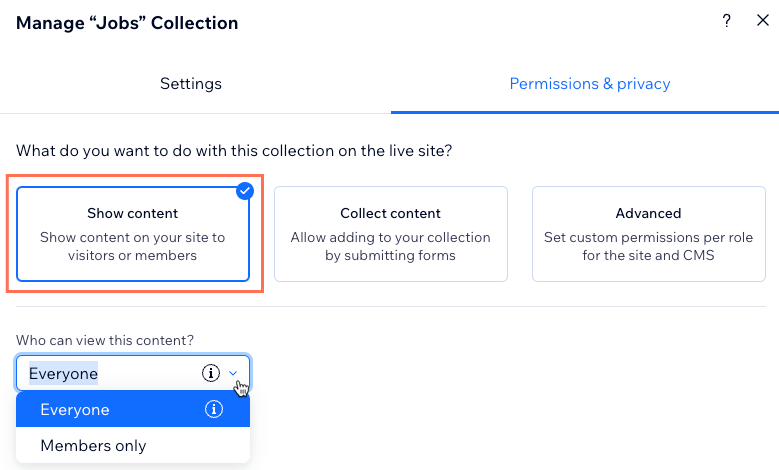
To make your collection content viewable on the live site, choose the 'Show content' collection permissions.
Then, specify who can view the content on your live site:
Everyone: Any site visitor can view the collection content on the live site.
Members only: Only site members can view the collection content on the live site.
What about collaborators with CMS access?
With these 'Show content' collection permissions, admins and collaborators with CMS access maintain full access to the collection. They can perform all actions, including viewing, adding, updating, and deleting collection content, whether from the live site or the CMS itself.
Collect content from visitors
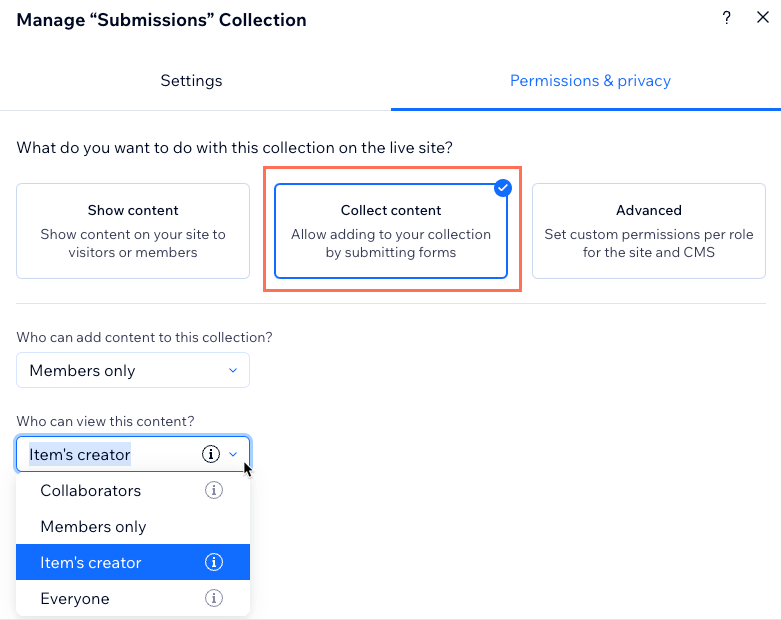
Select the 'Collect content' collection permissions to allow visitors to add new items to the collection. This is useful when you want visitors to use input elements to submit responses that add content to new collection items.
Choose who you want to have access to adding new items from your live site:
Everyone: Any site visitor can add new items to the collection from the live site. Collaborators with CMS access roles and admins can also add items from within the CMS.
Members only: Only site members, collaborators with CMS access roles, and admins can add new items to the collection from the live site. Collaborators with CMS access and admins can also add items from within the CMS.
Then, specify who can view the content:
Collaborators: Admins and collaborators with CMS access roles can view the collection content in the CMS and the live site.
Tip: To assign permissions for a specific collaborator role, use the Advanced collection permissions and click + Set permissions for specific roles.Members only: Only site members, collaborators with CMS access and admins can view the collection content on the live site. Collaborators with CMS access and admins can also view it within the CMS.
Item's creator: Site members can only view items on the live site that they themselves added to the collection. Collaborators and admins can still view all the items on both the live site, and in the CMS.
Everyone: Any site visitor can view the collection content on the live site. Collaborators with CMS access and admins can also view it within the CMS.
Tip:
If you want to allow visitors to update field values of existing collection items, use the 'Advanced' permissions. Then, select the 'Update' checkbox next to each relevant role.
What about collaborators with CMS access?
With these 'Collect content' collection permissions, admins and collaborators with CMS access maintain full access to the collection. They can perform all actions, including viewing, adding, updating, and deleting collection content, whether from the live site or the CMS itself.
Advanced permissions for specific needs
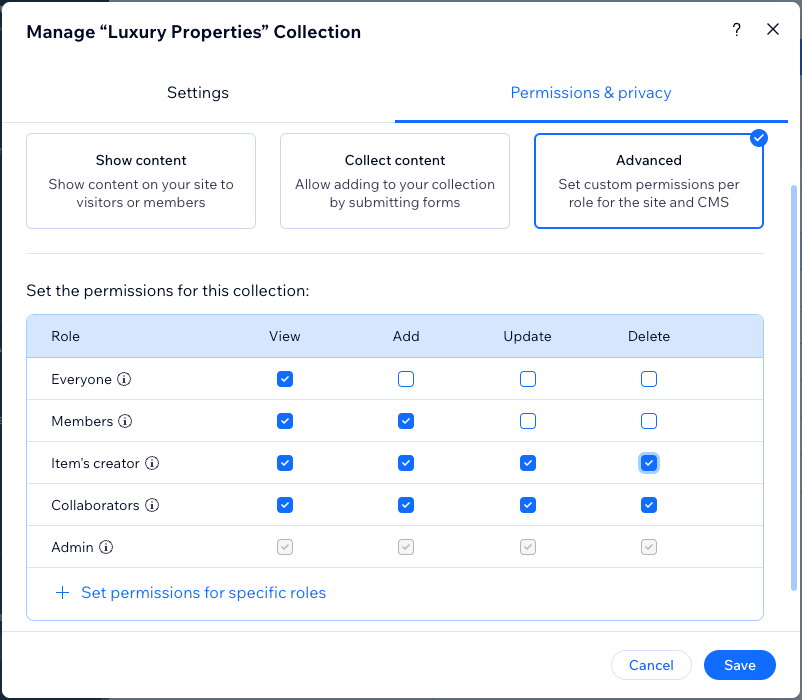
For more control, use the 'Advanced' collection permissions setting. You can select different permissions for viewing, adding, updating, and deleting content for each role.
Select the relevant permissions for each of the roles:
Everyone: This role applies to everyone who can access your live site. Selecting a permission for this role also selects it for the other roles in the table.
Members: This role applies to site members only. Selecting a permission for this role also selects it for the 'Item's creator' role, the 'Collaborators' role, and any specific roles you add to the table.
Item's creator: This role's permissions only apply to the specific items that a member creates themselves. For example, you can set permissions to allow the item's creator to update or delete only the items that they create. Selecting a permission for this role also selects it for the 'Collaborators' role and any specific roles you add to the table.
Collaborators: This role applies to all collaborator roles with CMS access. Selecting a permission for this role also selects it for any specific collaborator roles you've set permissions for.
Admin: This role applies to site owners and custom roles with admin permissions. You cannot change the permissions of this 'Admin' role.
Specific roles: If you add roles to the table, they apply to collaborators with specific CMS access roles. If you set permissions for a specific role, then deselect a permission in that role, the permission is also deselected in the main 'Collaborators' role.
In the table, you can choose from the following access levels for each role:
View: People with the relevant role(s) can view the collection content.
Add: People with the relevant role(s) can add new items to the collection.
Update: People with the relevant role(s) can edit existing collection items.
Delete: People with the relevant role(s) can remove existing collection items.
Tip:
If you want to allow visitors to edit the field values of existing collection items, select the 'Update' permission for the relevant role.
Note:
With these 'Advanced' collection permissions, admins and collaborators with CMS access maintain full access to the collection. However, you can set permissions for specific collaborator roles to restrict them from having view, add, update, or delete access to the collection.
FAQs
Click below for answers to common questions about working with dataset modes and collection permissions
Can I display user-submitted feedback to everyone, but only allow members to submit it?
Yes. Suppose you have a 'Comments' collection where you store visitor submissions. You want to allow anyone to read the comments on the live site, but you only want site members to submit comments. For this to work, set the following permissions and dataset modes:
For the collection permissions: Set Advanced permissions for your 'Comments' collection. Then select View next to Everyone and select Add next to Members. You could also select Update next to Item's creator if you want the member who submitted the comment to also be able to edit their own comment after adding it.
Learn how to change your collection's permissions.

For the dataset mode: Connect both your custom form and the element you use to display the comments to the same dataset. Then, choose the Read & Write dataset mode. This allows the input elements of your custom form to 'write' to your collection. Meanwhile, the repeater, table, or text element used to show the comments can 'read' the collection content to display it.

Learn how to let site members manage collection content from your live site:
How do my site's collaborator roles and permissions work with collection permissions?
In your site's Roles & Permissions settings, you can add roles that give collaborators access to your CMS collections. These CMS access roles, by default, have all the collection permissions to view, add, update, and delete items. However, you can fine-tune their access levels for each collection in your collection permissions.
Keep in mind that CMS admin roles always maintain full access to your collections. This means CMS admins can perform all actions, including viewing, adding, updating, and deleting collection content, whether from the live site or the CMS itself.
Collection permissions allow you to define what people can do with a specific collection's content. You can define different access levels for each type of user. This includes everyone who can view your site, site members, collaborators with CMS access, and even specific collaborator roles.
Different types of users interact with your collection content in different ways, depending on the permissions you grant. While some actions are restricted to the live site, others extend to the CMS backend for collaborators. Here's how collection permissions work for each group of users:
Everyone and site members: When granted the relevant collection permissions, these users can only perform actions, such as viewing or modifying collection content, directly on your live site. Typically, this is done through input elements, but can also be done with the Data API.
Collaborators with CMS access: These collaborators, on the other hand, can perform these same actions both on the live site and within the CMS backend. Their access to the CMS provides additional control and management capabilities that go beyond what’s available on the live site alone.
Can people view my collection content from my live site, even if I haven't displayed it there?
The answer depends on how you've set your collection permissions. If you set the content to be viewable to everyone, technically, anyone can access the collection content by using an API. This is true, even if you do not display the content on your live site.
Learn more about using authorization suppression with the Data API to bypass permissions.
Can I create a page on my live site where members can manage the collection content?
Yes, you can manually set up a page for this in the Wix Editor. If using the Studio Editor, you can add the dynamic Manage Item page.
In the Wix Editor: You can create a page with input elements and interactive buttons. Then, choose Advanced permissions for the collection and select the relevant checkboxes to set the access levels for each role. Learn how to create a page in the Wix Editor for managing collection content on your live site.
In the Studio Editor: We've streamlined the process for you with a dynamic Manage Item page. Learn how to add a dynamic Manage Item page that lets visitors update collection content from the live site.
This article is credited to the Wix team - https://support.wix.com/
