About the CMS (Content Management System)
CMS: Creating Custom Roles and Permissions
Set up precise access controls for your teammates and collaborators in your CMS (Content Management System) by creating custom roles. Define what actions collaborators can take in the CMS, such as managing content and collections. These roles can also include permissions from other areas, such as the Editor, Sites, or Stores, to match collaborators' site-wide responsibilities.
You can create as many custom roles as you need, assigning different collaborators varying access levels to your CMS collections. Once roles are assigned, use each collection's advanced permission settings to set permissions for specific roles and fine-tune their access.
Creating custom roles that allow CMS access
Choose the 'Manage Content' permission to allow collaborators with the role to access your CMS collections. Without this permission, collaborators cannot access the backend CMS or its collections. You can set an individual collection's advanced permissions to specify access levels or roles that have CMS access.
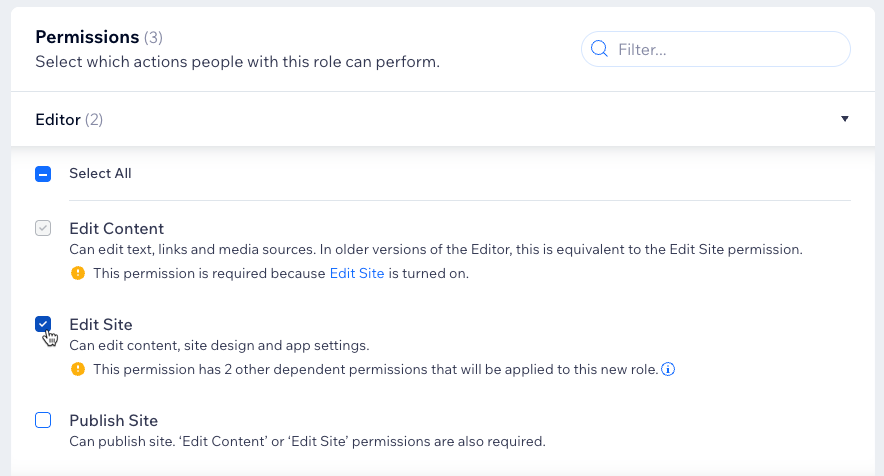
If you select certain permissions, such as 'Editor > Edit Site', the role automatically becomes an admin role. This gives collaborators with the role unrestricted, full access to the CMS.
To create a custom CMS role:
Go to Roles & Permissions in your site's dashboard.
Click Manage Roles at the top.
Click + Create New Role.
Enter the Role Title and Description in the relevant fields.
Click CMS in the Permissions section.
Select the checkboxes next to the permissions you want to assign to the role:Manage Content: Can view, add, and edit content in existing collections.
Manage Backups: Can add, restore and delete backups for all collections.
Note: Make sure to also select Manage Content to grant access to the CMS so collaborators with the role can access the CMS and use backups.
Manage Indexes: Can add and delete indexes for all collections.
Note: Make sure to also select Manage Content to grant access to the CMS so collaborators with the role can access the CMS and use indexes.
Manage Collections: Can create new collections, delete collections, and add, delete, or edit fields in all collections. Selecting this permission also selects the Manage Content permission.
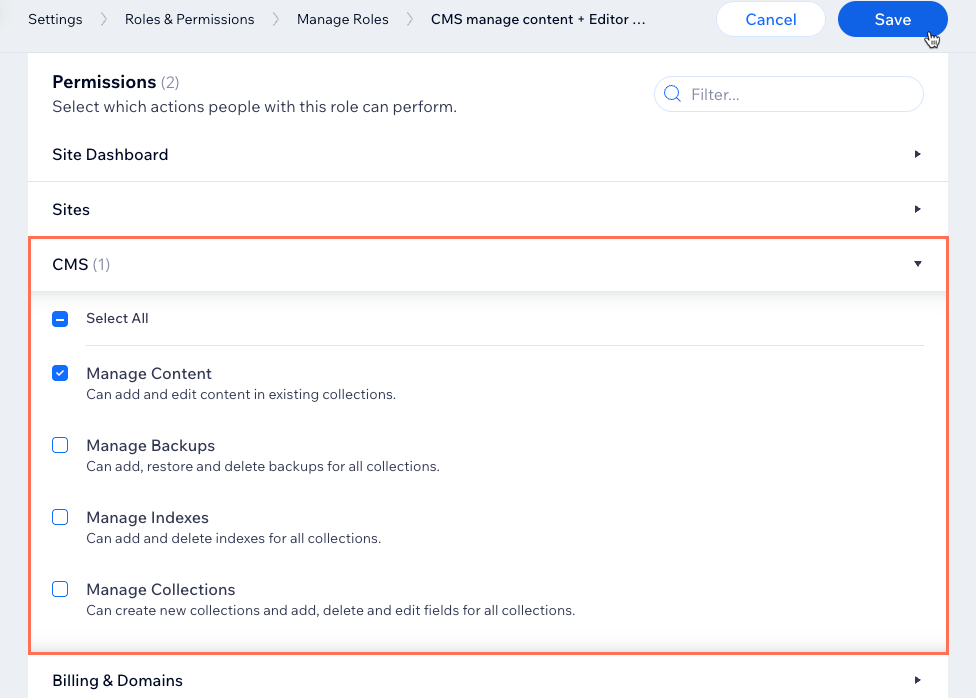
Make sure to set the collection permissions:
If you want collaborators with the Manage Content or Manage Collections permissions to be able to add and update items in CMS collections, make sure to set Advanced collection permissions, then select the Add and Update checkboxes next to Collaborators or next to a specific collaborator role. Learn more about advanced collection permissions.
(Optional) Add permissions from other areas such as Editor, Sites, or Stores:Click the relevant drop-down (e.g. Editor, Sites, Stores).
Select the permissions you want to assign to the role.
Important:
Admin roles grant collaborators full access to the CMS and access to other areas of managing your site. You cannot restrict admins from having full access to the CMS. The following permissions automatically make the role an 'admin' role:
Editor: Edit Site
Studio Editor: Edit Code
Studio Editor: Edit Site Structure
Velo: Access developer tools
Click Save.
FAQs
Click below for answers to common questions about custom CMS roles.
Can I duplicate a preset role to edit its permissions and make it a custom role?
Yes, you can duplicate a preset role to edit its permissions and make it a custom role. However, it won’t automatically become an admin role unless you select one or more of the following permissions, which grant admin access:
Editor: Edit Site
Studio Editor: Edit Code
Studio Editor: Edit Site Structure
Velo: Access developer tools
Does selecting 'Manage Collections' automatically make a role admin?
No, selecting Manage Collections does not automatically make a role an admin. However, it does include the Manage Content permission, which gives access to all CMS collections. Roles only become admin if you select any of the following permissions:
Editor: Edit Site
Studio Editor: Edit Code
Studio Editor: Edit Site Structure
Velo: Access developer tools
Tip: In your advanced collection permission settings, you can set specific access levels per collection for each role that grants CMS access.
What is the difference between custom roles and admin roles?
Custom roles allow you to give collaborators tailored access to the CMS and other areas of your site. Admin roles, on the other hand, provide unrestricted access to the CMS and full control of site management. Custom roles automatically become admin roles when any of the following permissions are assigned:
Editor: Edit Site
Studio Editor: Edit Code
Studio Editor: Edit Site Structure
Velo: Access developer tools
What makes a collaborator an admin?
There are several preset roles you can assign to collaborators that grant them admin access, including the 'CMS Admin' role. In your collection permissions, when you set permissions for a specific role, you can select roles that grant CMS access under Roles with CMS access. Under CMS Admin roles (included), you can view all the admin roles that maintain full access to your collection.

When creating a custom role, select the CMS Manage Content permissions to grant collaborators access to the CMS.
Select any of the following permissions to give a custom role full admin access to all your collections:
Editor: Edit Site
Studio Editor: Edit Code
Studio Editor: Edit Site Structure
Velo: Access developer tools
How do my site's collaborator roles and permissions work with collection permissions?
Can I restrict admin roles from accessing the CMS?
No, admin roles always grant unrestricted access to the CMS, in addition to other areas of your site. To avoid giving full CMS access, ensure you do not assign permissions that elevate the role to admin status.
Can I change a custom role’s permissions after it’s created?
Yes, you can edit a custom role’s permissions at any time. Go to Roles & Permissions in your dashboard, select the role you want to modify, and adjust its permissions as needed.
This article is credited to the Wix team - https://support.wix.com/
