Wix Editor: Using VideoBoxes

Updated: 6 days ago
Create a strong impression and pique your visitors' curiosity with visually impactful content. Showcase your own videos, free Wix videos, or professional Shutterstock videos in one of our unique VideoBoxes.
First, choose the VideoBox design that you like, add your video, and then start customizing it. You can design the shape and border of your box, add a cool overlay pattern or dynamic video mask, customize the play button and more.

Adding a VideoBox
Start off by choosing a VideoBox design from the Add Elements panel to add to your site. Hover over a VideoBox to see its effects in motion. Once added to your site, you can either keep the existing video or choose a different one from the Media Manager.
To add a VideoBox:
Click Add Elements

on the left side of the editor.
Click Video & Music.
Click VideoBox.
Click or drag a VideoBox onto your page.
Tip: Click More Videos to choose one from the Media Manager, or upload your own.

Choosing a video
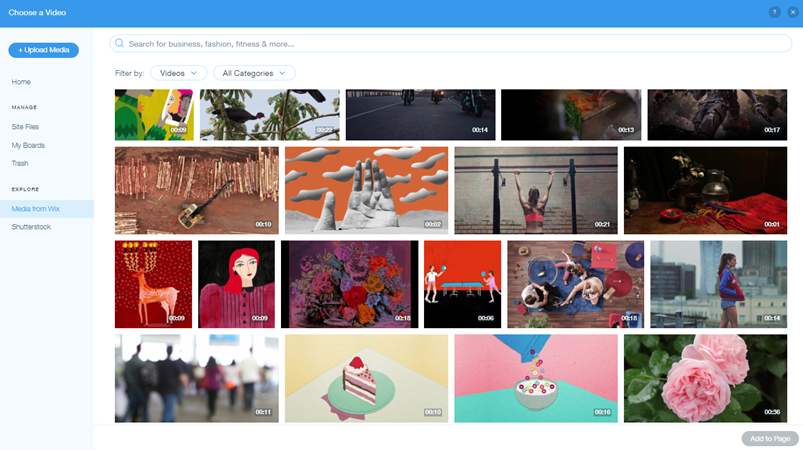
Once you have added your VideoBox, it's time to choose your video from the Media Manager. We have tons to choose from; you can add a free Wix video, purchase a Shutterstock video, or even upload your own.
To change the video displayed on your Videobox:
Click the VideoBox in your editor.
Click Change Video.
Browse through the Media from Wix library, the Shutterstock library, or click Upload Media to add your own.
Once you have chosen your video, click Add to Page.
Changing the behavior of your VideoBox
Set how your VideoBox behaves by customizing the play, pause and loop settings as well as the sound behaviors. Play around with the options to see which you think will improve engagement and visitor interaction on your site.
To change the behavior of your Videobox:
Click the VideoBox in your editor.
Click the Behaviors icon

.
Customize the different play and sound behaviors:
Choose whether your video starts on click, on hover or automatically.
Make your video loop continuously or replay on click.
Make your video play in slow motion or with sound.
Tip: These options are only available for videos that were recorded in slow motion and/or with sound. Many videos offered by Wix includes slo-mo or sound.

Important:
Most internet browsers only allow videos to autoplay when the sound is muted. If your VideoBox is set to play automatically, the video plays without sound.
Visitors can pause and play videos by default on your live site. This behavior cannot be disabled.
Customizing your play button
If you set your video to start on click, a Play button is displayed so visitors can play and stop as they please. You can choose the play button you want from the preset designs and change its color and opacity as needed.
To customize the play button of your Videobox:
Click the Big Play Button on your video.
Click Change Big Play Button.
Select a new design from the list, or click Customize Design to adjust the color and opacity of your play button.

Designing your VideoBox
This is where you can really make your VideoBox your own. Choose a cover image, border and shadow, and apply a pattern overlay to create a unique effect. There are many patterns to choose from to match your particular style.
Play around with the design options to see what fits your site's intent best.
To change the design of your Videobox:
Click the VideoBox in your editor.
Click the Design icon

.
Customize your VideoBox's design: Choose a cover image, select a pattern overlay and adjust the contour and more.

Shaping your VideoBox with a mask
Using VideoBox, your video is no longer confined to the traditional rectangular format. You can apply a video mask to cut out your video into a unique shape and create an impressive visual effect.
There are thousands of shapes and vector art for you to choose from, and you can also upload your own SVG file with a custom shape.
To apply a mask to your Videobox:
Click the VideoBox in your editor.
Click the Mask icon

.
Choose a shape for your VideoBox in one of the following ways:
Select a shape from the list.
Click the Add icon

to view more shapes and vector art in the Media Manager. You can also upload your own SVG file from here.

FAQs
Click a question below to learn more.
Why is my video not playing on my live site?
You or your visitors may notice that elements that contain motion (such as animation effects and transparent videos) do not play on your Wix live site - on both mobile and desktop.
This is because some operating systems contain a Reduced Motion feature, which disables animations and videos from playing in the browser.
Reduced Motion is an accessibility feature, which means its primary use is to allow visitors with disabilities or impairments to visit your site.
Click the relevant device from the list below to learn how to disable Reduced Motion.
Note: Reduced Motion is also automatically enabled for some mobile devices in low battery / power saving mode.
I have set my video to autoplay, but there's no sound. Why?
Most internet browsers only allow videos to autoplay when the sound is muted. If your VideoBox is set to play automatically, the video plays without sound.
The following browsers no longer support autoplay:
Safari 11 and later versions (on MacOS and iOS)
Chrome 61 and later versions (desktop and mobile)
Firefox 66 and later versions (desktop and mobile)
This article is credited to the Wix team - https://support.wix.com/ and we thank them for that!

Comments