Wix Editor: Password Protecting Your Site

Updated: 7 days ago
Control who can access to your site with password protection. This allows you to get feedback on your site before the design stage is complete, or display sensitive content in confidence.
After adding the new password, visitors who enter your site will see a screen where they will be asked to enter the password.
Important:
This feature is not currently available to all users.
If you choose to password protect a site, this also prevents search engines from crawling and indexing that site. This means that password protected sites do not appear in search results.
Adding password protection to your site
Limit access to your site by adding password protection. This ensures that only authorized users can access your exclusive content.
To password protect your site:
Click Settings at the top of the editor.

Click Site Password.
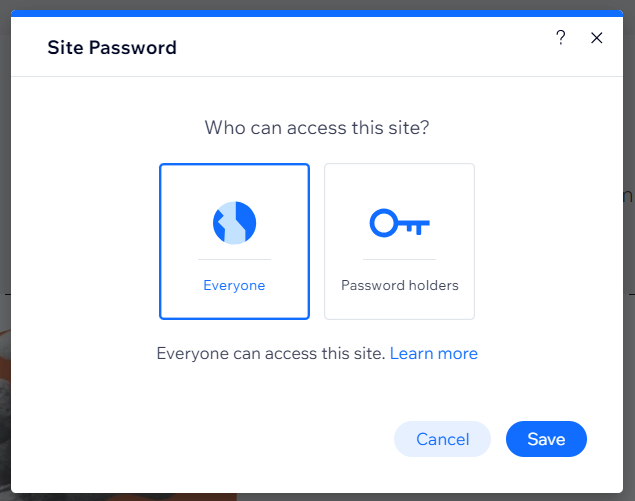
Select an option:
Everyone: Everyone can view your site. This means that your site is public and there are no additional restrictions.
Password Holders: Only people who have the password can view your site. Enter your chosen password.
Click Save.

Notes:
Passwords can be up to 15 characters.
You can only see the password window on your live site. It does not appear when previewing your site.
Editing your password
Edit your site password regularly to practice good password hygiene and ensure your site remains a secure space.
To edit your password:
Click Settings at the top of the editor.
Click Site Password.
Enter the new site password.
Click Save.

Tip:
Make sure to send the new password to visitors that you want to access the page.
Removing password protection
Want to make your site accessible to all visitors? You can remove the password protection at any point.
To remove password protection from your site:
Click Settings at the top of the editor.
Click Site Password.
Select Everyone.
Click Save.
FAQs
Select a question below to learn more about password protecting your site.
Are there specific requirements for the site password?
The password must be at least 1 character long, with no special characters (e.g. %, !, @).
Can I password protect some pages but not others?
Yes, you can password protect specific pages of your site.
Is code affected by password protection?
Any code you have added with Velo by Wix to a password protected page, or the public folder, can still be viewed using the browser developer tools.
What will my site visitors see when landing on my password protected site?
Publish and view your live site to see how it will appear for your visitors.
This article is credited to the Wix team - https://support.wix.com/ and we thank them for that!

Comments