Wix Editor: Managing Your Popups

Updated: 7 days ago
Popups are a great way to display important information in a window, like announcements, sales, and news. After creating a popup, you can rename it, duplicate it to quickly create another or link it to an element that visitors click to open the popup.
Opening your popups
Access your popup from the Menus & Pages panel to edit its design and content, or manage it as needed.
To open a popup:
Click Pages & Menu

on the left side of the editor.
Click Popups.
Click the relevant popup to open it.
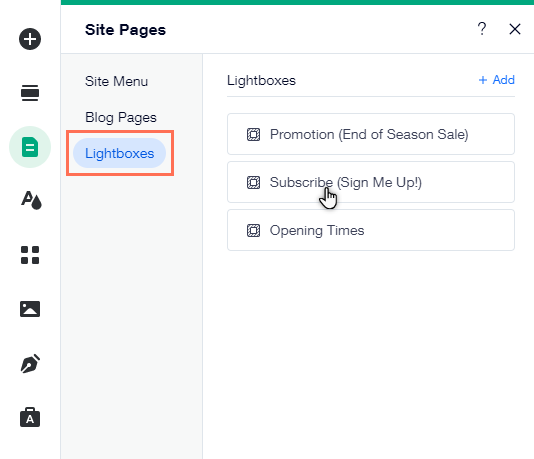
Renaming a popup
Change the name of a popup so it's easy to find in your editor. Popup titles aren't displayed on your live site, so you can choose whatever name you like. We recommend selecting a name that best suits its content, such as "Sign Up Form", or "Sale Announcement".
To rename a popup:
Click the relevant popup in the Pages & Menu
panel.
Click the More Actions icon

.
Click Rename.
Enter the new name into the field.
Click Done.

Linking elements to a popup
Link an element on your site to a popup for visitors to see when they click the element. You can link text, buttons, and even Vector art to your popup.
To link an element to a popup:
Select the element you want to link from in your editor.
Click the Link icon

.
Select Popup.
Click the Which Popup? drop-down menu and select the relevant popup.
Click Done.

Duplicating a popup
Duplicate your popup to have a consistent design acorss your pages. You can change the content as needed, while maintaining your favorite text and colors.
To duplicate a popup:
Click the relevant popup in the Pages & Menu
panel.
Click the More Actions icon
.
Click Duplicate.
Enter the name for the new popup.
Click Done.

Deleting a popup
Delete any popups you no longer need to keep your site's announcements fresh and up to date.
To delete a popup:
Click the relevant popup in the Pages & Menu
panel.
Click the More Actions icon
.
Click Delete.

Adding a link to a popup Close button
Link your popup Close button to pages, external sites, and more. When visitors click the button, they're brought to the location you've linked.
Note:
This option is only available if you have enabled a Close button on your popup.
To add a link to your Close button:
Open the relevant popup in your editor.
Click the Close button on your popup.
Click the Link icon

.
Select a link type.
Add the relevant information.
Click Done.
This article is credited to the Wix team - https://support.wix.com/ and we thank them for that!

Comments