Wix Editor: Managing Your Page Settings

Updated: 7 days ago
Get extra control of your Wix site by using Page Settings. This is the engine-room of your website; allowing you to decide how site visitors and search engines view your pages.
From Page Settings, you can manage your Search Engine Optimization (SEO), allow VIPs access to your private pages, control Social Share settings for your social media accounts...and much more.
How do I access my page settings?
Click Pages & Menu

the left side of the editor.
Click the More Actions

icon on the page you want to work on.
Click Settings.
Click the desired tab at the top of the Page Settings menu.
Your Page Settings are organized under several tabs. Learn what you can do under each tab below.
Page Info tab
Manage your page's general settings from the Page Info tab. You can choose a different name for your page, make it your homepage and manage how frequently this page should be cached.
To edit the Page info tab:
Click Pages & Menu
the left side of the editor.
Click the More Actions
icon on the page you want to work on.
Click Settings.
Click Page info.
Choose what you want to do:
Rename the page
Enter your page name under What's this page's name (on your menu)?.
Hide the page from the menu
Enable the Hide from menu toggle to hide the page from your site menu. Your site visitors cannot access hidden pages unless you link to them.
Make the page your homepage
Click the Set to make the current page the sites homepage.
Manage the page's caching settings
Click Advanced Settings and enable or disable the toggle next to Manually control caching for this page. You can then choose how often you want to reset the page's cache.

What's cache rendering?
Caching helps speed up your page's loading time. We recommend keeping the automatic caching for your site's homepage and about page, but not for pages that include widgets (e.g., Store Shopping Cart, Bookings Widget).
Layout tab
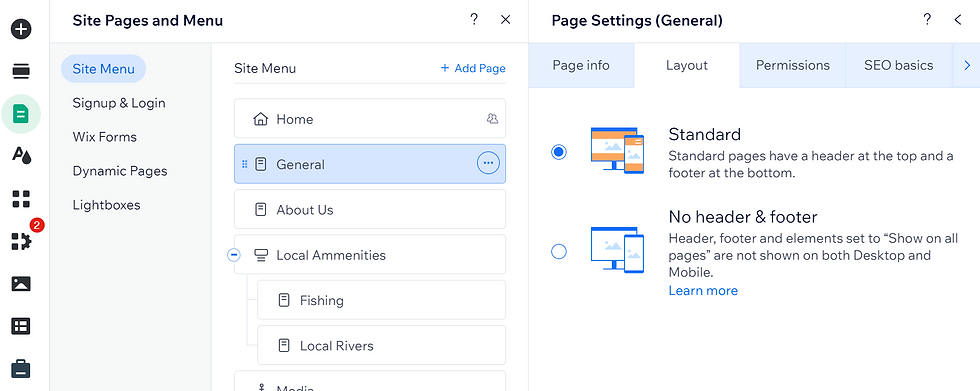
Change the header & footer layout for a specific page. Occasionally, you may want to alter this layout for a page that is still under construction, displaying a single image or other reasons.
To remove the header and footer from a specific page, click No Header & Footer in the Layout tab.
To edit the Layout tab:
Click Pages & Menu
the left side of the editor.
Click the More Actions
icon on the page you want to work on.
Click Settings.
Click Layout.
Select an option for this page's layout:
Standard: The page includes a header and a footer, as usual.
No header & footer: The page does not show a header nor a footer. This option is mainly recommended for landing pages.
Note: This means your site menu won't appear on this page, nor will any other apps you otherwise show in the header and footer. You will, therefore, need to add a navigation link back to your homepage.
Access tab
Create a private page to share with only those who want to see it. Apply permissions by giving your page password protection. Alternatively, add pages to a Members Only area for your VIPs or paying customers. You can also create member roles and restrict certain pages to specific roles.
To edit the Permissions tab:
Click Pages & Menu
the left side of the editor.
Click the More Actions
icon on the page you want to work on.
Click Settings.
Click Access.
Adjust the page permission settings.

SEO Basics Tab
Get your site to appear higher on search engines by optimizing your pages. Tell the machines what your page is about so they can show it to people who might be interested in your site.
Using the SEO Basics tab, you can change what the search engine sees when it looks at your page. You can even hide your page from searches if you want to. See more with the options below:
Learn how to add an SEO title tag and page description.
Learn how to change your page URL.
Learn how to prevent search engines from indexing your page.
Learn about the Wix SEO Wiz.

Social Share tab
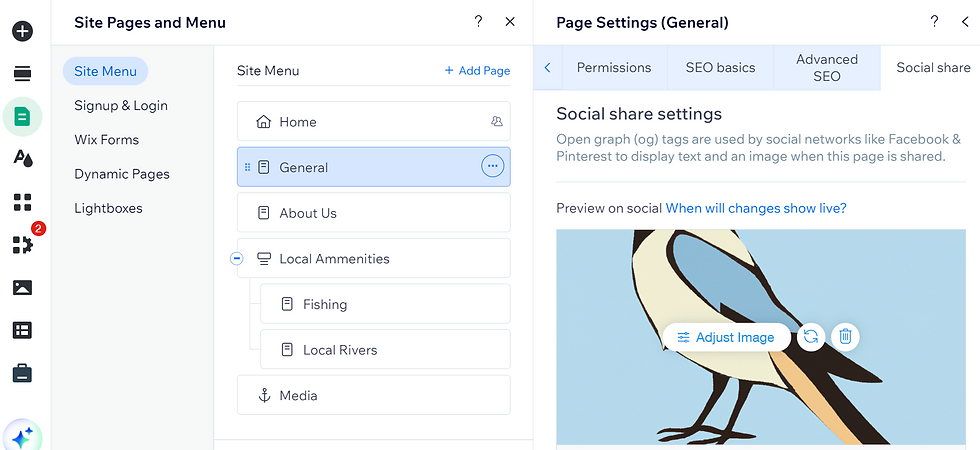
Change your page's title and description as it appears on social networks. Stand out from the crowd with your original title and page content.
To edit the social share tab
Click Pages & Menu
the left side of the editor.
Click the More Actions
icon on the page you want to work on.
Click Settings.
Click Social share.
Choose what you want to do:
Change the og:title
Add your title under What's the page's og:title (title on social media)?
Add an og:description
Write your description under What's the page's og:description (description on social media)?
Edit X Settings
Adjust share image, card size, x:title and description under X Settings.
Advanced SEO tab
Add additional meta tags and structured data markup to your page to improve search results. Speak to the search engines in a language they understand to help boost your ranking.
To learn more about meta tags, structured data markup, and canonical page tags, follow the options below:
Learn how to add additional meta tags.
Learn how to add structured data markup to site.
Learn how to add canonical tags to your pages.

This article is credited to the Wix team - https://support.wix.com/ and we thank them for that!

Comments