Wix Editor: Hiding and Unhiding a Page From Your Site Menu

Updated: 7 days ago
Every page that appears in the Site Menu section of the Pages & Menu panel, automatically appears on your site's menu.
You can choose to hide a page from your site's menu, for example if you are still working on it, or if you do not need that page on your site right now.
Tip:
Keep in mind that sites with a lot of pages, regardless of whether they are hidden from the menu or not, may affect your experience in the editor. Read our guidelines for creating a multi-page site.
Hiding a page from your site menu
Hide a page so that it doesn't appear on your site's menu. Your site visitors cannot access hidden pages unless you link to them.
Note:
Hidden pages still appear in search engines. If you don't want your site to appear in search results, you can prevent search engines from indexing your site. Learn how to hide a page from search engines
To hide a page from your menu:
Click Pages & Menu

on the left side of the editor.
Click the More Actions icon

next to the relevant page.
Select Hide from menu

.

Note:
Hiding a page on the desktop version of your site does not mean that the page will be hidden on the mobile version. Learn how to hide a page on your mobile site
Unhiding a page in your site menu
Easily unhide a hidden page whenever you want.
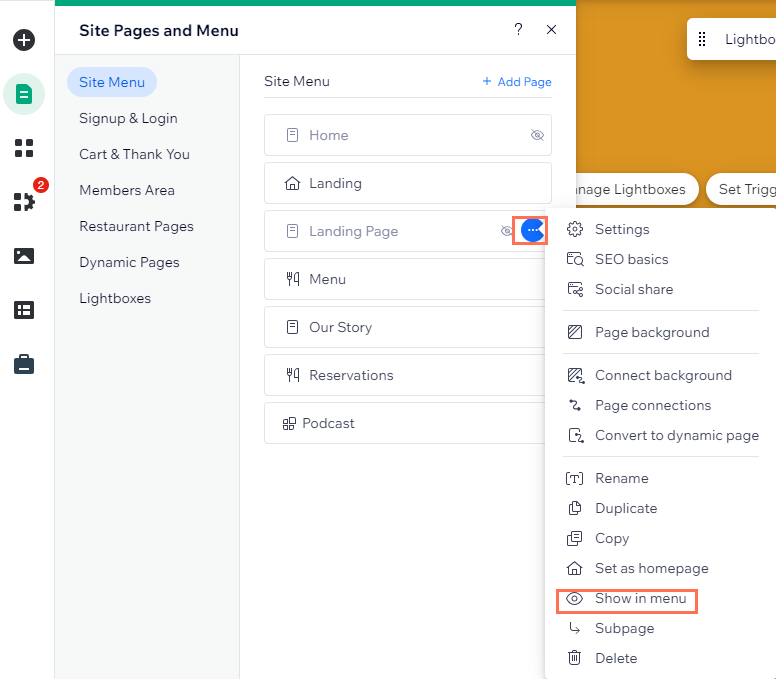
To unhide a page from your menu:
Click Pages & Menu
on the left side of the editor.
Click the More Actions icon
next to the relevant hidden page.
Tip: A Hidden icon

indicates hidden pages in this panel.
Select Show in menu

.
This article is credited to the Wix team - https://support.wix.com/ and we thank them for that!

Comments