Wix Editor: Getting a New Template for Your Site

Updated: 7 days ago
If you want to switch your site's template, you can create a new site and select a template from the available options. You can also apply an existing Premium plan to your new site to ensure you still have all the features you need.
You should know:
Creating a new site and applying your Premium plan does not carry over the previous site's content or certain features. However, you can copy and paste several elements between your sites.
Changing to a new site template can affect your site's SEO. You can learn more about site redesign and SEO with our dedicated blog post.
Creating a new site
Get started on building the site you want by selecting a new template. There are a variety of options and categories available ( Business & Services, Store, Creative, Community, and Blog), so you can choose the best style for your brand needs.
To choose a new template:
Sign in to your Wix account.
Select the category you want to open the drop-down menu.
Select the relevant sub-category.
Hover over your chosen template.
Click Edit to open the template in the editor.

You should know:
You can also select a blank template to build your site from scratch.
Make sure to save your site if you want to come back to it later.
Building your site content
After you create a new site, add elements to build content for visitors. You can choose new elements from the Add Elements panel, or copy and paste elements from another site for a quicker, easier experience.
Are there elements that cannot be copied?
You cannot copy the following elements:
Third-party apps
Headers and footers
Wix business solution apps (e.g. Wix Stores, Wix Bookings, Wix Restaurants etc).
Datasets and collections
Code on elements and pages
Wix Pro Gallery
Did you know?
You can also copy and paste pages between your sites.
To copy and paste elements between sites:
Open your previous site's editor.
Select the element(s) you want to copy.
Right-click and select Copy, or press Ctrl+C (Cmd+C on a Mac).
Open the relevant page in your new site's editor.
Paste the elements by doing one of the following:
Right-click and select Paste, or press Ctrl+V (Cmd+V on a Mac).
Right-click and select Paste & Apply Site Theme, or press Ctrl+Shift+V (Cmd+Shift+V on a Mac) to apply the color and text themes on the target site.
(When pasting elements containing media) Choose to either:
Don't Upload: Paste without uploading the files to the Media Manager of the target site.
Upload: Paste and upload the files to the Media Manager of the target site.

Tip:
You can copy Velo code from one page and use it on a new page. However, you need to make sure to make any necessary changes to the code so that it works on the new page. Wix Customer Care cannot help you set up copied Velo code. Learn more about using copied Velo code
Applying a Premium plan to your new site
Once you've chosen your new site template and built its content, you can apply an existing Premium plan to it, and move over all of the features you need to continue to grow your business.
Don't have a Premium plan in your account?
Go to the Upgrades page and select a plan for your new site.
To reassign an existing plan:
Go to Premium Subscriptions in your Wix account.
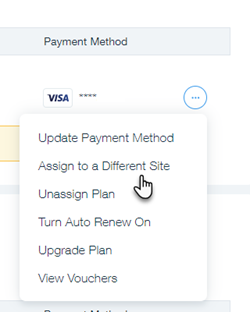
Click the More Actions icon

next to the relevant plan.
Click Assign to a Different Site.
Select the checkbox next to the new site.
Click Next.
Click Assign to confirm.
This article is credited to the Wix team - https://support.wix.com/ and we thank them for that!

Comments