Wix Editor: Fixing Spacing and Alignment Issues on Your Site

Updated: 6 days ago
You may notice issues with alignment and spacing on either your live site or in the editor, such as gaps, text rendering, or overlapping elements.
Read this article to learn about potential issues and their resolutions.
Alignment issues on different browsers
Although Wix sites are optimized for most common devices and browsers, you may notice some differences in alignment between them. This is because different browsers and devices use different rendering engines, which can cause minor variations.

You can adjust your site elements to ensure their alignment on different browsers by adding them to columns, repeaters, or containers.
Solution 1 | Attach elements to columns
Add strips to your site and split them into columns. You can define how big you want each column, and attach and arrange elements onto the column to ensure it suits your site's layout.

Solution 2 | Attach elements to repeaters
A repeater is a list of items that organizes your elements into templates that have the same design and layout, but different content. You can customize the content, and ensure that the elements are aligned uniformly across each item.

Solution 3 | Attach elements to container boxes
Add container boxes to your site to attach your elements to them to easily align them together. We recommend making sure that you leave extra room for text elements inside the box to avoid font issues.

Gaps between the page content and footer
You might notice a small gap between the content of your page and the footer, as in the screenshot below. This can occur due to the height of the page. You can remove this gap by adjusting the page height.

To adjust the page height:
Click the page in your editor.
Click and drag the Adjust Page Height icon

.

Note:
If your page contains a lot of strips, you may need to click and pull the footer down in order to select the page.
Gaps below the footer
There is always a gap below your footer in the editor, as it allows you to resize the footer quickly and easily. However, you may notice a gap below the footer on the live vers ion of your site.

This can occur if the content on your page is shorter than the current page length. There are several ways you can resolve the issue, depending on your design and preferences.
Solution 1 | Change the page background color
You can change your background color to match the color of your footer. This will make the gap look like it's part of the footer.

Solution 2 | Add content to your page
Your page length is automatically determined by the content and elements you add to it. You can make your page longer by adding additional content to cover most of the viewport.

Note: If you add extra content to your page, you may still see a gap on larger viewports, and a vertical scrollbar can appear on smaller viewports.
Solution 3 | Resize the footer
Resize your footer to make it longer. This can give your page extra length, and may cover the viewport.

Solution 4 | Check for hidden elements in the Layers panel
You can go to the Layers Panel to find, delete or reposition any hidden elements that may be causing the gap to appear below the footer.

Footer overlapping elements set to show on all pages
If you have an element on your site that is set to show on all pages, you may find that the footer overlaps it on some pages. This can happen if some of your pages are shorter than your element.
To fix the issue, drag your footer down with the Adjust Page Height icon
.

Elements disappearing from the site header
You may find that some of the elements in your header disappear (or fall behind the header) on your live site. This can happen for 2 reasons:
Your header has a scroll effect that makes it freeze
Your element is not set to show on all pages
You can resolve this issue by changing the header's scroll effect, or adjusting the element's display settings.
Solution 1 | Changing the header scroll effect
If your header has a freeze scroll effect, it can cause elements to disappear or fall behind the header. Choose a new scroll effect to make the elements visible on your live site.

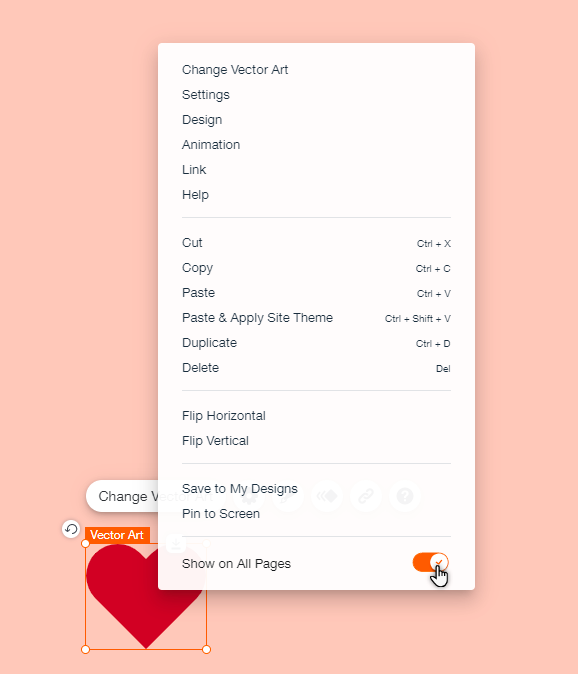
Solution 1 | Setting an element to show on all pages
If your element hasn't been attached to the header, and has not been set to show on all pages, it is not visible on all of your site's pages.
Enable Show on All Pages on your element to display it on every page of your site.
Text misaligned on your live site
Sometimes your live site's layout can appear differently on different screens and browsers, with elements not aligning as intended. This may be caused by browsers rendering fonts and other elements differently.
You can set a certain height for your text box, ensuring that even if the text becomes slightly larger or smaller on another browser, it does not affect the way the boxes are aligned on the page.
To set a height for your text box:
Click the text box in your editor.
Click and drag the handles on the text box to extend it a bit beyond the end of the text (about 10-20 pixels).
Tip: This does not affect the size of the text itself.

Gaps between full-width elements and other elements
Certain elements can be stretched to full-width on your site, such as lines, horizontal menus, and some galleries. Elements that have this option display a Stretch icon

when you click them.
When you stretch an element to full width, gaps may appear between the full width element and elements placed above or below it. You can resolve this issue by using the Zoom out function or moving the element.
Solution 1 | Zooming out to remove gaps
Remove gaps from your page by clicking the Zoom out to 50% icon

on the top bar of your editor. In this view, you can move full-width elements up or down, or delete the spaces between them.

Solution 2 | Manually moving elements
Manually move your elements by dragging them to a different position on the page to remove the gaps.
This article is credited to the Wix team - https://support.wix.com/ and we thank them for that!

Comments