Wix Editor: Deleting Something From Your Site

Updated: 7 days ago
You may want to update your site and remove components that you no longer need, like elements, pages, or apps. You can delete these at any time so your content stays fresh and relevant.
Deleting single elements
You can delete an element from your site by either using the Delete key on your keyboard, or the right-click menu.
To delete an element from your site:
Open the editor.
Click the relevant element to select it.
Choose how you want to delete the element:
Keyboard: Press Delete on your keyboard.
Right-click menu: Right-click the element, then click Delete.

Deleting multiple elements
You can select and delete multiple elements at once in the editor. This is especially useful if you have a lot of elements that you want to remove, as you don't have to delete each of them manually.
To select and delete multiple elements:
Open the editor.
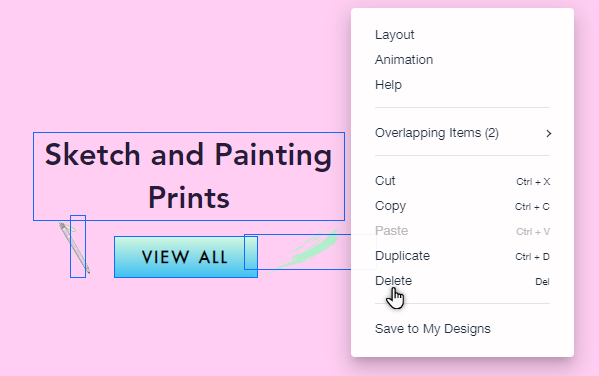
Click and drag your cursor to mark all the relevant elements.
Choose how you want to delete the elements:
Keyboard: Press Delete on your keyboard.
Right-click menu: Right-click the element, then click Delete.
Tip:
You can also multi-select elements by holding down the Ctrl key on your keyboard and clicking the relevant elements.
Deleting pages from your site
If you no longer want to keep a page on your site, you can delete it from the Menus and Pages panel. Keep in mind that pages displayed in the site menu are automatically removed as menu items when you delete them.
To delete a page from your site:
Open the editor.
Click Pages & Menu

on the left side of your editor.
Click the relevant page.
Click the More Actions icon

.
Click Delete

.

Deleting apps from your site
The way to delete an app from your site depends on where it appears:
A full page app in the editor: Certain apps like Wix Stores, Wix Blog, or Wix Bookings add pages to your site. You cannot just delete the page, you need to delete the app from My Business.
An app placed on a page in your editor: Some apps don't take up an entire page – these are elements / widgets that you can place on any site page. To delete this type of app, simply remove the relevant element from your page.
An app in your site's dashboard: Some apps work in the background and aren't added to your editor. They only appear in your site's dashboard, and that's where you can remove them.

Note:
If you delete an app with a paid subscription, make sure you also cancel the subscription from your account.
FAQs
I deleted something by accident. How do I get it back?
If you delete an element by mistake, you can revert the change by clicking the Undo

icon in the top bar of the editor.
Note: You can only undo changes you've made to your site in the current session. For example, if you make a change in the editor, then close the tab or sign out of your Wix account, it is not possible to undo that change when you open the editor again.
Is there a way I can restore elements and components that I deleted in a previous session?
Absolutely. You can access, view, and restore previous versions of your site with your Site History.
Note: If you restore a previous version of your site, any changes you've made since are reverted. However, there are some components that are not affected when you restore a site.
How do I delete my site?
You can move a site to the Trash folder from either your editor, or the site's dashboard. Don't worry - you can always restore it if you change your mind. Learn how to restore a deleted site
This article is credited to the Wix team - https://support.wix.com/ and we thank them for that!

Comments