Wix Editor: Customizing Video Players on Mobile

Updated: 6 days ago
Personalize the look and functionality of the videos on your mobile site. Optimize your video player's settings, design, and layout to best suit your needs.
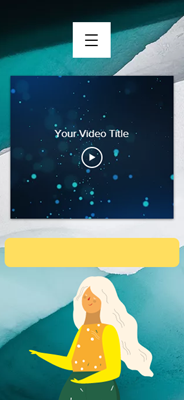
Customizing the Wix Video Player
You can customize your Video Player's mobile view to look different from the desktop view. Choose a layout that's right for you and customize the design settings to make sure your Video Player looks great from any device.
To customize the Wix Video Player:
Click the video player in your mobile editor.
Click Settings.
Click the tabs to customize the following aspects of your player:
Layout: Choose from two available layout options: Compact and Vertical.
Design: Customize the design of your player's menu and action buttons. Click the color boxes to change the colors of the following:
Background color: The menu background.
Text color: The text on the menu.
Button color: The button background.
Tip: Make sure your background and button colors are different so that your text remains visible.
Text color: The color of the text on the button.

Note:
Currently, it is not possible to remove or change the color of the black bars above and below the video player. It is also not possible to resize the player.
Customizing the Single Video Player
Customize how your Single Video Player looks on your mobile site. You can change your video's playback settings, adjust its layout and add an animation in the mobile editor.
To customize the Single Video Player:
Click the video player in your mobile editor.
Customize the following aspects of your player:
Settings:
Click the Settings icon

.
Customize your playback options:
Autoplays: Enable the toggle to make your video start playing when the page loads.
Note: Due to browser restrictions, videos play on mute when set to autoplay. However, your viewers can turn the sound on whenever they want.
Plays in a loop: Enable the toggle to make your video play constantly on repeat.
Layout:
Click the Layout icon

.
Customize the following:
Show video title: Enable the toggle to display your video's title.
Play button size: Drag the slider to increase or decrease the play button's size.

This article is credited to the Wix team - https://support.wix.com/ and we thank them for that!

Comments