Wix Editor: Customizing a Hamburger Menu

Updated: 7 days ago
After adding and setting up your hamburger menu, customize its look and layout to complement your site. You can adjust the buttons, container, and menu items to look exactly how you want.
Customizing the menu buttons
Use the options to display how each button looks - the one visitors click to open the menu, and the one they click to close it.
To customize the buttons:
Select the hamburger menu in your editor.
Choose which button you want to customize:
Menu button: Click the button.
Close button:
Click Edit Menu.
Click the Close button in the container.
Choose how to customize the button:
Design the button
Click the Design icon

to customize the button's look:
Replace design: Select a new button design from the panel.
Adjust design: Click Customize Design to further personalize the button:
State: Choose the state you want to customize the button for (Regular or Hover).
Background fills: Choose a color for the button, and make it more or less opaque.
Text: Set the font, text size, color, and formatting for the button text.
Borders: Add and customize a border on the button.
Corners: Set the radius (in pixels) to make the button rounder, or more square.
Shadows: Add and adjust a shadow on the button to give it a 3D effect.
Layout: Make the padding around the button bigger or smaller.
Icon: Set the size, color, and rotation of the button angle.
Note: The available options depend on what you choose to display on the button - text, icon or both.

Adjust the layout and display
Click the Layout icon

.
Select an option under Choose what displays:
Icon only: Only the icon is displayed.
Text only: Only text is displayed on the button.
Text and icon: Both text and an icon are displayed.
Icon position: Choose the position of the icon relative to the text - to the left, right, above, or below.
Spacing between text and icon: Use the slider to make the spacing between the text and icon bigger or smaller.
Choose an option under Alignment: Left, right or center.

Adjusting the container and overlay
Choose the layout and set the background for the container that displays your menu items. If you enable an overlay, you can change and adjust its background to suit your design needs.
To adjust the container and overlay:
Select the hamburger menu in your editor.
Click Edit Menu.
Customize the container / overlay to your liking:
Adjust the container's size and layout
Click the Layout icon
.
Choose what to adjust:
Width: Choose how the container is stretched:
Full screen: The menu container spans the full width of the screen.
Custom: Use the drag handles to make the container bigger or smaller.
Alignment: Set the container's alignment to the left, center, or right.
Design the container
Click the Design icon
.
Choose how to customize the container's look:
Background fills

: Set your container background, and adjust it as needed. You can add a color, gradient, or image.
Borders

: Add and customize a border. You can choose a fill and style, and set the width (px).
Corners

: Enter the radius (px) to make the container's corners rounder, or more square.
Shadows

: Add a shadow to give the container a cool 3D effect. You can set the angle, color, size, and more.

Customize the overlay
Click anywhere on the overlay to customize its design.
Click Change Overlay Background.
Choose an overlay type:
Color: Select a color or gradient for the overlay and set the opacity.
Image: Set an image as the overlay background. You can use free images available from Wix, or upload / add your own.
Video: Set a video as the overlay background. You can choose a stock video, or upload your own.
(Optional) Click Settings

to adjust the overlay's opacity and additional settings.
Note: The available settings depend on the overlay type. For example, you can set the play speed for videos, set scaling and positioning for images, etc.

Designing the menu
Customize the look of the menu itself to complement your site's overall theme. You can change the alignment and structure, as well as the design of the menu items.
To design the menu:
Select the hamburger menu in your editor.
Click Edit Menu.
Click the menu items.
Choose how you want to adjust the menu:
Layout: Click the Layout icon

and choose from the following options:
Text alignment: Select whether the menu text is aligned to the left, right, or center.
Dropdown menu arrow position: Select whether the dropdown menu arrow is to the left or right of the menu text.
Design: Click the Design icon

and customize the menu how you want:
Choose the menu state you want to customize (Regular or Selected).
Adjust the design using the options:
Fill color and opacity
: Choose the menu's fill color and adjust its opacity.
Border
: Adjust the menu's border width and color.
Shadow
: Add a shadow, and adjust its angle, size, blur, color, and distance.
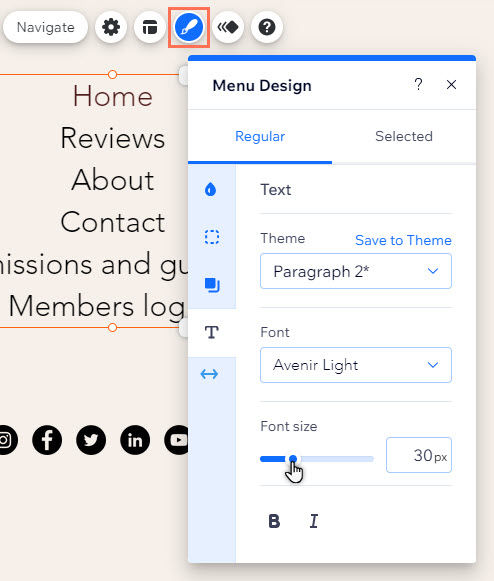
Text

: Edit the menu's text settings, such as font, size, and format.
Spacing

: Adjust the menu's spacing and offset using the sliders.
This article is credited to the Wix team - https://support.wix.com/ and we thank them for that!

Comments