Wix Editor: Customizing a Decorative Shape

Updated: 7 days ago
Customize your decorative shapes to match the look of your site, including the size, colors and borders. If you want, you can also add a link to your shape to turn it in to clickable button.
If you change your mind about the shape, switch it to another one at any time.
Did you know?
Arrows are also considered basic shapes in the editor.
Customize your shape design
Get creative and customize the color, border and shadow of your decorative shape using the design options.
To customize your shape:
Click the shape in your editor.
Click the Design icon

.
Customize your shape using the options:
Fill color: Select the shape's color and opacity.
Border: Enable the Apply border toggle to customize the color, opacity and width of a border.
Shadow: Enable the Apply shadow toggle to customize a shadow.

Resizing your shape
Make your shape larger or smaller as you need. When resizing your shape, you can stretch it, or keep the proportions the same as the original shape.
To change the size of your shape:
Click the shape in your editor.
Drag the handles on the edges of the shape to make it bigger or smaller.
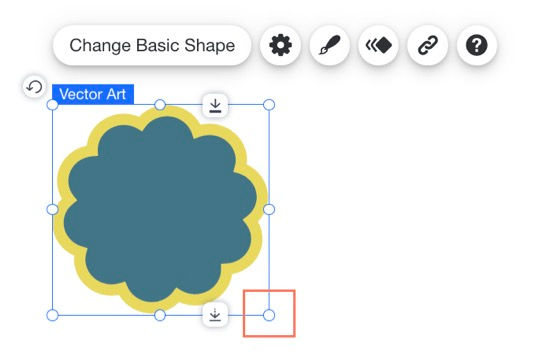
Don't want to stretch your shape?
To keep your shape in the same proportions, click the Settings icon

, then enable the Keep original proportions toggle.
Switching to a different shape
You can play around with different shapes, and change them as often as you want.
To switch to a different shape:
Click the shape in your editor.
Click Change Basic Shape.
(In the Media Manager) Browse the shape library using the categories on the left and select a new shape.
Click Add to Page.

Using your shape as a button
Add a link to your shape so that when your site visitors click it, they are taken to the link destination. This can be used in a variety of ways, such as linking a 'contact' shape to your contact page, or a 'burger' shape to your food menu page.
To turn your shape into a button:
Click the shape in your editor.
Click the Link icon

.
Enter the link details.
Click Done.

This article is credited to the Wix team - https://support.wix.com/ and we thank them for that!

Comments