Wix Editor: Creating Members Only Pages

Updated: 7 days ago
Create Members Only pages, available exclusively to your logged-in members. Choose whether to display this page to all members or members with certain roles and pricing plans.
Note:
Make sure that you've added a Members Area to your site before creating Members Only pages.
Creating Members Only pages
Create a Members Only page to give select visitors access to exclusive content.
To create a Members Only page:
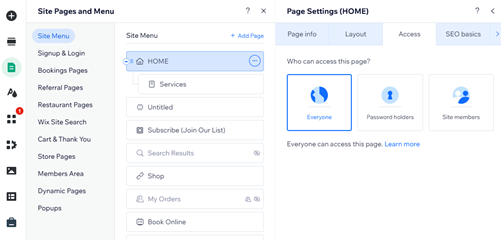
Click Pages & Menu

on the left side of the editor.
Hover over the relevant page and click the More Actions icon

.
Click Settings.
Click the Access tab.
Select Site Members.
Select which members can access this page:
All members: Any signed in member can access this page.
Specific members: Limit this page to specific members only. You can choose one or both of the following options:
Members with roles: Members with a specific role.
Click Manage Roles.
Note: If you have not created member roles, click Create Role.
Select the checkbox next to the relevant role(s) and click Apply.
Members with plan subscriptions: Members who've purchased a specific pricing plan.
Click Manage Plans.
Note: If you have not created a pricing plan, click Create Plan.
Select the checkbox next to the relevant plan(s) and click Apply.
Note:
By default, the Site collaborators toggle is always enabled. This ensures you and your collaborators are able to access all parts of your site.
FAQs
Where can I see a list of my members and their roles / pricing plans?
Click Manage Site Members at the bottom of the permissions tab to view your site members and manage settings like permissions, badges and contact info.
Can I manage and engage with my members on mobile?
Absolutely. Choose your preferred member app, and after your site members download the members app they can perform all the actions they would on your site from the app including purchasing products, booking services, chatting with you from their Inbox and more.
This article is credited to the Wix team - https://support.wix.com/ and we thank them for that!

Comments