Wix Editor: Creating a Landing Page (E.g. 'Coming Soon' Page)

Updated: 7 days ago
A landing page enables you to create an intent-focused experience for your site visitors, such as an 'Under Construction' or 'Coming Soon' page. Landing pages can capture your visitors' attention, and encourage them to interact by performing actions such as subscribing to your site, or signing up for your services.
Your landing page should not display a header or a footer. This encourages visitors to focus on the message of your page, and is also helpful if your site is not yet ready.
You can create a landing page from scratch, or choose a template available from Wix.

Creating a landing page from scratch
Begin creating a landing page from scratch by adding a blank page to your site. You can then customize and build the site by adding elements such as images, text, and forms.
To create a landing page from scratch:
Click Pages & Menu

on the left side of the editor.
Click Add Page at the top of the panel.
Choose the page template from the options.
Enter the new landing page name.
Click Done.
Remove the header and footer from this page:
Click the More Actions icon

on the page in the list.
Click Settings.
Click the Layouts tab.
Select No Header & Footer.
(Optional) Make the landing page your site's homepage:
Click the Page Info tab.
Click Set next to Make this your homepage?.
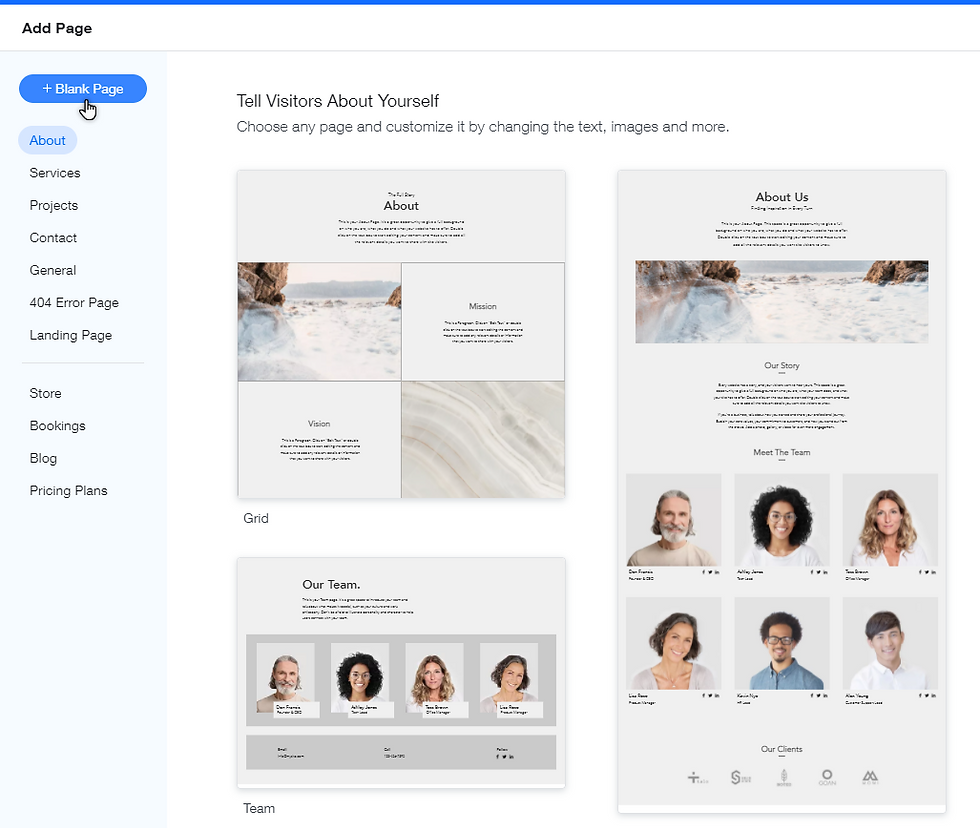
Creating a landing page using a template
Add an optimized template from Wix to build your landing page much quicker.
There are a variety of options to choose from, and the templates include elements such as forms and headings to help you build an eye-catching and engaging landing page.
To add a landing page template:
Click Pages & Menu
on the left side of the editor.
Click +Add Menu Item at the bottom of the panel.
Click New Page.
Click Landing Page from the menu on the left.
Hover over your chosen page and click Add Page.
Type the name for the page in the field.
Click Done.
Remove the header and footer from this page:
Click the More Actions icon
on the page in the list.
Click Settings.
Click the Layouts tab.
Select No Header & Footer.
(Optional) Make the landing page your site's homepage:
Click the Page Info tab.
b. Click Set next to Make this your homepage?.

Tip:
You can also build a striking and informative and landing page site with our free landing page builder.
Useful information about landing pages
When designing your landing page, it is important to keep the below points in mind:
If you want the landing page to be the first page that people see when they access your site URL, you need to set it as your homepage.
If you are not ready for visitors to view your whole site, you can also prevent search engines from finding your site.
You can build awareness and excitement for your site or brand by linking the landing page in an email marketing campaign.
If you have set your landing page to not display the header or footer, you should also keep these points in mind:
It does not have a menu. If you want your visitors to be able to navigate to the rest of your site, make sure to link a button to your site's main page.
It does not display elements set to "show on all pages".
Certain apps might not appear on your page.
Want to learn more about landing pages?
The Wix blog has information on how landing pages can help you achieve your goals.
This article is credited to the Wix team - https://support.wix.com/ and we thank them for that!

Comments