Wix Editor: Adding and Setting Up an Image Button

Updated: 7 days ago
Image buttons are a unique way to encourage visitors to interact with and navigate around your site. They use images to give your site something extra, and display a unique effect when visitors hover over them. You can also customize the design of the buttons for each of their states; regular, hover and clicked view.
Learn more about the button states
Regular: How the button is displayed on your site before visitors interact with it.
Hover: How the button looks when a cursor is hovering over it.
Clicked: How the button is displayed once it's been clicked.
Note: Hover (tap) effects on image buttons are not currently supported on iOS. Viewers on iOS devices do not see the hover state if they tap the button.
Step 1 | Add your image button
Choose an eye-catching design from the Add Elements panel to get started on setting up your image button. There are a variety of options to choose from, all with their own striking effects.
To add an image button:
Click Add Elements

on the left side of the editor.
Click Button.
Click Image Buttons.
Click or drag the relevant button to add it to your page.

Step 2 | Add a link to your image button
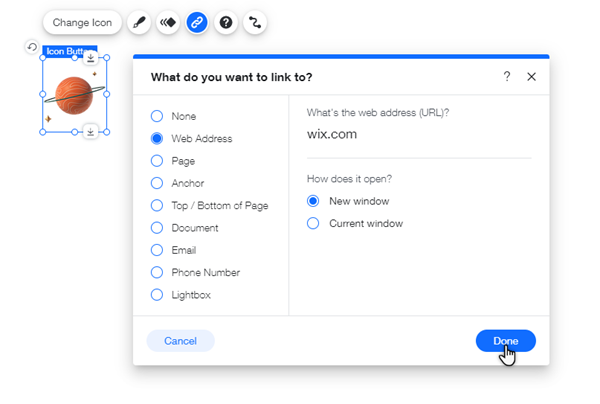
Link your image buttons to direct visitors to parts of your site, or to encourage them to perform an action. Options you can link your button to include pages, anchors, and external sites.
To add a link to your image button:
Select your new button.
Click the Link icon

.
Select a link type on the left.
Depending on the link type you selected, add the relevant information.
Click Done.
Step 3 | Customize your image button
Customize your image button to suit your site's look and feel. You can apply animation and transition effects, and add a tooltip to advise visitors on where the button will lead them to.
Click an option below to learn how to adjust and customize your image button.
Change the button's image
Select the button in your editor.
Click Change Image.
Click the relevant tab at the top of the panel to select the button state you want to edit: Regular, Hover, or Clicked.
Click Change Image.
Choose what kind of image you want to use:
Click Media from Wix to choose from a variety of free images offered by Wix.
Click + Upload Media to upload and use your own image.
Click Apply.
Apply a transition effect to your button
Select the button in your editor.
Click Change Image.
Choose Dissolve under Apply transition effects?.
Add a tooltip to your button
Add a tooltip to provides visitors with helpful context or guidance when they hover over the button, enhancing usability.
Select the button in your editor.
Click Change Image.
Enter the text of your tooltip under Tooltip text.
Note: Adding a tooltip is a crucial step towards making your site accessible.
Add an accessible name to your button
Add an accessible name to improve screen reader support and make the site more inclusive and user-friendly for visually impaired visitors.
Select the button in your editor.
Click Change Image.
Enter the description of your image button under Accessible name.
Add an animation effect to your button
Select the button in your editor.
Click the Animation icon

.
Select an animation to apply to the button.
(Optional) Click Customize to adjust the animation.

Note:
If you want to change the color of an image from Wix, you must edit it in an external program, then upload the file to your Media Manager.
This article is credited to the Wix team - https://support.wix.com/ and we thank them for that!

Comments