Wix Editor: Adding and Setting Up a Slideshow

Updated: 6 days ago
Slideshows are a fun, interactive way to display content and information on your site.
Slideshows can be used to display almost anything on your site. Some examples include:
To introduce your business
To promote sales and special offers
To create modelling, photography, and art portfolios
To show previews of other pages or areas of your site
To highlight specific products
To showcase your services
To display your contact details

Adding a slideshow
You can add a slideshow from the Add panel in the editor. It includes several pre-designed slideshows for you to edit and customize in seconds.
There are two types of slideshows; full-width and box. Full-width slideshows span the width of your page, whereas box slideshows can be adjusted to the width you want.
To add a slideshow:
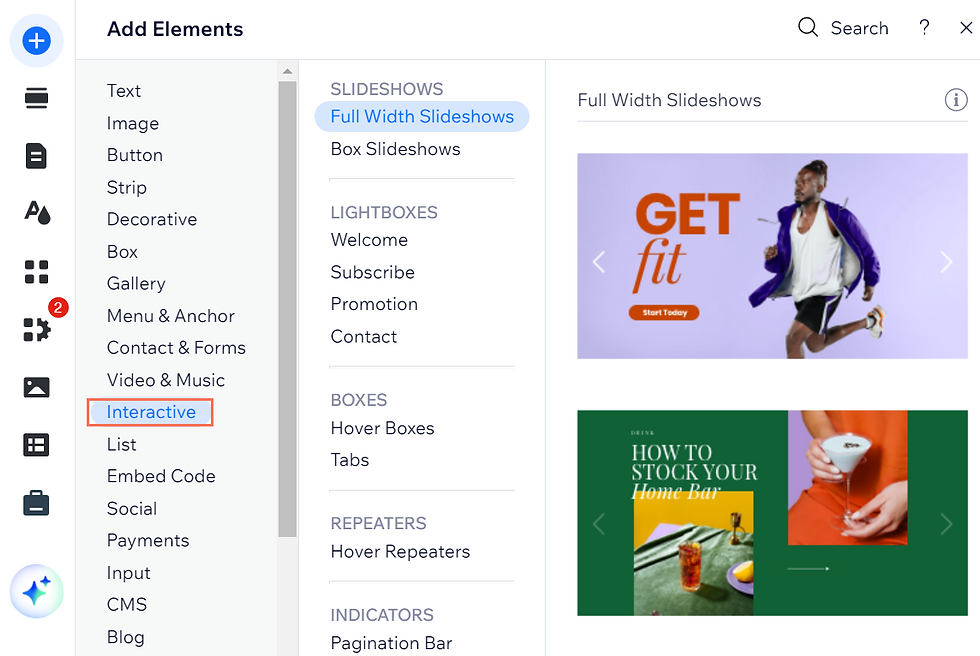
Click Add Elements

on the left side of the editor.
Click Interactive.
Click to full-width or box slideshows.
Click a slideshow to add it, or drag the slide element to the relevant location.
Adding slides to your slideshow
Add as many slides as you want to your slideshow from the Manage Slides panel. You can choose to add a new slide or duplicate slides which allows you to keep a consistent design throughout your slideshow.
To add more slides:
Click your slideshow in the editor.
Click Manage Slides.
Click an option:
Duplicate Slide: This duplicates the slide that is highlighted in your slide list. It's a great option if you want to add another slide with the same design. You can then adjust the content on the new slide as you need.
Add New Slide: This adds a slide with the same background as the one that is highlighted in your slide list, without any content.

Building your slideshow's content
Add whatever elements you want to your slideshow including text, images, videos and buttons.
We recommend that you add different content to each slide to encourage your visitors to keep interacting and exploring your site.
To add content to your slideshow:
Click your slideshow in the editor.
Click the blue arrows to navigate to the relevant slide.
Drag an element on to the slideshow to the position you want.

Important:
Make sure that the elements that you are adding to the slideshow are smaller than the slideshow itself, so that they fit inside it.
FAQs
How do I navigate between slides inside the editor?
To access and edit a slide in your slideshow, click the slideshow in your editor, then click the arrows next to the slide number to navigate between them.

Can I design my slideshow?
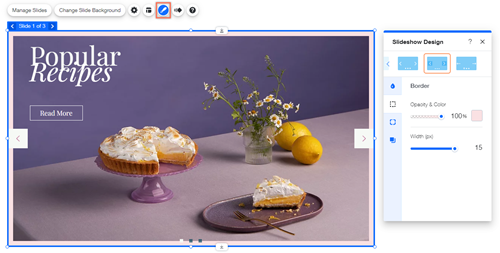
Absolutely. Use the design panel to customize your slideshow background, and add options such as borders and shadows.
How do slideshows play on my live site?
You can choose how slideshows play on your live site from the following options:
Autoplay: The slideshow automatically plays for your visitors when the page loads. You can adjust the time between slides. Learn how to set up autoplay.
Navigation buttons and arrows: You can add navigation buttons and arrows to your slideshow so visitors can manually click through the slides at their own pace.
Can I display content hanging over the edge of my slideshow?
Absolutely. When designing your slideshow, you may see that some of your slideshow content is hanging over the edge of the slideshow frame. You can choose to cut the content that is over the edge, or leave it like that.
To change the content outside frame setting:
Click the slideshow in the editor.
Click the Settings icon

.
Click the Hide content outside frame toggle:
Enabled: Elements that are over the edge of the slide are cut off so that they appear inside the slide only.
Disabled: Elements that are over the edge of the slide are not cut off.
This article is credited to the Wix team - https://support.wix.com/ and we thank them for that!

Comments