Wix Editor: Adding and Setting Up a Horizontal Menu

Updated: 7 days ago
Horizontal menus display your items and drop-down menus clearly to help your site visitors navigate around your site. They are usually placed at the top of your site's pages.

Step 1 | Add a horizontal menu
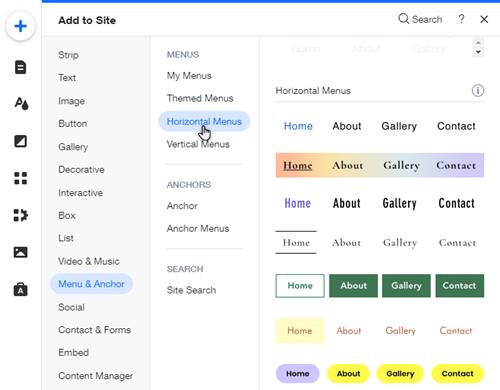
Add a horizontal menu to get started on creating something fun and informative for your site. There are a variety of colorful and bold options to choose from, and you can customize and adjust the layout.
To add a horizontal menu:
Click Add

on the left side of the Editor.
Click Menu & Anchor.
Click Horizontal Menus.
Drag a menu onto your page.
Step 2 | Design the menu
After adding the menu, you can begin customizing it to look exactly how you want. The menu items have three separate states that can be adjusted separately:
Regular: How the item/text looks before a visitor has moved their cursor over it.
Hover: How the item/text looks when a visitor's cursor is hovering over it.
Current page: How the item/text is displayed when it is the page the visitor is currently on.
You can customize the design for each of these states, such as the text, fills, borders, and more.

To customize the menu design:
Click the menu.
Click the Design icon

.
Click Customize Design and adjust the menu with the available options.
Tell me more
Menu:
Fills

: Customize the menu's fill color and opacity.
Borders

: Adjust the menu's border width, color, and style.
Corners

: Adjust the menu's corner radius.
Shadow

: Add and customize a shadow.
Layout

: Adjust the menu's padding.
Items:
State: Choose the state of the menu item you wish to customize.
Fills
: Choose the item's fill color and opacity.
Borders
: Adjust the items's border width, color, and style.
Corners
: Adjust the item's corner radius.
Shadow
: Add and customize a shadow.
Text:
State: Choose the state of the menu item you wish to customize.
Themes: Choose your text's theme.
Fonts: Choose the text's font and size.
Format: Adjust the text's format, alignment, color, etc.
Spacing: Adjust the character spacing.
Shadow: Add and customize a shadow.
Tip:
Click Dropdown Menu from the Customize Design panel to adjust the dropdown menu's items and text.
Step 3 | Adjust the layout of the menu
You can adjust the layout of your site menu to further suit your site's needs. You can edit the menu and dropdown menu layout settings separately, and adjust settings such as text, spacing, and alignment.
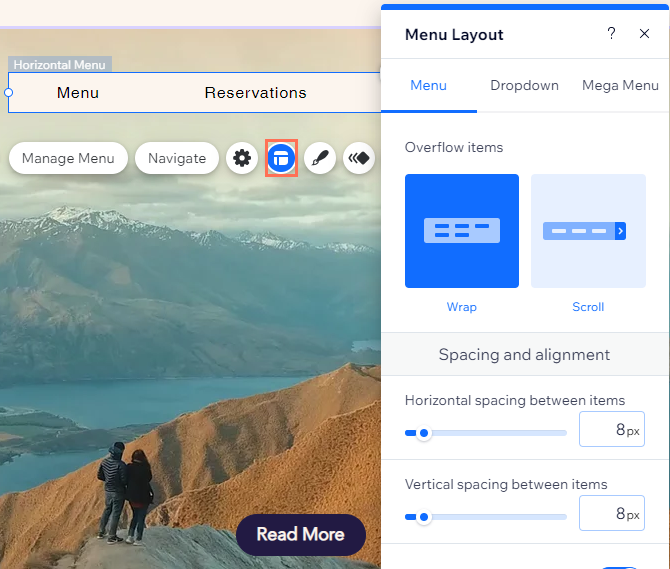
To adjust the layout:
Click the Layouts icon
.
Click either the Menu or Dropdown menu tab and customize the options:
Menu layout options
How to display items that don't fit: Choose how to display items that don't fit in the menu:
Wrapped: A second line is added to display the menu items.
Scroll: Visitors can view the hidden menu items by scrolling.
Horizontal spacing between items: Use the slider to adjust the horizontal spacing between menu items.
Vertical spacing between items: Use the slider to adjust the vertical spacing between menu items.
Items fill the whole menu: Click the toggle to enable or disable this option:
Enabled: Menu is stretched to fit the entire menu.
Disabled: Items are not stretched, and are automatically aligned to the left, right, or center of the menu.
Align text: Align the text to the left, right, or center.
Display items from: Display items from left to right, or right to left.
Item Padding: Use the sliders to adjust the vertical and horizontal space each item takes up in the menu.
Dropdown menu layout options
How do dropdown menus open?: Select how the dropdown items appear:
Flyout: The dropdown items appear under the menu items.
Columns: Columns appear under the main menu, containing the dropdown items.
Spacing between menu & dropdown menu: Use the slider to adjust the distance between the menu and the dropdown menu.
Stretch to full width: Use the toggle to enable or disable this option:
Enabled: Dropdown menu stretches to full width of the page.
Disabled: Dropdown menu stays within the gridlines of the main menu.
Number of columns: Use the slider to adjust how many columns are in the dropdown.
Align columns: Choose to align columns to the left, right, center, or justified.
Spacing between columns: Use the slider to adjust the distance between columns.
Align dropdown menu: Align the dropdown menu to the left or center.
Align text: Align the dropdown text to the left, right, or center.
Padding: Use the sliders to adjust the horizontal and vertical space the dropdown menu fills.
Spacing between items: Use the slider to adjust the spacing between dropdown items.
Note: There are different customization options depending on the display option you have selected (Flyout/Columns).
What's next?
Add items to your menu to direct visitors to interesting and relevant content. Learn how
This article is credited to the Wix team - https://support.wix.com/ and we thank them for that!

Comments