Wix Editor: Adding and Customizing Text Masks

Updated: 7 days ago
Text masks are a great tool for short pieces of text that should grab your visitors' attention. They offer the ability to display an image, video or gradient inside so that your text really stands out on the page.

Adding a text mask element
Let's start by adding a text mask element to your site.
Best practice:
We recommend adding up to 10 text masks per page, to ensure the best site performance on mobile.
To add a text mask element:
Open the relevant page in your Editor.
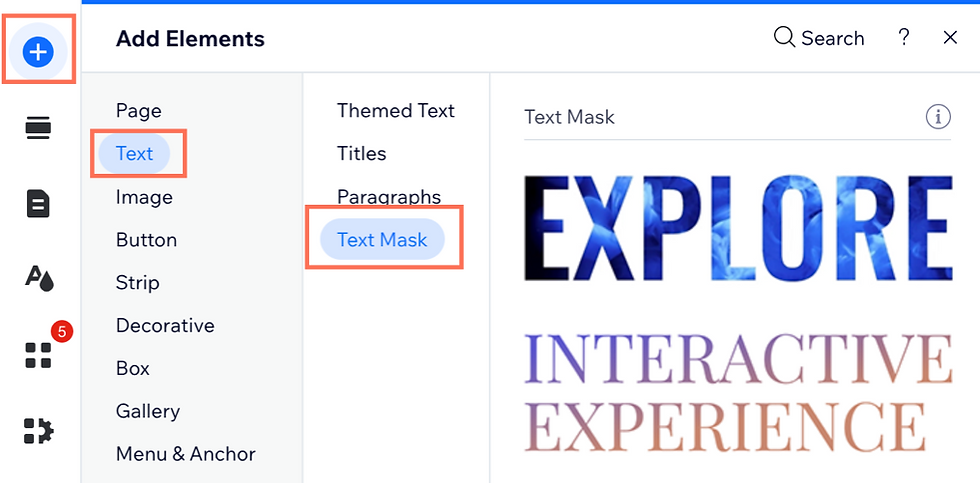
Click Add Elements

.
Click Text.
Click Text Mask.
Drag a text mask design you like onto your page.
Tip: Some of our designs include a video background. Hover over a design to see it in action.
Changing the text on a text mask
Once you've added your text mask element, you can start to customize it. First, let's change the text.
To change the text:
Click the text mask element in your Editor.
Click Change Text.
Enter your text under Add your own text.
Note: The text saves automatically.

Resizing a text mask element
Next, resize the text mask element so that it fits perfectly on your page.
To resize a text mask:
Click the element in your Editor.
Drag the handles around the element to make it bigger or smaller.

Designing a text mask element
Finally, add some flare to your text mask, by changing the design.
To design a text mask:
Click the text mask element in your editor.
Click the Design icon

.
Choose how you want to design your text mask:
Customize the fill
Click the Fill icon

.
In the Media tab, click Change Media.
Drag the slider to adjust the opacity of the media fill.
(Optional) Enable the Apply Color Overlay toggle to add a layer of color on top of the background. Tip: You can set the overlay opacity and choose how to blend it under Blend Mode.
Scroll up and click the Gradient tab.
Click the Change Gradient box next to the slider.
(In the Custom Color panel) Choose the type of gradient you want from the dropdown:
Linear, Radial or Conic:
Design your gradient by adjusting the colors, angle and focal point.
Click the Fluid Gradient icon

at the top.
Design your gradient by adjusting the colors and setting the size and spread of each color.
Using a video background?
Visitors can play / pause the video on the live site by clicking the text. This is automatically enabled, and cannot be switched off.
Format the text
Click the Text icon

.
Choose what to do next:
Choose a different font from the drop-down.
Make your text bold, italicized, underlined or add a strike through.
Align your text to the left, center, or right, and choose your text direction (e.g. left to right).
Choose how you want to capitalize your text.
Adjust the amount of spacing between lines and characters.
Choose the relevant HTML tag for your text (e.g. P, Div, Blockquote, H2, etc.) to improve your accessibility and SEO.
Accessibility tip:
If this text mask element is purely decorative, meaning it does not include important information for screen readers, select the checkbox next to Decorative. This hides the element from screen readers and changes the heading tag to 'Div'.
Define the shadow
Click the Apply shadow toggle to enable it.
Click the wheel to adjust the angle of the shadow, or enter the angle degree in the box.
Distance: Change the amount of distance between the text and the shadow.
Blur: Make your shadow more or less blurry, depending on what you like.
Opacity and color: Adjust the opacity and color of your shadow.
This article is credited to the Wix team - https://support.wix.com/ and we thank them for that!

Comments