Wix Editor: Adding and Customizing Images on Your Mobile Site

Updated: 6 days ago
Create a beautiful visual experience on your mobile site by refining the images carried over from your desktop version, as well as customizing the images you add from the mobile editor.
Customization of images carried over from desktop is limited - you can adjust your image settings, crop the image and add fun animations.
With images that you add from the mobile editor, you have full control over customization - add filters and frames, customize what happens when an image is clicked and more.
Not sure if it's a mobile or desktop element?
Mobile-only elements display a mobile icon

when you click them.

Images carried over from your desktop version
Images you add to the desktop version of your site are automatically carried over to your mobile site. You can customize the image's settings, crop it, and add an animation to make it different from the desktop version.
To customize images carried over from desktop:
Click the image in your mobile editor.
Depending on what you want to customize, do the following:
Change my image settings
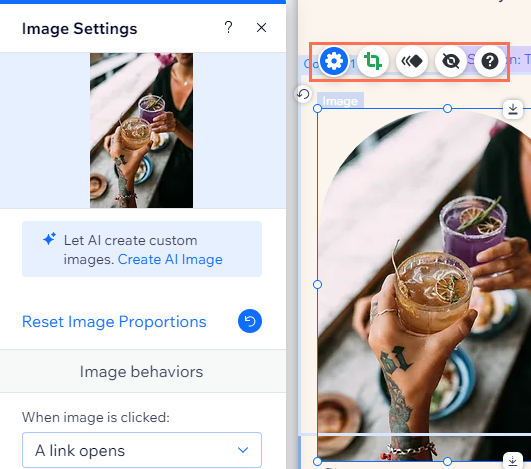
Customize how your visitors interact with your images as well as what happens when images are resized on different mobile devices.
Click the Settings icon

.
Choose from the following customization options:
Reset Image Proportions: Reset the images original proportions.
Image Behaviors: Decide how your visitors interact with images.
When an image is clicked:
Nothing happens: The image is not clickable, nothing happens when it's clicked.
A link opens: The image acts as a button and can be linked to a page, anchor on your site, an external URL, and more.
It opens in a popup: The image opens in a pop-up window.
It can be magnified: The image is magnified when it's clicked.

Crop my image
Present a new version of your image in your mobile view by manually cropping your image or use a shape crop.
Click the Crop icon

.
Drag the slider to zoom the image in and out.
Choose how you want to crop your image:
Move the image to display the part you want.
Click the Shape Crop icon

and choose a shape.
Click Apply.

Add an image animation
Add a fun animation to your image on mobile to liven up your site.
Click the Animation icon

.
Select the animation you want to apply.
Click Customize to adjust your animation.

Images added from the mobile editor
Choose from a variety of image types to add to your site, directly from the mobile editor. Images added inside the mobile editor are fully customizable. Adjust your image settings and design, add filters, crop and even add animations.
What types of images can I add in the mobile editor?
My Uploads: Upload your own image files to use on your site.
Image Collections: Choose from hundreds of stock pictures and illustrations available from Wix, Shutterstock, and Unsplash.
My Social Images: Connect your social media accounts to display images from platforms such as Facebook and Instagram.
To add and customize mobile-only images:
Click Add to Mobile

on the left of the mobile editor.
Click Image.
Select the image type you want to add.
Click the image you want to upload and click Add to Page.
Depending on what you want to customize, do the following:
Change my image settings
Decide what happens when your image is clicked, add a tooltip and / or Alt text to help Google read your image. You can also choose what happens to your images when they're resized.
Click the Settings icon

.
Choose what to adjust:
Add alt text: Enter the text in the What's in the Image? Tell Google text field.
Add tooltip: Enter the text in the Does this image have a tooltip? text field.
Reset the image to its original proportions: Click Reset Image Proportions.
Set what happens when an image is clicked: Select an option from the dropdown:
Nothing happens: Nothing happens when the image is clicked.
A link opens: The image acts as a button and can be linked to a page, position or anchor on your site, an external URL, a document or an email address.
It opens in a popup: The image opens in a popup window.
It can be magnified: The cursor becomes a magnifying glass when a visitor hovers over the image. Clicking the image magnifies it.

Add an image frame design
Change your image's design and customize how your image frame looks on your mobile site.
Click the Design icon

.
Select a preset design or click Customize Design.
Choose what to do:
Select a preset design.
Click Customize Design to customize the following settings:
Fill Color & Opacity: Select the image's colors and opacity.
Border: Design your image's borders.
Corners: Round your image's corners.
Shadow: Design a shadow for your image.

Crop my image
Present a new version of your image in your mobile view by manually cropping your image or use a shape crop.
Click the Crop icon
.
Drag the slider to zoom the image in and out.
Choose how you want to crop your image:
Move the image to display the part you want.
Click the Shape Crop icon

and choose a shape.
Click Apply.

Add filters and animations
Transform your image by applying one of our filters and add a cool animation to liven up your mobile site.
To add a filter:
Click the Filters icon

.
Click any filter to add it to your image.
To add an animation:
Click the Animation icon

.
Select the animation you want to apply.
Click Customize to adjust your animation.

Add a link to my image
Add links to your images to encourage visitor interaction on your site.
Click the Link icon

.
Select the link type and enter the details.
Click Done.


This article is credited to the Wix team - https://support.wix.com/ and we thank them for that!

Comments