Wix Editor: Adding a Page to Your Site

Updated: 7 days ago
Add pages to create an informative and interesting site for your visitors.
There are a variety of page types available, so you can find whatever you need to build your online presence. Each page type also has a range of preset design options with useful elements to help you expand your site quickly and easily.

Adding a new page
Choose from a variety of professional pre-designed pages offered by Wix, or start from scratch with a blank page. Any new page you add is automatically added to your site menu.
To add a new page:
Click Pages & Menu

on the left side of the Editor.
Click Site Menu.
Click Add Menu Item at the bottom of the panel.
Select New page.
Select either a blank page or a template:
Add a blank page: Click + Blank Page at the top left.
Choose a template: Hover over the design you want to use and click Add Page.
Enter the new page name in the Pages panel.
Click Done.
Design the new page to your liking.

What's next?
Add links to help direct visitors to relevant and important content.
Available page templates
Pre-designed pages include all the elements you need, organized in a sleek layout that is easy to manage. Our templates are organized by category so you can easily find the right page for your site.
Select an option below to learn more about the available template types.
About
Use these pages to introduce yourself and your business, and make a personal connection with your visitors. Give them a good perspective on who you are by sharing your resume, story, or team.

Services
Use these pages to give an overview of the services that you provide. Services pages are equipped with advanced layout tools, such as strips, repeaters and forms. You can add and remove these items as needed, and customize them to fit your site's look and feel.

Projects
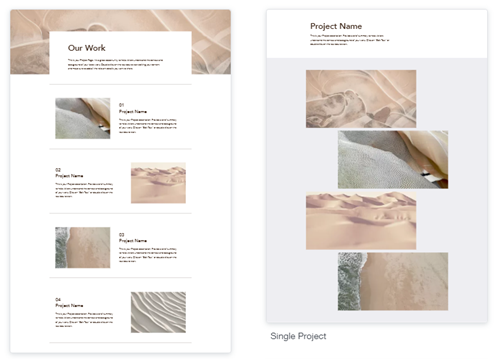
Use these pages to showcase completed projects and those you're currently working on. You can choose from a number of layouts, depending on whether you want to include image descriptions and text.
Contact
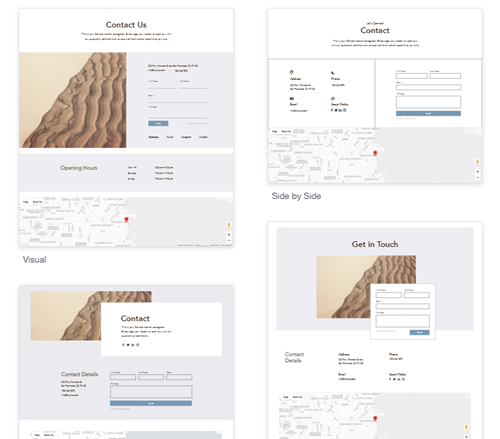
Use these pages to inform your visitors of all the possible ways to contact you. Contact pages include elements like a contact form, social links and a Google Map in case you want to pin your physical location.
General
Use these pages for any kind of purpose. General pages feature many different layouts and elements that you can tailor to your site's needs. Some pre-built elements include galleries, buttons, and text boxes.

404 error page
Add and adjust a custom 404 error page. These are the pages your visitors see if they click a link to your site that doesn't work. You can even customize it to suit your site's theme and feel.

Important: You need a Premium Plan in order to create a custom 404 error page.
Landing page
Add a landing page to your site to keep your visitors updated and informed on your brand. You can choose from a range of options such as "Coming Soon" and "Down for Maintenance" pages. Some built-in elements include forms and app store buttons.


Restaurants
Add Wix Restaurants to showcase and build your restaurant site. The app includes multiple restaurant pages to allow visitors to view your menu and order their favorite dishes online.

Bookings
Add Wix Bookings to your site so visitors can view, book, and pay for your services in one place. The app includes booking pages and members pages, so you and your visitors have everything you need.

Blog
Add a blog to your site to share news, thoughts, and opinions with your visitors. Wix Blog comes with a blog page that showcases all of your categories and posts, and a page that displays singular posts.

Pricing Plans
Use Pricing Plans to showcase your subscriptions, packages, and memberships. It includes a page to display your services, as well as members pages for your visitors to manage their account and subscriptions.

Dynamic pages
Dynamic pages are an easy way to display data from your CMS (Content Management System) collections. Use them to showcase any repeating content, such as property listings and portfolios. The presets include a collection, as well as a dynamic list page, and a dynamic item page.

Did you know?
You can easily navigate to different pages by selecting the Switch page panel on the top bar of the Editor.
This article is credited to the Wix team - https://support.wix.com/ and we thank them for that!

Comments