Wix Editor: About Vector Art

Updated: 6 days ago
Add stunning vector art to your site.
Vector art images are digital illustrations or icons. They are created using vector illustration software, and bring life and color to your site. Our Vector art images are SVG files (Scalable Vector Graphics), which means you can resize your image without compromising its quality.
Choose from the hundreds of free options available at Wix, or upload your own. Open the editor and add Vector art to your site

Adding vector art
Vector art can be used for decorative purposes, or as a striking call-to-action.
When adding vector art to your site, you can either choose from the hundreds of free options available from Wix, or you can upload your own. Click an option below to learn more.
Choose from the free options available from Wix
Click Add Elements

on the left side of the editor.
Click Vector Art.
Click or drag your chosen vector art to add it to your page.

Upload your own vector art
Click Media

on the left side of the editor.
Click the Upload Media icon

.
Select your file(s) from your computer.
Click Open.
(Optional) Select the vector art and click Add to Page to add it to your site.

Designing vector art
Begin designing your vector art to suit your site by clicking the Design icon

. You can customize many aspects of your vector art, including the colors, opacity, and shadow.
At Wix, vector art is categorized into four types based on its colors and shapes. The customization options shown will depend on the type of vector art that has been added to the site.
Click the options below to learn how to design each type.
Basic shapes
Basic shapes are a type of vector art that have one color. You can adjust this color and its opacity, as well as adding and customizing a border. After clicking the Design icon
, choose from one of the below options to customize:
Fill color: Choose the vector art's color and adjust its opacity using the slider.
Border: Apply a border, and adjust its color, opacity, and width.
Shadow: Apply a shadow, and adjust its angle, blur, color, opacity, and distance.

Vector art with one color
Some vector art (such as icons) only have one color. You can change and adjust this color, as well as adding and customizing a shadow. Click the Design icon
and choose from the following options to customize:
Fill colors: Choose the vector art's color and adjust its opacity using the slider.
Shadow: Apply a shadow, and adjust its angle, blur, color, opacity, and distance.

Vector art with 2-8 colors
These types of vector art are generally more detailed. Each color in the illustration can be changed, and you can also add and adjust a shadow. Simply click the Design icon
and choose from the options below:
Fill colors: Choose the vector art's colors, and adjust its opacity using the slider.
Shadow: Apply a shadow, and adjust its angle, blur, color, opacity, and distance.
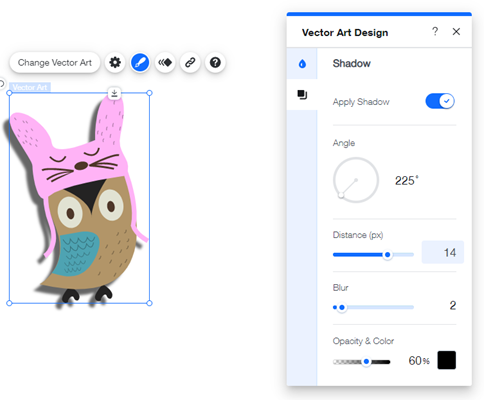
Note: It is not possible to change the opacity separately for each color.
Vector art with greyscale
Vector art with greyscale generally contains different shades of the same color. If this color is changed, the whole tone will be affected. You can edit this and any other secondary colors in the art, as well as add and adjust a shadow. Simply click the Design icon
and choose from the available options:
Fill colors: Choose the vector art's colors, and adjust its opacity using the slider.
Shadow: Apply a shadow, and adjust its angle, blur, color, opacity, and distance.

Note: It is not possible to change the opacity separately for each color.
Important:
Vector art you upload is categorized into one of these four types, and the customization options are displayed accordingly. You cannot customize the colors of your vector art if we do not identify it as one of the types listed above.
Adding a link to your vector art
Add a link to your vector art to create a button or call-to-action. You can link to many places, such as a page on your site, an external URL, or even a phone number. Adding a link is a great way to encourage interactivity from your site visitors, and create something that is both eye-catching and functional.
To add a link to your vector art:
Select the vector art in your editor.
Click the Link icon

.
Select the type of link you'd like to connect to the vector art from the list on the left.
Enter the relevant information.
Click Done.

Adding animation to your vector art
Animation is a great way to bring vector art to life. With plenty of options available, you can create something fun and colorful.
To add animation:
Click the Animate icon

.
Select an animation.
Click Customize to adjust its settings.

This article is credited to the Wix team - https://support.wix.com/ and we thank them for that!

Comments