Wix Editor: About the Mobile Editor

Updated: 6 days ago
Want your site to look amazing on mobile? Use the mobile editor to create a mobile view that's fully functional and professional-looking.
Change the background, hide desktop content and replace it with mobile-only elements. To enhance the experience even further, you can add elements like a Back to Top button and a Quick Action bar.

Important:
View a list of compatible mobile devices and browsers.
Using the mobile editor
You can access the mobile editor anytime by clicking the Mobile icon

on the top of the editor.

Your mobile view is a reflection of your desktop view, which means it displays all the same elements and content. Your fonts, images and elements are automatically resized for optimal view, which gives you time to make the mobile experience truly unique.
The left-side menu
On the left side of the editor, you'll find the tools you need to customize your mobile-friendly view. Add new elements, navigate between site pages, even access hidden desktop elements.

Hidden desktop elements
For your convenience, Wix automatically creates a mobile-friendly version of your site using the content from your desktop site. In this process, elements that aren't optimized for mobile are automatically hidden (e.g., hover interactions, third-party apps and more).
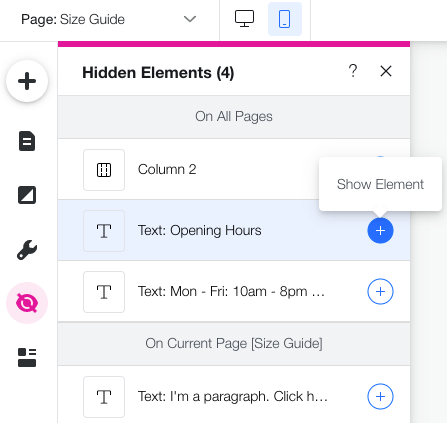
Click the Hidden Elements icon

on the left side of the editor to see these elements. If there are additional elements you don't want to display on mobile, you can hide and unhide them as you wish.
Show me how
To hide an element:
Click the element in the mobile editor.
Click the Hide Element icon

.
To unhide an element:
Click the Hidden Elements icon
on the left of the mobile editor.
Click the Show Element icon

next to the element you want to show.
Customizing your mobile view
The mobile Editor gives you full creative freedom while adjusting your site to mobile. You can make small adjustments and keep the same feel, or create a different look just for mobile. The design changes you make on mobile don't affect your desktop version.
Click below to learn how to:
Resize your mobile text
Your text size is automatically optimized for your mobile view, however, you can make it as small or as big as you need.
To change the size of your text:
Select the text in the mobile editor.
Click the Scale Up or Scale Down icons

.

Add animation to an element
Animations are an incredible addition to mobile sites as they make the experience more dynamic and engaging. You can add animation to any element, and there's a variety of effects to choose from, including "Puff-In", and "Reveal".
To add animation to an element:
Select the relevant element in the mobile editor.
Click the Animation icon

.
Select an animation from the available options.
(Optional) Click Customize to adjust the animation's settings (e.g., Power, Duration, Delay).

Customize your mobile menu
Every part of your menu on mobile is fully customizable. This includes the icon that visitors click to open it, the box showing the menu as well as the menu items.
Mobile Menu Icon: Select the icon on your page to customize it:
Click the Design

icon to adjust the design or choose a different preset. You can design the icon differently for when the menu is Open or Closed.
Click the Settings icon

to freeze it. This pins the icon to the page so it always stays at the top.
Click Edit Menu to access and design the menu box.
Mobile Menu Box: Select the menu box to customize it:
Click Change Background to choose a different background color / image for this box.
Click the Design icon
to change the overlay color and / or opacity.
Click the Layout icon

to change the way your menu opens: On the right, on the left or full screen.
Mobile Menu: Select the menu element to customize it:
Click Change Background to choose a different background color / image for this box.
Click the Design icon
to design the selected and regular states of the menu. You can change the color, border, text formatting, spacing and more.
Click the Layout icon
to change the way your menu opens: On the right, on the left or full screen.
Want to remove elements from the menu box?
Remove an element from your menu (e.g., login bar, social bar) by right-clicking it and selecting Move To. You can move it to your site's header or footer without affecting the desktop view.

Re-order your page sections
Re-arrange the order of the sections on your site. To get the best perspective, zoom out first so you can see more of your current page.
To re-order your page sections:
Click the Zoom Out & Reorder icon

on the top bar of the mobile editor.
Re-order the sections in one of the following ways:
Click and drag the relevant section to the new location on the page.
Click the Move Up

and Move Down

icons next to the relevant section. Learn more

Change a page's background
You can change your page's background on mobile without affecting your desktop background. Choose a different color, image or video that's better suited for mobile.
To change the background:
Click the relevant page in your mobile editor.
Click the Background icon

on the left of the mobile editor.
Select a background color, image or video.

Adding mobile-only elements
The mobile editor lets you add as many elements as you need to your mobile view. These elements are completely optimized for mobile so you don't have to worry about sizing. You can add text, images, buttons, embeds and more directly from the Add panel.

Elements that you add on mobile don't appear on the desktop version of your site. Mobile-only elements are marked with an icon

so you can easily understand what appears where.

Tip:
Mobile-only elements cannot be pasted to the desktop editor. You can add elements to the desktop editor with the Add panel.
Mobile tools
The Mobile Tools panel provides useful features that increase engagement and make site navigation much easier on mobile.
Add a welcome screen to greet your visitors, a Quick Action bar to drive them to action, and a Back to Top button at the bottom of long pages. For visitors who are using Chrome on Android, you can also make the browser's theme color change once they enter your site.
Show me how
Access the mobile editor.
Click Mobile Tools

on the left side of the mobile editor.
Click the Add to site icon

next to the element you want to add.
Prefer keeping the desktop version?
You can always disable the mobile-friendly view of your site.
This article is credited to the Wix team - https://support.wix.com/ and we thank them for that!

Comments