Wix Editor: About Gallery Image Text

Updated: 7 days ago
Add a title and description to each image in your gallery to enhance your visitors' experience. This is a great way to provide additional context to your images and direct visitors to further information, as you can also include a link.

Optimize your gallery images with text
You can add three text types to your gallery images, and each text type optimizes your gallery's functionality and experience. Depending on the gallery type you choose, you can decide which text to display.
The text types you can add to gallery images are:
Title: Add an image title of up to 36 characters to summarize your image.
Description: Add an image description of up to 500 characters to expand on the content of the image, and provide more details.
Link: Create an interactive gallery experience by linking your image to other sections, pages or sites. You can set your images to open the relevant link once visitors click them.
Note: Links are not displayed in galleries.
Tip:
Adding a title and a description to your images is great for your site's accessibility and SEO. More specifically, the title is used as your image's alt text so assistive technologies and search engines can understand it better.

Choose a gallery that suits your text needs
Wix offers many different gallery designs so you can choose the one that fits your desired layout, whether it includes long or short pieces of text.
Galleries typically have two views on your live site:
Regular: How the images look before a visitor interacts with them.
Hover: How the images look when a visitors hover their cursor over them.
Depending on your needs, you can select a gallery that displays text on both regular and hover view, a gallery that only displays text on hover, or one that doesn't display text at all.

Customize text to look how you want
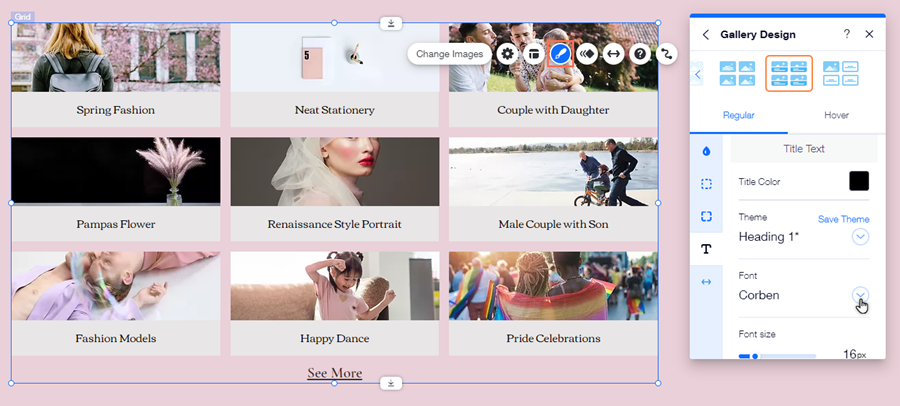
Edit the design of image text to complement your gallery and site's look. Depending on the gallery preset you choose, there are a range of settings that you can adjust to your liking.
Some of these options include changing the font, selecting a color to match your site's theme, making the text bigger or smaller, and setting the alignment of the text. If you have a large gallery with a number of images, you can also customize the text content and design of the Show More button.
Ready to get started?
Learn how to add and set up gallery text
FAQs
What happens if I don't add a title to my image?
When you upload your own image to a gallery, the original file name is automatically assigned as the title, so we recommend changing the title as soon as you add the image to the gallery. You can also change this option from the Media Manager settings. Learn how to upload images without titles
I've chosen a gallery that doesn't display text. Can anyone see it?
You can choose a gallery that doesn't display text, or disable the text from being displayed in the gallery. However, even if your gallery doesn't display text:
It can still be read by search engines and screen readers.
If you set the images to open in a pop-up when visitors click them, the title and description are displayed in the pop-up view.
How does gallery text work on my mobile site?
Gallery image text works differently on your mobile site if you have chosen a gallery that only displays text on hover mode. As it is not possible to hover on a mobile device, the text is displayed when a visitor clicks the gallery.
Galleries that display text on both regular and hover view always display text on your mobile site.
This article is credited to the Wix team - https://support.wix.com/ and we thank them for that!

Comments