Wix Editor: About Buttons

Updated: 7 days ago
Buttons are elements your visitors use to interact with your site. You can link them to a variety of locations such as your site pages, external sites, or even documents. Depending on the button type you choose, there are also a range of customization options available.
Start creating your buttons to make clear call to actions, and encourage your site visitors to explore what you or your brand has to offer.

Find a button for your needs
In the editor, there are a variety of button types available for all of your site and business needs, so you can create a smooth interactive experience for your visitors.
The buttons have a range of different uses and customization options to ensure that you can build a functional, sophisticated site without compromising on design.
You can add the following buttons in the editor:
Text & icon buttons
Text & icon buttons can contain both text and a vector image icon, and you can choose whether to display the text, icon, or both. These buttons are useful for directing visitors to other pages, information, or sites. A popular use for text & icon buttons is to lead visitors to your services or store pages.
There are a range of styles and colors to add, so you don't need to choose between function and design. Learn how to add and set up your text & icon button

Icon buttons
Icon buttons are a fun, minimalist way to encourage visitors to interact with your site. There are hundreds of shapes and icons available in a variety of categories, so you have everything you need to create a clear call to action.
Icon buttons are often used to direct visitors to your contact details and information.
Learn how to add and set up an icon button on your site

Image buttons
Image buttons are an eye-catching way to direct your visitors to the information they need. They display unique effects when your visitors hover over them, which makes interacting with your site a fun, intriguing experience.
Like text & icon buttons, they're useful for directing visitors to site pages and links.
Learn how to add and set up an image button

Document buttons
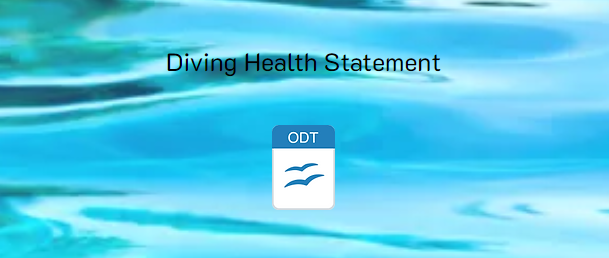
Add and set up a document button to allow visitors to access and obtain files from your site. Document buttons make it easy for your visitors to download important information directly to their devices, which they can then send back to your or your business if needed. For example, you can link the button to an application form or contract.
Learn how to add and set up a document button on your site
iTunes buttons
Use iTunes buttons to share your favorite music with your visitors. You set up the button by adding a iTunes link, so visitors are taken directly to the relevant playlist. These buttons are great for showcasing your own music, or even just the songs you love.
Learn how to add and set up an iTunes button

Payment buttons
Payment buttons provide a smooth express checkout experience for your visitors. Connect the button to your site's payment methods to begin selling single items across your site, so your visitors can buy what they need in just a few clicks.
Learn how to add and set up your pay button
PayPal buttons
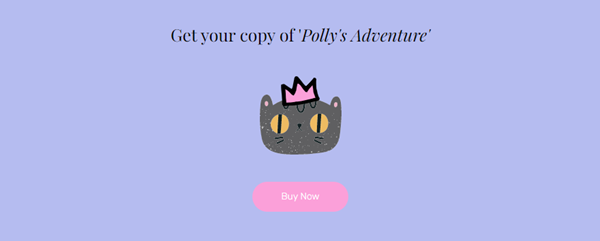
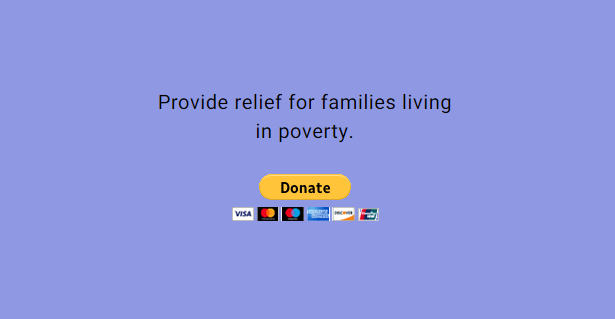
PayPal buttons are a quick and useful way to accept payments on your site. You can add a Buy Now button to sell an item to visitors, or a Donate button to collect donations to you or your brand's organization.
Since you connect the button directly to your PayPal account, you need to set up the button in the editor to begin receiving payments.
Learn more about PayPal buttons
Link your buttons to wherever you want
Add a link to your button to direct your site visitors to the relevant location. You can link to a variety different places and options, depending on your button type and site needs. The types of links you can add to a button are:
Page: Direct your visitors to a different page on your site.
Web address: Link your button to an external URL to bring visitors to another site.
Anchor: Link the button to an anchor on your site. When visitors click it, they are brought to the relevant page and anchor.
Top / bottom of page: When a visitor clicks this, they are brought to the top or bottom of the page they are currently on.
Document: Link the button to a file you've uploaded to your site.
Email: Connect the button to your email address, so visitors can contact you directly from their browser or device.
Phone number: Link a button to your phone number to allow mobile or tablet visitors to call you instantly. Desktop visitors are taken to a calling app, such as FaceTime.
Popup: Link the button to your chosen popup on your site.
Note:
Depending on the button type, you may not see the option to add a link. For example, document buttons can only be connected to files on your site.

Ready to get started?
Learn how to add a link to a button
Design your buttons to match your site
Customize your button in the editor by clicking the Design icon

to change the button's appearance, and the Layout icon

to change its alignment or structure.
Depending on the button type you choose, you may be able to change the color and opacity of the button, as well as setting the alignment and spacing. You can edit as many or as little aspects as you like, so you have comprehensive control over designing a button that fits your brand and theme.

If you want to further personalize your button, you can also add an animation effect to create a unique interaction for your visitors.
Note:
The Design / Layout panels are only available on certain buttons in the editor.
Use buttons for advanced capabilities
With features such as Velo Dev Mode and the CMS, you can use buttons for advanced functions across your site, and create an upgraded, custom experience for your visitors.
By connecting buttons to collections in the CMS, you can define what happens when visitors click the button. One popular use of this is to set up buttons that collect input and information from visitors, such as files or text input.

Enabling Velo Dev Mode on your site allows you to determine a button's behavior with code. For example, you can hide your button from the page until the visitor completes another action on your site, or set custom events. Learn more about working with events and properties

This article is credited to the Wix team - https://support.wix.com/ and we thank them for that!

Comments