Moving a Site to Trash

Updated: 6 days ago
You can delete unused sites from your Sites page by moving them to the Trash folder. Deleting a site unpublishes it, making it inaccessible to visitors online. However, if you change your mind, you have 90 days to restore the site from trash before it is permanently deleted.
Moving a site to trash (deleting a site)
You can move a site to trash directly from your site's dashboard.
Need to move a premium site to trash?
It's not possible to move a premium site to the trash folder. If you wish to do so, first cancel or reassign the plan to another site in your account.
To move a site to trash:
Click the More Actions icon

.
Click Move to trash.

Click Move to Trash to confirm.
Moving multiple sites to trash
You can clean up your Sites page by moving multiple sites to the Trash folder at once.
To move multiple sites to trash:
Go to Sites in your Wix account.
Click the List icon

at the top right.

Select the checkboxes next to the sites you want to move to trash.
Click Move to Trash.

Restoring a site from trash
You can restore a site from the trash folder if you deleted it accidentally, or if you decide you want to use it again. You have 90 days to restore a site from trash before it is permanently deleted.
Note:
Restoring a site from trash does not automatically publish it. Make sure to open your site's editor and publish it to make it live again.
Select the view you're using on your Sites page to learn how to access the trash folder and restore a site.
To restore a site from trash:
Grid View
In the Grid view, the Trash folder appears in the Folders section at the top of the page.
Go to Sites in your Wix account.
Click the Trash folder.

Hover over the relevant site and click Restore Site.
Click Restore to confirm.

List View
In the List view, the trash folders appears in the site list.
Go to Sites in your Wix account.
Click the Trash folder.

Hover over the relevant site and click the More Actions icon

.
Click Restore site.

FAQs
Click a question below to learn more.
Can I delete a site with an active Third-Party app subscription?
No, it is not possible to move a site with an active Third-Party app subscription to trash. You must first cancel the subscription and wait until it expires.
Will my site always be available to restore from trash?
Sites that have been in trash for more than 90 days will be permanently deleted and cannot be restored.
Why is the option to move a site to trash not available to me?
If the option to move a site to trash is grayed out, it's possible that you're a collaborator on the site and do not have permissions to delete it.
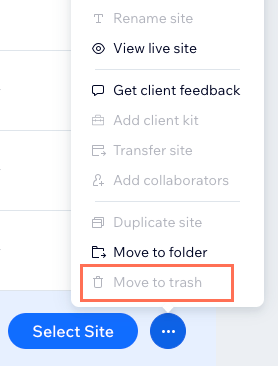
Check with the site owner to see if they've given you the relevant permissions.
This article is credited to the Wix team - https://support.wix.com/ and we thank them for that!

Comments