Adding a DKIM (TXT) Record

Updated: Oct 25
A Domain Keys Identified Mail (DKIM) record is an email authentication tool. Adding it to your business email verifies that your email was sent from a reliable, trustworthy source and was not modified en route to your recipients.
Important:
If your domain is connected via pointing, these directions do not apply. Contact your domain host to add DKIM records with them, as they control your DNS.
Before you begin:
You need to get the DKIM record from your email provider.
The DKIM key bit length can be either 2048 or 1024 characters.
To add or update a DKIM record:
Go to Domains in your Wix account.
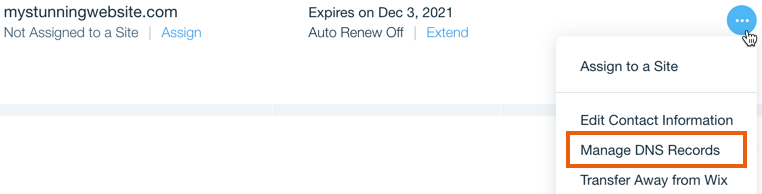
Click the Domain Actions icon

next to the relevant domain.
Select Manage DNS Records.
Scroll to the TXT (Text) section and click + Add Record.

Enter the DKIM selector under Host Name.
Note: For Google Workspace business emails, click here to generate a DKIM record.
Enter the DKIM signature under Value.
Click Save.
This article is credited to the Wix team - https://support.wix.com/ and we thank them for that!

Comments