About Your Wix Dashboard

Updated: 6 days ago
Important:
We've made some changes to the dashboard menu to make it cleaner and more focused. We've also grouped similar items by action and intent rather than by business app. Learn more about these changes.
The Wix dashboard is a site's management hub. Access all the site's tools and information and manage your business from one centralized place. The dashboard is only visible to you and any collaborators that you are working with while creating your website.

Switch between sites and workspaces
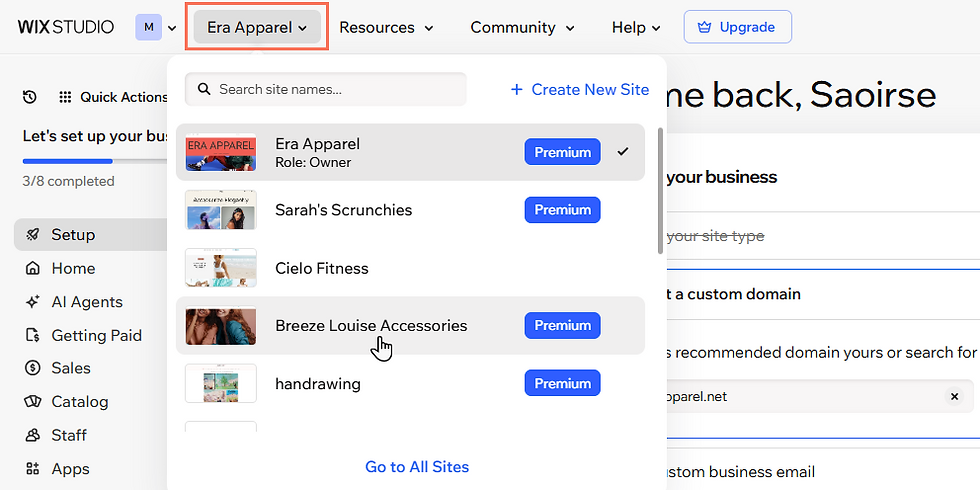
Switch between all the sites you own as well as any other sites you are a collaborator on. Click the site name drop-down at the top of the dashboard to view all sites. Select another site to switch to that site's dashboard. You can also search a site name using the search bar.

Note:
If you are a member of more than one workspace in Wix Studio. you can also switch between workspaces at the top of the dashboard.

Want quick access to your favorite pages?
Use the Favorite Pages feature to keep your most important pages effortlessly accessible.
To add a page to your favorites:
Navigate to the relevant page.
Select the Favorites panel.
Click Add Current Page.

Want quick access to new apps for your site?
Use the Quick Add feature to quickly search for apps you want to add to your site.
To quickly add an app:
Click Quick Actions.
Choose an app from the list, or search for it by entering the name into the search bar.

Click the app name to open the installation window.
Click Install App.
Ask Aria from your Home page
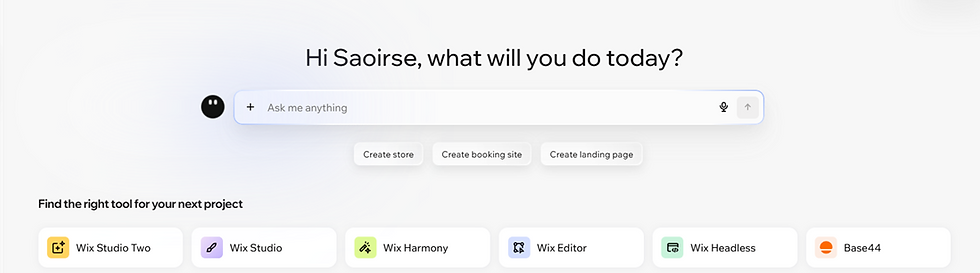
Your dashboard Home page opens with a greeting and the Ask me anything box. Use the box to ask Aria, Wix's AI assistant, for help with your site and business. Sending your message opens the Aria side panel, where the conversation continues.
Customize your dashboard sidebar
Your dashboard sidebar shows the core tools for your site by default. You can add more built-in Wix tool groups, like Marketing, Analytics, or Getting Paid, directly to your sidebar so the tools you need most are always within reach.

View key site information
In the Home tab of the dashboard you can see an overview of the site's key information such as the site's plan, domain, business email, as well as the website builder you're using (e.g. Wix Harmony Editor, Wix Studio Editor).
You can also manage and upgrade your plan from here, or connect a domain or business email.

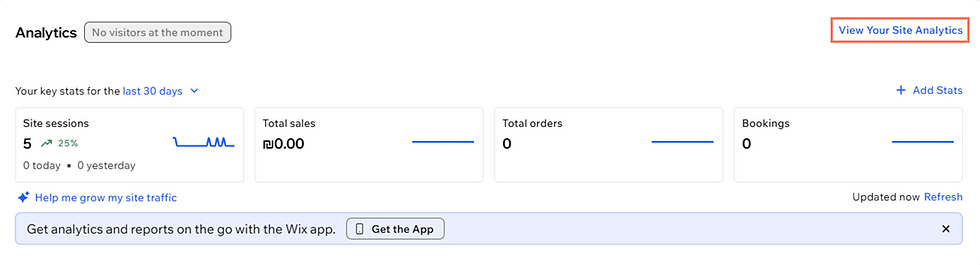
View your site's top stats in the Home tab as well including site sessions, form submissions, and your total sales, orders, and/or bookings. Click View Your Site Analytics to get a more in-depth look at the site's analytics.
Take site actions from one place
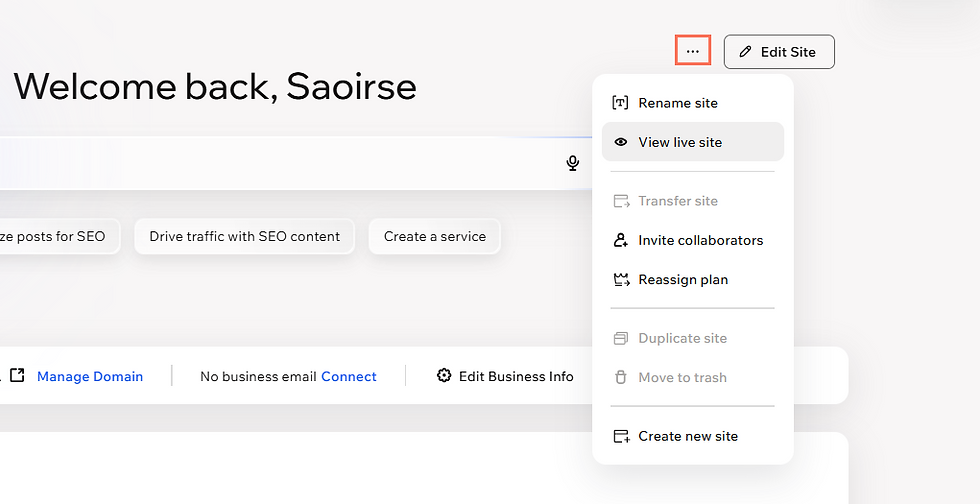
Quickly access site actions from the More Actions icon

at the top right of the dashboard. From there you can make decisions that affect the whole site including:
Renaming the site
Transferring the site to a new owner
Adding collaborators
Duplicating the site
Moving the site to trash
You can also click Edit Site at the top right to jump directly into the site editor.
Tip:
Use the search bar at the top of the dashboard to find things quickly. Search for business tools, apps, help articles and more.

Track sales on your site and manage payment tools
The Getting Paid tab helps you to manage all the different ways you get paid. Connect and setup online payments from here, as well as view any pay links, invoices, proposals, and price quotes for your business.
If you sell products or services, view all sales from the Sales tab in the dashboard menu. This includes all orders, subscriptions and gift card sales.

Update your site's settings
The Settings tab is where you update all the settings for your site including:
Business Info: Update your business name, location, and contact info.
Website settings: Manage your site's name, URL, and favicon.
Language and region: Set the site's language and currency, or translate your site.
Roles & Permissions: Invite collaborators and update roles and permissions.
Manage Storage: Manage the site's storage and upgrade your storage plan.
Domains: Connect a domain and manage your site address.
Site member settings: Manage site members and update their privacy and permissions.
From Settings you can also manage the settings of any of your business apps and tools such as eCommerce settings, Bookings settings and Subscription settings.

Manage site contacts and communications
The Customers & Leads tab in the dashboard menu gathers all the communications done on your site in one place.
View your contacts and segments from this tab, as well as any forms and reviews leads have submitted. If you are running any customer-focused programs such as a loyalty or referral program, you can also access and manage them from here.

Measure your site's online presence (SEO & GEO)
The Site & Mobile App tab gives you an overview of how your business and brand appears online. Manage your site's SEO & GEO to get an understanding of how your site is ranking on Google. This tab is also where you measure your site's speed and accessibility.
You can also make sure your brand is cohesive by viewing your mobile app, logo, brand, and Hopp Link in Bio Tool in one place.

FAQs
Click a question below to learn more about your site's dashboard.
Why can't I find my site?
If you can't find your site dashboard, it may be because:
You are signed in to another Wix account.
You are viewing the wrong site dashboard.
Learn how to check if you are signed into the correct account as well as how to switch sites in the next two FAQs.
How can I check if I'm signed into the correct Wix account?
Click the Profile icon at the top right of the dashboard to view the name and contact information of the account you're currently signed in to.
If this is the wrong account, click Log Out. Then sign in again with the right credentials. Learn more about logging in to your Wix account.

Can I assign tags to my sites?
Yes, you can assign tags to your sites to easily locate and manage them.
How do I switch between sites?
Click the drop-down at the top of the dashboard with the current site name to view all the sites available to you. Select another site to switch to that site's dashboard.
Why can't I perform all the site actions?
If some site actions are unavailable to you, it means you don't have the necessary permissions. If you are a site collaborator, you need to contact the owner to give you the right permissions. Learn more about being a site collaborator.
How do I duplicate my site?
Click the More Actions icon

at the top right of the dashboard to open site actions.
Click Duplicate site.

Add a new site name.
Click Duplicate.
Note: Not all your business content is copied over when you duplicate a site. Learn more about duplicating a site.
Where can I view my installed apps and add new apps to my site?
The Apps tab in the dashboard menu allows you to manage any apps you've installed. These include Wix business solutions apps (e.g. Wix Stores, Wix Bookings) as well as any other third party apps.
This article is credited to the Wix team - https://support.wix.com/ and we thank them for that!

Comments