Wix SMS
Wix SMS lets you send automated text messages to your customers, so you can keep them informed without manual effort. This saves you time and ensures important updates reach your customers promptly, helping to reduce no-shows and confusion.
For example, when a customer reserves a table at your restaurant, they automatically receive a confirmation text. Alternatively, when a customer books a class, they receive an SMS reminder to remind them of their upcoming session.

Before you begin:
Wix SMS is not yet available for all users. If it is available on your site, you need to upgrade your site to start using it.
Currently, Wix SMS allows you to send pre-installed texts for Wix Bookings, Wix Table Reservations, and Wix Restaurants Orders (New). You can't create your own automations or compose your own messages.
Setting up Wix SMS
Set up and review automated notifications that include sending SMS messages in your site's dashboard. Enable or disable notifications, edit notifications, or reset notifications to their default settings.
Note:
The ability to send automated SMS messages to your contacts is managed through Wix Automations. You can view and manage all your automations from the Automations page in your site's dashboard.
To set up Wix SMS:
Go to SMS Settings in your site's dashboard.
(If your site is not upgraded) Click Upgrade.Click Select under the plan you wish to purchase.
Select a billing cycle and click Continue to Checkout.
Enter your payment details and click Submit Purchase.
Note: After submitting your purchase, your bank may require you to verify your identity. If you're experiencing any issues with the authentication process, contact your bank directly.
Go back to the SMS Settings page and click Refresh Page.
Click Outgoing Notifications under the Your automated texts section to manage the texts getting sent. You can find which notifications send texts by seeing 'SMS' next to the notification name.
Tip: Learn more about managing outgoing notifications.
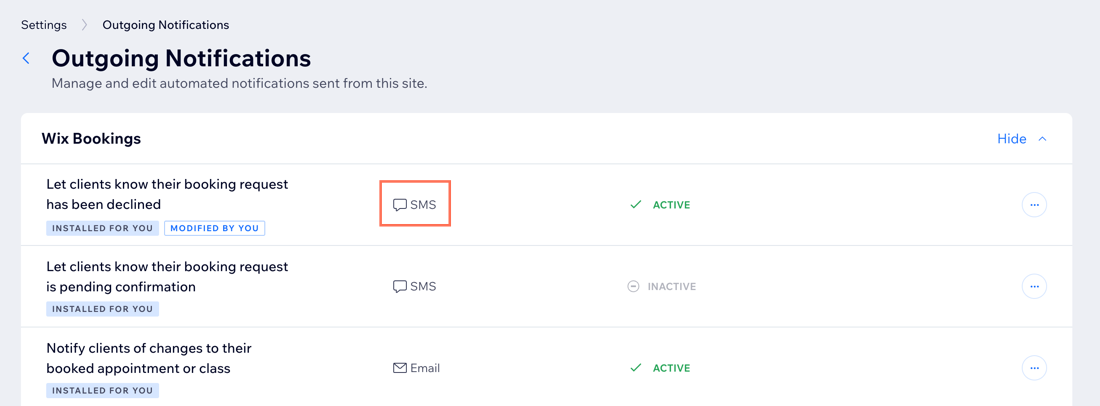
Choose what to do:
Enable or disable a notification
Click View Summary next to the relevant notification.
Click the Active/Inactive toggle to start or stop it from running.

Note: Wix Table Reservations and Wix Restaurants (New) notifications are active by default. Wix Bookings notifications are inactive by default.
Edit a notification
You can edit the automation for notifications that include both sending an email and SMS.
Click the More Actions icon
 next to the relevant notification and select Edit.
Choose what you want to do:
Edit the 'Send an email' action: Customize the sender details, change or edit the email template, change the email type, and set the email's recipients.
Customize the automation: Add a delay and condition to specify when you want the automation to happen.
Delete an action: Remove an action from the automation by clicking Delete Action below the action.
Click Publish Changes.

Notes:
The Send an SMS action cannot be edited in a notification.
Even if you remove the Send an SMS actionfrom an automation, it still appears in the notifications list on the SMS Settings page.
Reset a notification to its default setting
You can always reset an automation if you have changed its settings, for example if you have modified or deleted one of the actions.
Click the More Actions icon next to the relevant notification and select Revert to default.

Note:
Your upgraded site plan comes with a certain number of automated texts each month. To increase your quota, upgrade your SMS plan.
FAQs
Click a question below to learn more about Wix SMS.
How many SMS messages can I send?
The number of texts you can send per month depends on the number of texts included in your site plan and in any standalone SMS plan you've purchased. You can see your monthly SMS quota at the top of your SMS Settings page.

What number are the SMS messages sent from?
The messages are sent to your customers from a generic Wix phone number. This number cannot be changed.
What's the difference between sending texts in Wix SMS versus Business Phone Number?
Wix SMS automatically sends pre-installed texts while Wix Business Phone Number can be used for both phone calls and texts, and the texts that you send are composed and sent by you. Learn more about the differences between the two products.
Where can I see all the automated notifications getting sent to customers?
You can see all your automated notifications on your Outgoing Notifications page. On this page, you can manage and edit all your outgoing notifications and view stats such as the number of times the automation was triggered.
Which Wix apps are SMS pre-installed automations available for?
Currently, pre-installed SMS automations are available for Wix Bookings, Wix Table Reservations, and Wix Restaurants Orders (New). All notifications can be managed from the Outgoing Notifications page in your site's dashboard.
Here are the notifications you can activate for Wix Bookings:
Confirm a client's booking.
Notify clients when their booking is canceled.
Notify clients of changes to their booked appointment or class.
Notify clients when there's a change to their course.
Let clients know that their appointment is pending confirmation.
Let clients know that their appointment request has been approved.
Let clients know that their appointment request has been declined.
Remind clients about upcoming sessions.
Here are the notifications you can activate for Wix Table Reservations:
Confirm a customer's reservation (whether booked online or manually).
Notify when a table reservation is updated.
Notify when a table reservation is cancelled.
Remind customers of an upcoming reservation.
Notify customers when a reservation is declined, approved, or being reviewed (manual approval).
Here are the notifications you can activate for Wix Restaurants Orders (New):
Notify when an order is received.
Notify when an order is out for delivery.
Notify when a pickup order is ready.