Creating a logo for your business
Wix Logo: Working with Secondary Logos in the Wix Logo Maker
Your logo is central to your brand's image - so it's important to get it right. When designing your logo, it's helpful to compare and contrast ideas, so you can be sure you're happy with the final design.
With the secondary logo option, you can design multiple versions of your logo with different business names, all under one brand. This allows you to dress up your logo for special events, holiday seasons and promotions.
Secondary logos come as a 500 x 500 px PNG file and can be downloaded with any plan that includes the Brand Kit (Business, Unlimited, Social, and Brand Plus plans). The Brand Kit allows you to make post-download edits and get access to additional file types.
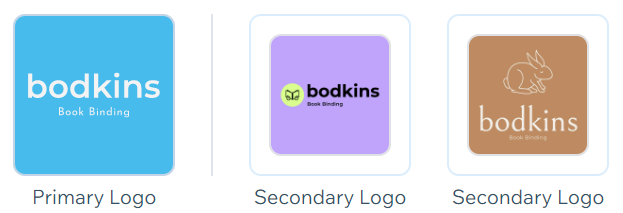
The difference between primary and secondary logos
Your primary logo is your main logo. You can download this logo version's complete branding and file package, according to the Logo Maker plan you have. Once you download your primary logo, you lock your Business Name for the primary version, and can't change it.
Your secondary logo(s) are variations of your main logo. You can create as many secondary logos as you like, with different Business Names. Secondary logos are downloadable as 500 x 500 px PNG files with an Unlimited or Business Logo Maker plan. Upgrading to the Brand Plus plan will allow you to switch the primary and secondary logos after downloading your primary logo.
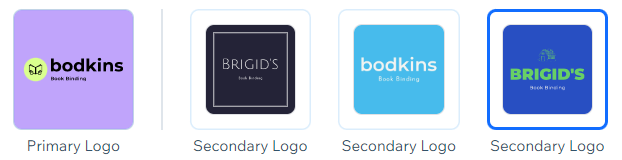
Creating a secondary logo
Design different versions of your logo in the Brand Studio. Use these secondary logos to compare your ideas or to create seasonal / promotional designs for upcoming events.
To create a secondary logo:
Go to the Wix Logo Maker.
Note: This will take you to the Brand Studio of the most recent brand you were working on.Click the My Logos & Brands drop-down at the top.
Select the relevant brand.
Click the Create a new design icon
 under Brand Designs.
Click Logo.
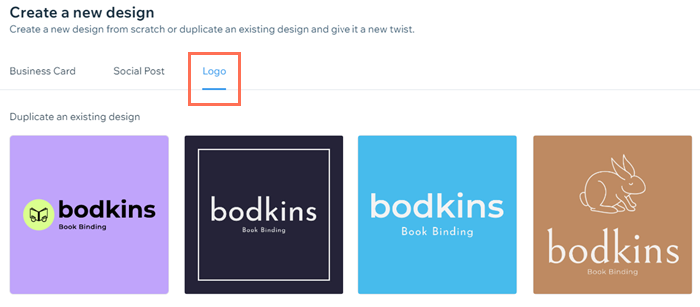
Hover over the relevant logo design and click Select / Duplicate.
Setting a secondary logo as your primary logo
You might decide you prefer one of your secondary logo designs and want to make it your primary logo. You can do so in a few clicks. However, once you download a primary logo, that logo is locked, and you can't make any other secondary logos primary unless you upgrade to a Brand Plus plan.
To set a secondary logo as your primary logo:
Go to the Wix Logo Maker.
Note: This will take you to the Brand Studio of the most recent brand you were working on.Click the My Logos & Brands drop-down at the top.
Select the relevant brand.
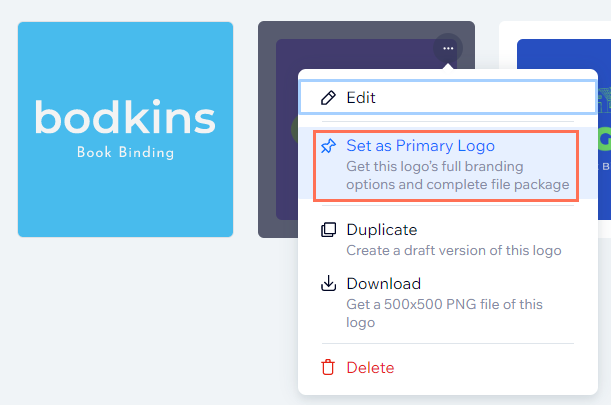
Hover over the relevant secondary logo under Brand Designs and click the More Actions icon
 .
.Click Set as Primary Logo.
FAQs
Click a question below to learn more about working with secondary logos:
What files do I get when I download my primary logo?
When downloading your primary logo, you get all the files included in the Logo plan you have.
Learn more about file types in the Wix Logo Maker
What files do I get when I download a secondary logo?
When downloading a secondary logo, you get a 500 x 500 px PNG file of your logo as designed. This means you don't get any variations of your secondary logo, like black and white files or files with a transparent background, for example.
Can the Business Name in my secondary logo be different from my primary logo?
If you haven't yet decided on your business' name, you can test out different versions of this in your secondary logos. However, once you download your primary logo, the business name is locked and cannot be changed. You can continue to change the business name set in your secondary logos if you wish.
Can I get feedback from others on my logo designs?
Currently, the Wix Logo Maker does not offer a feedback tool where others can review, comment or rate your logo designs. If this is something you'd like to see in the future, vote for that feature.
Can I make my secondary logo my primary logo, even if I have already downloaded my primary?
Yes. The Brand Plus plan allows you to switch the primary and secondary logos even after downloading your primary logo. Then set a secondary logo as the primary logo, and download all its files.
Alternatively, if you choose not to upgrade, you can duplicate the downloaded brand, switch the primary logo with the secondary logo and purchase a new plan.
To duplicate the downloaded brand:
Go to the Brand Studio of the standalone Logo Maker.
Select the logo you want to duplicate.
Click Brand Actions.
Click Duplicate brand.
Purchase the new brand to get all the files you need.

This article is credited to the Wix team - https://support.wix.com/
