Managing program participants
Participants are essential to your online programs. From the participants list, you can manage them as needed – invite new people to join, track your participants' progress and communicate with them directly. You can also filter the list to find specific participants faster. Understanding the differences between contacts, members, and subscribers helps you manage your participants effectively.
Before you begin:
Make sure your site is published and upgraded to allow participants to join your program.
For programs that are in progress with fixed start and end dates, make sure to invite participants before these programs begin.
In this article, learn more about:
Enrolling participants in your program
Invite participants to your programs by adding them directly, emailing them invite links, copying and pasting invite links, or including a link in an email campaign.
Dashboard
Wix app
Go to Online Programs in your site's dashboard.
Click the relevant program.
Choose how you want to invite participants:
Invite site members via email
Send an email to invite site members to join your program.
Click Invite Participants on the top right of your screen.
Click Invite to Program under Invite participants.
Type the email of the site member(s) you want to invite or select them from the list.
Click Invite to Program.

Add site members manually
Give site members free access to your program by manually enrolling them. This action overrides your pricing plans. It means that members who aren't currently paying get full access to the program's content. To charge members for the program, use the "Invite Participants" action instead.
Click Invite Participants on the top right of your screen.
Click Add to Program under Add participants.
Type the email of the site member(s) you want to invite or select them from the list.
Click Add to Program.

Share an invite link
Copy the invite link to your program for easy sharing; it directs people to the program page where they can view details and join or request to join.
Note: This option does not appear for secret online programs.
Click Invite Participants on the top right of your screen.
Click Copy Link.
Paste the link wherever you want to share it (e.g. social media, WhatsApp, email).

Send an email campaign
Send an email campaign to the people you want to invite.
Note: This option does not appear for secret online programs.
Click Invite Participants on the top right of your screen.
Click Create Email Campaign.
Select the template you want to use.
Tip: Choose which types of notifications participants get.

Manage pending requests for private programs
When you create a private program, individuals can request to join without your direct invitation. You will only see pending requests from people who discover your program on your live site and choose to request access. Pending requests will not appear for invites that you send directly to others.
You have the option to either approve or decline these requests based on your preferences.
Click View Requests under Participants.

Choose what you want to do next:Approve: Accept the request to allow the person to join your program.
Decline: Reject the request to remove it and prevent the person from joining your program.

Managing your program participants
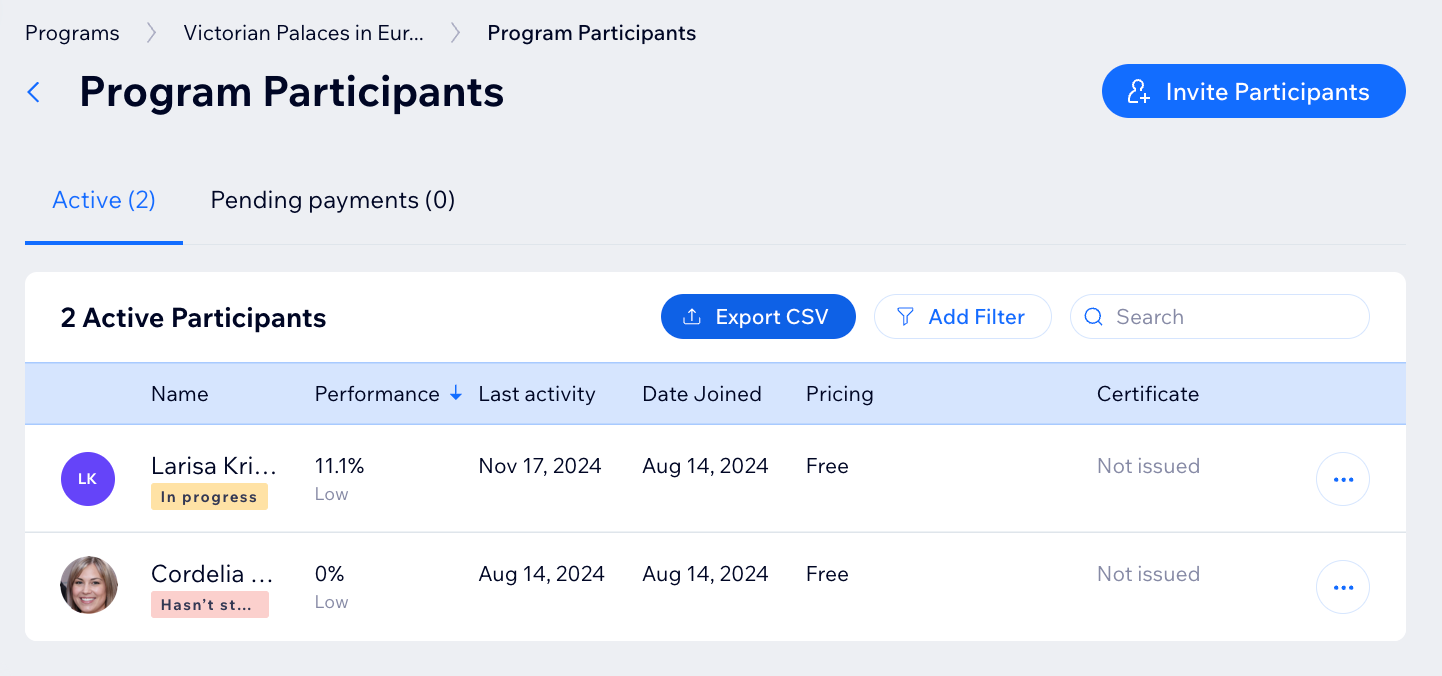
When viewing your participant list, the first thing you see is a snapshot of your participants' performance. You can add a filter to view participants by status, performance, or join date.
Dashboard
Wix app
Go to Online Programs in your site's dashboard.
Click the relevant program.
Click Manage next to Participants.
Choose what you want to do next:
Filter your participants list
Click Add Filter.
Click the checkbox next to each filter you want to apply:Status: Select the relevant statuses that show your participants' progress in the program.
Performance: Select the relevant performance metrics.
Join Date: Select a date range to view participants that joined within the range.
Click Close Filters to close the filter panel and view the filtered list.
Tips:
Click Clear All to remove all the filters you've added.
Click the relevant heading at the top of the list to sort it by available options like performance, last activity, or date joined.
Keep your contact list organized. Add, edit, filter, merge, and delete contacts to improve your communication with participants.

View participant progress
Hover over the relevant participant and click View Steps.
Tip: Click Message if you want to contact the participant.

View a participant's profile
Click the More Actions icon
 next to the relevant participant.
Select View profile.
Learn about all the actions you can take from the contact panel.

Message participants
Click the More Actions icon
 next to the relevant participant and select Message.
Send your participant a message using the message composer at the bottom of their contact card.

Remove participants
Click the More Actions icon
next to the relevant participant and select Remove.Click Yes, Remove to confirm.
Notes:
When you remove participants, all their data is deleted. If they decide to join again, their progress will be lost.
You can create automations to remove participants for you.

FAQs
Click a question below to learn more.
Why can't I invite participants to my program?
If you cannot invite participants to your program, check the following:
If you have not already done so, add Online Programs to your site. Some Wix templates already include Online Programs, making it easier for you to get started.
Make sure your site is published.
You must upgrade your site so people can start joining your program.
It's not possible to invite participants to programs in progress with fixed start and end dates. Make sure to invite participants before these programs are set to start.
Can I export a file of all my participants?
Yes. Click Export CSV in your participants list to get a CSV file with your participants' progress emailed to you.

How many participants can I add to a program if I have a free site?
If you have a free site, you can add one participant at a time for all programs. You have the flexibility to replace the participant as needed.
Tip: Upgrade your site so you can have more than one person join your program.
How do I choose which Wix mobile app participants use?
Choose which Wix mobile app you want participants to use to access your program on the go. Learn more about the Wix mobile apps.
How do I hide the total participants on my live site?
In your editor, you can select the program list to access its display settings. There you can show or hide details about your program such as total participants, price, and more.
What can I learn about my participants?
Here is the information you can find about your participants by viewing their profile:
If they have started your program: You can see which participants have begun your program and which haven't yet taken any lessons.
The date they joined your program: You can view the exact date each participant joined your program.
When they were last active: You can track when participants were last active in your program, providing insight into their engagement levels.
A calendar that tracks their scheduled steps, completed steps, and/or missed steps: This handy calendar lets you see each participant's progress through your program, helping you identify those who need extra support or who are excelling.
Feedback they've left for each step (if available): If your program allows for participant feedback, you can view their comments and suggestions.