Setting up your hotel
Integrating Goibibo & MakeMyTrip with Wix Hotels by HotelRunner helps streamline your booking management. Follow these steps to set up the integration and ensure your room rates and availability are always up-to-date.
Step 1 | Important information before you connect Goibibo & MakeMyTrip
Before you connect Goibibo & MakeMyTrip as a channel, make sure to set and update the rates and availability of all rooms on the Inventory Calendar. After connection, HotelRunner will transfer all of your inventory to Goibibo & MakeMyTrip. This overwrites the calendar you have on the channel and all updates must be done from Wix. Your extranet calendar will be blocked.
Only the reservations you receive after the connection is complete will be transferred to your Wix Hotels by HotelRunner dashboard. If you have future reservations that you received before the connection, please add them manually in the dashboard for your availability to be correct.
You can connect only one Hotel ID from each channel to each Wix Hotels by HotelRunner account. Group Hotels or different Hotel IDs cannot be connected to the same Wix Hotels by HotelRunner account.
Before the integration, to open your slots on Goibibo & MakeMyTrip, please update your rooms with 2 weeks of rates and availability for the channel manager to fully register your rooms.
If you have blocked certain dates on your calendar before the integration, once the integration is completed, we cannot overwrite your blocked dates. To manage your calendar, please unblock your calendar from the Goibibo & MakeMyTrip extranet.
Step 2 | Approve Wix Hotels by HotelRunner for connection on Goibibo & MakeMyTrip
To approve Wix Hotels by HotelRunner on the Goibibo & MakeMyTrip website, log in to your Goibibo & MakeMyTrip extranet, go to Property, and choose HotelRunner from the Select Channel Manager drop-down. Then copy and paste the access token to complete the integration in the Wix Hotels by HotelRunner dashboard.
Note:
For further assistance, visit the Goibibo & MakeMyTrip help center.
To approve Wix Hotels by HotelRunner for connection with Goibibo & MakeMyTrip:
Log in to the Goibibo & MakeMyTrip extranet with your username and password.
Note: Please log in to Goibibo & MakeMyTrip using the main host login information. You should not have another Agoda account open in your browser during this process because it will automatically connect to that account.Go to Property.
Choose HotelRunner from the Select Channel Manager drop-down.
Click Add.
Copy your access token. You need this access token while adding the channel in the Wix Hotels by HotelRunner channel manager.
Step 3 | Connect to Goibibo & MakeMyTrip on Wix Hotels by HotelRunner
Once you have selected HotelRunner on Goibibo and copied your access token, log in to your Wix Hotels by HotelRunner dashboard to complete the integration.
To connect Goibibo & MakeMyTrip:
Go to Channel Manager in the Wix Hotels by HotelRunner dashboard.
Click Connect next to Goibibo & MakeMyTrip in Wix Hotels by HotelRunner.
Enter Hotel ID.
Enter the access token from Goibibo in the Username field.
Click Save and Continue.
Step 4 | Map your room types on Goibibo & MakeMyTrip
To map room types, find your room IDs on the Goibibo & MakeMyTrip extranet, and then input these IDs in the Room type mapping section of the Wix Hotels by HotelRunner dashboard.
Goibibo & MakeMyTrip automatically sends your rooms to Wix Hotels by HotelRunner with their custom names. For this reason, you can use room IDs to distinguish your rooms from each other. Room IDs appear in the bottom right of the Wix Hotels by HotelRunner.
Make sure to match room availability and prices. You can then use the "Advanced Settings" feature to further adjust prices, then click "Complete mapping" once all room types and rates are set.
Important:
In the channels where you see the HR standard rate, it should always be set as “Main Rate” and “Don't Send”.
To map your room types:
Collect your room IDs on the Goibibo & MakeMyTrip extranet.
In another tab on your browser, go to Channel Manager in the Wix Hotels by HotelRunner dashboard.
Click View channel details next to Goibibo & MakeMyTrip.
Click Fetch room types.
Hover over each room type and click Expand.
Match your Goibibo & MakeMyTrip room types with your room types on Wix Hotels by HotelRunner using the drop-downs.
Note: Make sure to double-check you are matching the correct room types across both platforms, as there may be differences in room type names.Click Save at the bottom.
Step 5 | Adjust your advanced settings
With the advanced settings for the Goibibo & MakeMyTrip integration, you can ensure your room availability doesn't fall below a set number using the base availability. You can also adjust room rates by specifying a different price to send to Goibibo & MakeMyTrip. Additionally, you can choose to stop sales for certain rate types or mark rates as read-only to prevent updates.
To adjust your advanced settings:
Go to Channel Manager in the Wix Hotels by HotelRunner dashboard.
Click View channel details next to Goibibo & MakeMyTrip.
Hover over the relevant room type and click Expand.
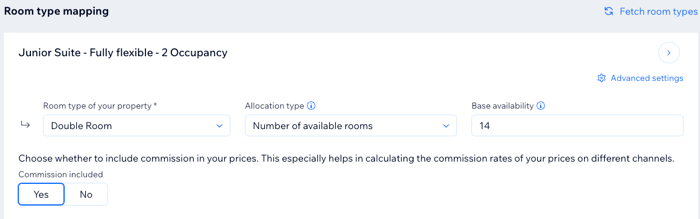
Click Advanced Settings at the top right.
Select the relevant option from the Room type of your property drop-down.
Choose the relevant option from the Allocation type drop-down:No changes: Keeps the current availability settings without making any adjustments. Choose this option when you’re confident that your existing inventory data is accurate and up-to-date.
Number of available beds in available rooms: Sets the availability based on the number of beds in the rooms that are available. For example, if you manage a hostel where each room has multiple beds, and you want to track and sell each bed individually within the available rooms.
Number of available beds: Sets the availability based on the total number of beds available. For example, a dormitory where beds can be booked individually, regardless of which specific room they are in.
Number of available rooms: Sets the availability based on the total number of rooms available. Use this option for traditional hotels where you want to set availability based on entire rooms being booked, without focusing on the number of beds in each room.
Enter the relevant number in the Base availability field.
Note: Make sure it matches your availability in your Inventory Calendar.Select the relevant option under Commission included: Yes or No
Enter the relevant Adjustment amount.
Choose either a percentage adjustment
 or a monetary
 adjustment, and choose whether the adjustment is an increase + or a decrease -.
Enter the Commission percentage.
Enable the Main rate toggle to set this rate type as the main rate.
Enable the Read-only toggle to update reservations and availability of the room.
Note: Other updates such as rate, minimum stay, stop sell, etc., are not affected.Enable the Send price toggle to update only availability for the room type. The price for this rate type won’t be sent to Goibibo & MakeMyTrip.
Repeat steps 9-14 for all room types.
Click Save.
Show me how to use advanced settings to increase my room rates on Goibibo & MakeMyTrip


Step 5 | Activate the Goibibo & MakeMyTrip connection
After completing your room mapping, click Activate. Once the Goibibo & MakeMyTrip connection is complete, all your inventory (rates, availability, and restrictions) on your Wix Hotels by HotelRunner calendar will be transferred to your Goibibo & MakeMyTrip account. You can review and update your room mapping from the Channel Manager in the dashboard at any time.
Frequently Asked Questions (FAQs)
Click a question below to learn more.
What should I do before connecting Wix Hotels by HotelRunner with Goibibo & MakeMyTrip?
Make sure all your room rates and availability are set on the Inventory Calendar in the Wix Hotels by HotelRunner dashboard. This setup will be transferred to Goibibo & MakeMyTrip, and any updates must be managed from Wix after the connection.
Update your rooms with 2 weeks of rates and availability in Wix Hotels by HotelRunner. This allows the channel manager to fetch your rooms into the system.
How are reservations handled after the connection?
All future reservations will be fetched into your Wix Dashboard. Reservations with an expired check-in date will not be fetched into your Wix Dashboard.
Can I connect multiple Hotel IDs or group hotels to one Wix Hotels by HotelRunner account?
No, you can only connect one Hotel ID from each channel to a single Wix Hotels by HotelRunner account. Group hotels or different Hotel IDs require separate accounts.
What happens to blocked dates on my Goibibo & MakeMyTrip calendar after integration?
Blocked dates on your Goibibo & MakeMyTrip calendar will remain unchanged. To manage these dates, you’ll need to unblock them from the Goibibo & MakeMyTrip extranet.
What options should I select during the HotelRunner integration on Goibibo & MakeMyTrip?
You should select reservations, rates and availability, guest reviews, and reporting. Online check-in, content, and photo options are optional but recommended.
How do I map room types between Wix Hotels by HotelRunner and Goibibo & MakeMyTrip?
Use room IDs to match your rooms between the two platforms. Ensure that room types and prices align, such as mapping both “Junior Suite for 1 person” and “Junior Suite for 2 people.”
What other uses are there for the advanced settings in the Goibibo & MakeMyTrip channel?
Base Availability: This setting ensures you always have a minimum number of rooms available, even if bookings are made. For instance, if you set a base allotment of 5, the system will maintain at least 5 rooms in your inventory, regardless of how many bookings come in. This is particularly beneficial during high-demand periods like festivals or holidays, ensuring that you always have rooms available for direct bookings or last-minute guests. By maintaining this buffer, you can maximize revenue by selling these rooms at higher rates when demand peaks.
Adjustment: The Adjustment setting allows you to fine-tune the pricing sent to Goibibo & MakeMyTrip, independent of your standard rates. For example, if you want to increase your prices on Goibibo & MakeMyTrip by 10% to account for platform fees or market demand, you can do this by entering the adjustment. This flexibility helps you optimize revenue across different booking channels by adjusting prices to match specific market conditions, such as higher pricing on Goibibo & MakeMyTrip during peak travel seasons while keeping other platforms at regular rates.
Commission: For the Goibibo & MakeMyTrip integration with Wix Hotels by HotelRunner, the Commission field is not needed, and you should leave it blank. This is because Goibibo & MakeMyTrip's pricing structure already includes its service fees, so entering additional commission values here could lead to confusion or unintended price changes. By skipping this field, you ensure that your rates remain clear and consistent with Agoda's pricing model, avoiding potential overcharging or undercharging of guests.
Stop Sale: When you activate the Stop Sale option, the selected rate type will be completely closed off from booking on Goibibo & MakeMyTrip for all dates. This is useful if you want to manage inventory during renovations, special events, or if you need to prevent bookings due to unexpected closures. For example, if you know that your property will undergo maintenance next month, you can use Stop Sale to block reservations during that period, ensuring that guests are not inconvenienced by the unavailability of your services.
Read Only: Enabling the Read-Only option ensures that no updates are sent from your system to Goibibo & MakeMyTrip for a specific rate type, while still allowing reservations to be displayed in your dashboard. This is useful for hiding promotional rates or derived rates that are meant for special offers and shouldn’t be updated automatically. For example, if you have a promotional rate for long-term stays that you want to keep separate from regular pricing updates, Read-Only ensures that this rate remains static and visible only to specific audiences, without being affected by ongoing pricing adjustments.
Main Rate: Designating a rate type as the "Main Rate" makes it the default rate that appears at the top of your calendar. This is beneficial if you have a primary rate that you offer year-round, such as a standard nightly rate. By setting it as the Main Rate, you ensure that it’s always clearly displayed and easy to manage. For example, if you frequently adjust rates for special events or seasons, having a Main Rate ensures that your baseline pricing is always visible and can be quickly referenced or changed without confusion.