Managing CMS collections
CMS: Changing Your Collection Permissions
Set collection permissions in the CMS (Content Management System) to control who can view, add, update, or delete collection content. You can customize access levels for each collection and role, ensuring your site's data remains secure and properly managed.
For example, you might allow site members to contribute to one collection while restricting access to other sensitive collections. Permissions can also be customized for collaborators, item creators, and custom roles, giving you control over what each role can do with specific collections.
Collection permissions let you decide if site visitors and members can access or add content on the live site through input elements and the Data API. By default, collaborators with CMS access have full control from within the CMS, including viewing, adding, updating, and deleting content. However, with advanced permissions, you can set specific access levels for custom collaborator roles to limit who can manage or modify collections.
Important:
Collaborators with admin roles always maintain full access to your collections. Admins can perform all actions, including viewing, adding, updating, and deleting collection content, whether from the live site or the CMS itself.
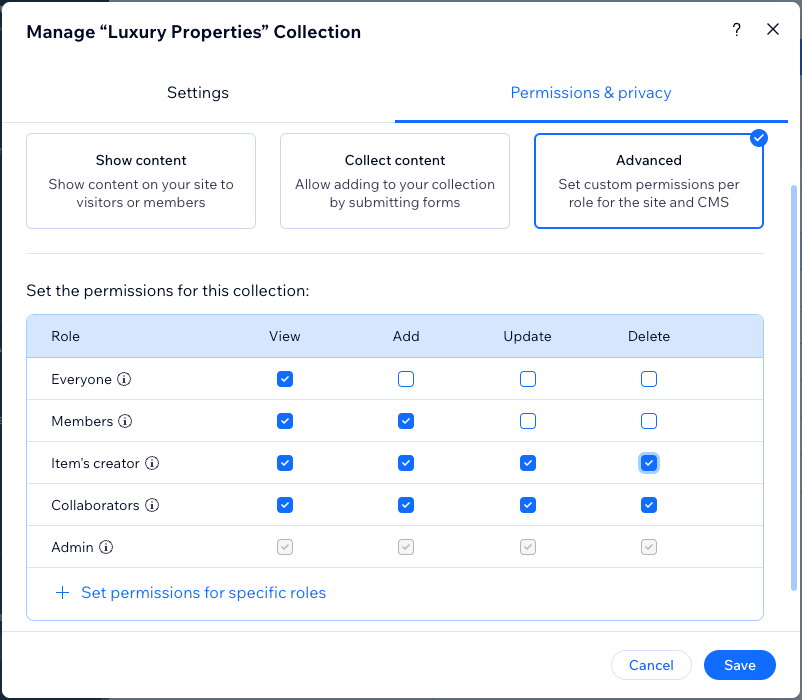
Changing your collection permissions
To change the permissions for a collection, go to the collection's settings and access the Permissions & privacy tab. Then choose the relevant option to show content, collect content, or create advanced permissions.
Important:
Setting collection permissions to 'Everyone' means that any site visitor can access the collection by using an API, even if the content is not presented on the live site. Learn more about using authorization suppression with the Data API to bypass permissions.
To change your collection permissions:
Go to CMS in your site's dashboard. Alternatively, you can click CMS
 in your editor, then click Your Collections.
Hover over the relevant collection, click the More Actions icon
 and select Permissions & privacy.
Choose which permissions you want the collection to have:
Show content
Allow the collection content to be viewable on the live site by site visitors. This also prevents visitors from adding new items or updating existing items.
Click Show content.
Click the Who can view this content? drop-down and choose an option:Everyone: Any site visitor can view the collection content on the live site.
Members only: Only site members can view the collection content on the live site.

Click Save.
Note: With these 'Show content' collection permissions, admins and collaborators with CMS access maintain full access to the collection. They can perform all actions, including viewing, adding, updating, and deleting collection content, whether from the live site or the CMS itself.
Collect content
Allow visitors to add content as new collection items via input elements on the live site or API. This permission does not allow visitors to update the contents of existing items. Use the Advanced permissions if you want to allow visitors to edit existing items. See the FAQ section below for more information.
Click Collect content.
Click the Who can add content to this collection? drop-down and choose an option:Everyone: Any site visitor can add new items to the collection from the live site. Collaborators with CMS access roles and admins can also add items from within the CMS.
Members only: Only site members, collaborators with CMS access roles, and admins can add new items to the collection from the live site. Collaborators with CMS access and admins can also add items from within the CMS.
Click the Who can view this content? drop-down and choose an option:Collaborators: Admins and collaborators with CMS access roles can view the collection content in the CMS and the live site.
Tip: To assign permissions for a specific collaborator role, use the Advanced collection permissions and click + Set permissions for specific roles.
Members only: Only site members, collaborators with CMS access and admins can view the collection content on the live site. Collaborators with CMS access and admins can also view it within the CMS.
Item's creator: Site members can only view items on the live site that they themselves added to the collection. Collaborators and admins can still view all the items on both the live site, and in the CMS.
Everyone: Any site visitor can view the collection content on the live site. Collaborators with CMS access and admins can also view it within the CMS.
Click Save.

Note: With these 'Collect content' collection permissions, admins and collaborators with CMS access maintain full access to the collection. They can perform all actions, including viewing, adding, updating, and deleting collection content, whether from the live site or the CMS itself.
Advanced
With the 'Advanced' permissions, you can select different permissions for viewing, adding, updating, and deleting content for each role. This lets you control what people with each access level can do with your site's collection content.
For each user role, select the checkboxes to choose whether they can view content, add new items, update existing items, or delete items. You can also create permissions for specific collaborator roles for greater control over which collaborators can view, add, update, or delete items.
Click Advanced.
(Optional) Set permissions for specific collaborator roles:
Note: By default, all collaborators with CMS access roles share the same permissions unless you create permissions for specific collaborator roles.Click + Set permissions for specific roles.
Click the checkbox next to each collaborator role that you want to set specific permissions for. Only roles that allow for CMS access are available. Click Roles & Permissions at the bottom if you need to create or modify any collaborator roles.
Click Done.

Click the relevant checkboxes next to each role to choose whether users with the role can view, add, update, or delete collection items:Everyone: This role applies to everyone who can access your live site. Selecting a permission for this role also selects it for the other roles in the table.
Members: This role applies to site members only. Selecting a permission for this role also selects it for the 'Item's creator' role, the 'Collaborators' role, and any specific roles you add to the table.
Item's creator: This role's permissions only apply to the specific items that a member creates themselves. For example, you can set permissions to allow the item's creator to update or delete only the items that they create. Selecting a permission for this role also selects it for the 'Collaborators' role and any specific roles you add to the table.
Collaborators: This role applies to all collaborator roles with CMS access. Selecting a permission for this role also selects it for any specific collaborator roles you've set permissions for.
Admin: This role applies to site owners and collaborator roles with CMS admin permissions. You cannot change the permissions of this 'Admin' role.
Specific roles: If you add roles to the table, they apply to collaborators with specific CMS access roles. If you set permissions for a specific role, then deselect a permission in that role, the permission is also deselected in the main 'Collaborators' role.
Click Save.

In the table, you can choose from the following access levels for each role:
View: People with the relevant role(s) can view the collection content.
Add: People with the relevant role(s) can add new items to the collection.
Update: People with the relevant role(s) can edit existing collection items.
Delete: People with the relevant role(s) can remove existing collection items.
Note: With these 'Advanced' collection permissions, admins and collaborators with CMS access maintain full access to the collection. However, you can set permissions for specific collaborator roles to restrict them from having view, add, update, or delete access to the collection.
FAQs
Click below for answers to common questions about setting collection permissions.
What access levels do each of the 'Advanced' permissions represent?
The 'Advanced' collection permissions allow you to set specific access levels (View, Add, Update, and Delete) for different roles. Select the checkboxes that represent each access level next to each role to define what people with the roles can do.
Choose from the following access levels for each role:
View: People with the relevant role(s) can view the collection content.
Add: People with the relevant role(s) can add new items to the collection.
Update: People with the relevant role(s) can edit existing collection items.
Delete: People with the relevant role(s) can remove existing collection items.
You can also set specific permissions for each collaborator role that grants access to the CMS. By default, selecting checkboxes next to the main Collaborator role gives all CMS collaborators the selected access level. However, 'Advanced' permissions give you granular control to fine-tune what each different collaborator role can do.
For example, you might want a specific collaborator role to have all the permissions, while all other collaborator roles have only 'View' access. You could set permissions for a specific 'Content Writer' role and select all the permissions for that role. Then, only select the View access next to the main Collaborators role. As a result, your 'Content Writer' collaborators would be the only collaborators that can manage the collection content.
Keep in mind that admins always maintain full access to your collections. Admins can perform all actions, including viewing, adding, updating, and deleting collection content, whether from the live site or the CMS itself.
What makes a collaborator an admin?
There are several preset roles you can assign to collaborators that grant them admin access, including the 'CMS Admin' role. In your collection permissions, when you set permissions for a specific role, you can select roles that grant CMS access under Roles with CMS access. Under CMS Admin roles (included), you can view all the admin roles that maintain full access to your collection.

When creating a custom role, select the CMS Manage Content permissions to grant collaborators access to the CMS.
Select any of the following permissions to give a custom role full admin access to all your collections:
Editor: Edit Site
Studio Editor: Edit Code
Studio Editor: Edit Site Structure
Velo: Access developer tools
How can I control which collections are visible to my site collaborators in the CMS?
You can control which collections are visible to your site collaborators in the CMS by using the 'Advanced' permissions settings.
In the 'Advanced' permissions table, set permissions for specific collaborator roles. Then, uncheck the 'View' permission next to the roles that you want to hide the collection from. You can select or deselect the 'Add', 'Update', and 'Delete' checkboxes to further adjust the access levels of your collaborators.

This ensures that collaborators only see the collections relevant to their tasks, simplifying their navigation and protecting sensitive information.
Tip: This method is useful for hiding collections with sensitive information, such as user submissions, from collaborators who do not need access to that data.
Does the 'Collect content' permission allow visitors to update existing content?
No. The 'Collect content' permission allows people to add content as new items in the collection. It does not allow visitors to update the content of existing items.
If you want to allow visitors to update the field values of existing items, use the 'Advanced' permissions. In the 'Advanced' permissions, select the 'Update' checkboxes next to the relevant roles so visitors can update the field values of existing collection items.

Learn more about creating a custom form with input elements that submit to your collection.
What is the difference between custom roles and admin roles?
Custom roles allow you to give collaborators tailored access to the CMS and other areas of your site. Admin roles, on the other hand, provide unrestricted access to the CMS and full control of site management. Custom roles automatically become admin roles when any of the following permissions are assigned:
Editor: Edit Site
Studio Editor: Edit Code
Studio Editor: Edit Site Structure
Velo: Access developer tools
Can I restrict admin roles from accessing the CMS?
No, admin roles always grant unrestricted access to the CMS, in addition to other areas of your site. To avoid giving full CMS access, ensure you do not assign permissions that elevate a custom role to admin status.
How do my site's collaborator roles and permissions work with collection permissions?
In your site's Roles & Permissions settings, you can add roles that give collaborators access to your CMS collections. These CMS access roles, by default, have all the collection permissions to view, add, update, and delete items. However, you can fine-tune their access levels for each collection in your collection permissions.
Keep in mind that CMS admin roles always maintain full access to your collections. This means CMS admins can perform all actions, including viewing, adding, updating, and deleting collection content, whether from the live site or the CMS itself.
Collection permissions allow you to define what people can do with a specific collection's content. You can define different access levels for each type of user. This includes everyone who can view your site, site members, collaborators with CMS access, and even specific collaborator roles.
Different types of users interact with your collection content in different ways, depending on the permissions you grant. While some actions are restricted to the live site, others extend to the CMS backend for collaborators. Here's how collection permissions work for each group of users:
Everyone and site members: When granted the relevant collection permissions, these users can only perform actions, such as viewing or modifying collection content, directly on your live site. Typically, this is done through input elements, but can also be done with the Data API.
Collaborators with CMS access: These collaborators, on the other hand, can perform these same actions both on the live site and within the CMS backend. Their access to the CMS provides additional control and management capabilities that go beyond what’s available on the live site alone.
Can I edit permissions for Wix app collections like Wix Stores or Wix Bookings?
No, you cannot edit permissions for Wix app collections. You can view these collections in your CMS, but you cannot modify them there. Wix app collections get their content from the corresponding apps (e.g. Wix Stores, Wix Bookings). Manage the content of these Wix app collections from the apps themselves.
Can I edit permissions for Wix Blocks collections?
No, you cannot edit the permissions Wix Blocks collections. Go to Wix Blocks to modify the content of your Blocks.
What default permissions do newly created collections have?
By default, new collections you create are set to Show content with Everyone allowed to view content.
This article is credited to the Wix team - https://support.wix.com/
