Working with dynamic pages and the CMS
CMS: About Dynamic Pages
A dynamic page is a type of web page created to display content from a CMS (Content Management System) collection. They allow you to create websites that can efficiently handle a large amount of content while maintaining a consistent design and user experience.
There are two types of dynamic pages in Wix; dynamic list pages, and dynamic item pages. Dynamic list pages display multiple collection items in a repeater, gallery or table. The items in your repeater, gallery, or table link to a single dynamic item page used to provide more details about a particular item. Each item gets its own "version" of the same dynamic item page with a unique URL ending.
Dynamic pages help you scale efficiently since you only need to design them once. Then add items to your collection to automatically create new URLs for each item. All the dynamic content is managed in your collection where you can grant teammates permissions to collaborate. You can even create a dynamic Manage Item page where collaborators and site members with specific roles can add or edit collection content from your live site.
Tip:
Your Wix site can have up to 298 pages, including up to 100 static pages, plus dynamic pages, app pages, lightboxes, Signup & Login, and Search Results pages. Dynamic and app pages may create unique URLs for items, but only the main page counts toward your quota—not individual items or URLs. Learn more about using dynamic pages to scale efficiently.
Adding dynamic pages
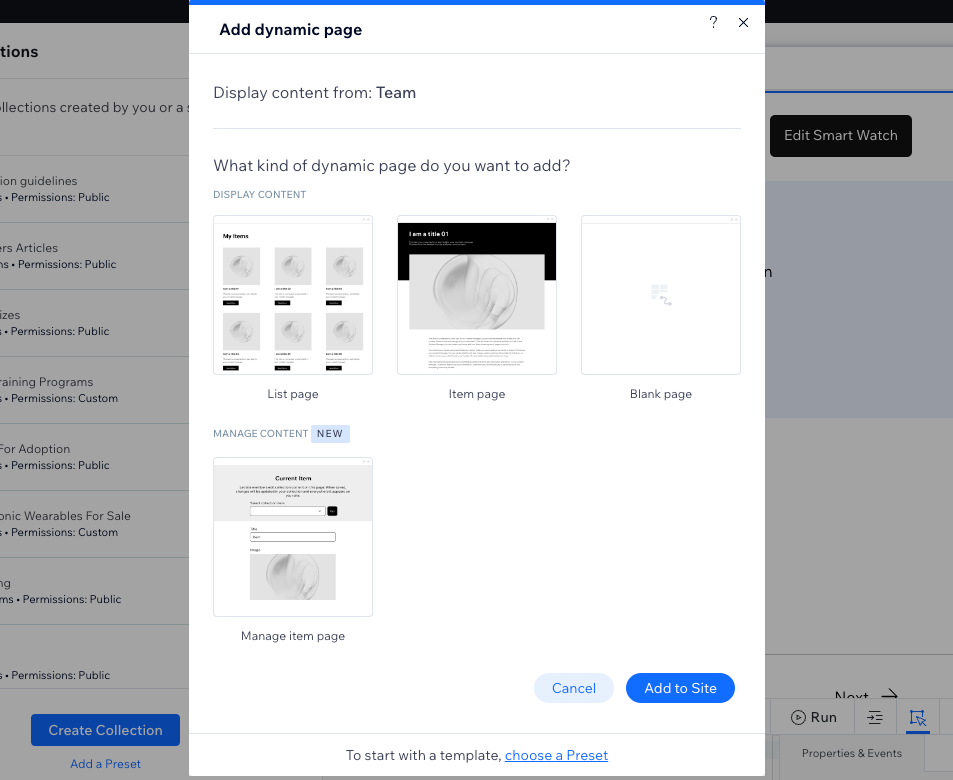
When you add dynamic pages, you can choose to create them from your own collection, or choose a preset. A preset is basically a template for creating dynamic pages in the CMS.
Each preset includes a:
Collection: This CMS collection consists of sample content that connects to the two types of dynamic pages that are also added to your Editor. Learn how to create your own collection.
Dynamic list page: This page showcases multiple items from the collection in a repeater or gallery. Clicking an item from these elements takes you to the item's dynamic item page.
Dynamic item page: This page displays details about an individual item from the collection. Each collection item gets its own dynamic item page URL, with each page maintaining the same design and layout.
Note:
When adding a new dynamic page, selecting Blank page adds a blank dynamic item page. You can then add elements to design the page. To show dynamic content, connect elements such as images, text boxes and buttons to the dynamic page dataset.
Designing your dynamic pages
Dynamic pages usually consist of both static and dynamic elements. Static elements, like the header and footer, always display the same content on every page. Elements that connect to your collection fields through a dataset are dynamic. These dynamic elements change their content based on which item the dataset retrieves from your collection.
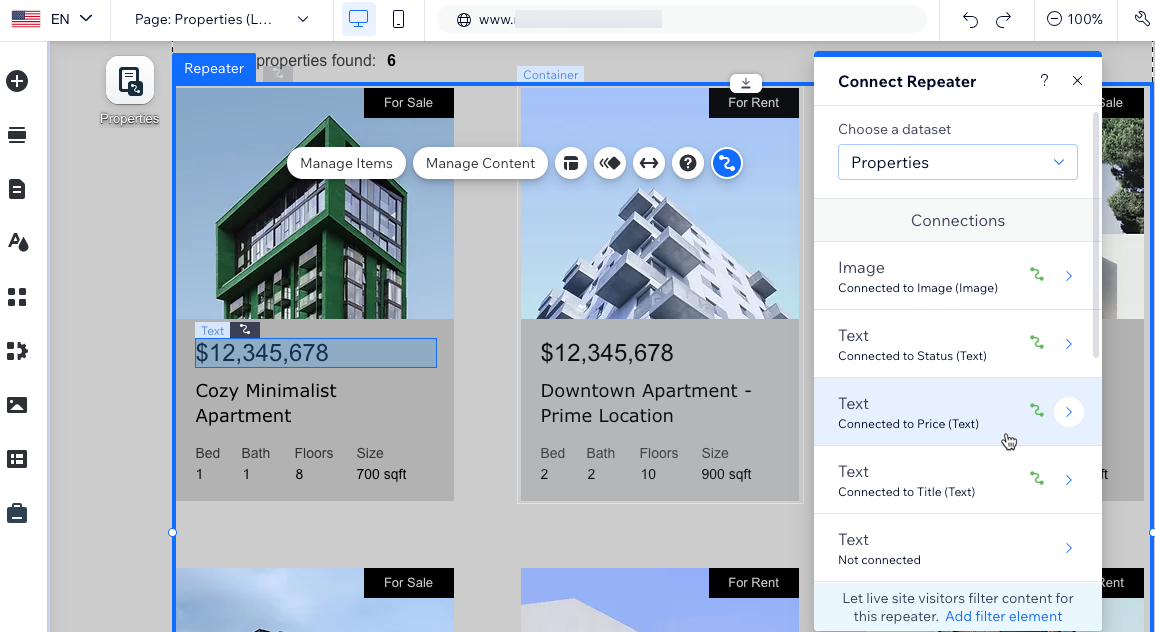
Dynamic list pages
These pages are like indexes or catalogs displaying various items from your collection. Information about the items appears in a repeater, gallery or table. You choose what details show up by linking each part of the element to a different collection field. You can let visitors filter the content that appears by adding input elements like dropdowns and checkboxes.
Your editor names dynamic list pages as {Collection name} (List).
Learn more about setting up dynamic list pages.
Dynamic item pages
These pages provide more details about individual items from your collection. They consist of various types of elements that you connect to collection fields to show content from a specific item. Each dynamic item page uses the same layout and design so you only need to design the page once.
You can have thousands of items in a collection, each sharing the same dynamic item page, each with its own unique URL. Dynamic item URLs are generated per item and do not count towards your site's total page quota. When managing site pages in your editor, you'll see just one dynamic item page per collection. However, in your editor, you can switch between items to preview how each unique item appears on the page.
Your editor names dynamic item pages as {Collection name} (Item).
Learn more about setting up dynamic item pages.
Dynamic item pages for listing items by category
These pages help you categorize your collection items on your site, using dynamic 'category' pages. Each category gets its own version of the page, where visitors can browse a list of items within that category and select specific items for more information.
For instance, if you're a book blogger covering various genres, these pages allow you to organize reviews by genre, making it easier for visitors to find the content they're interested in. You can customize these pages, adjust their URL structures, and even create a master dynamic page that displays all your categories.
Your editor names these dynamic 'category' pages the same way it names dynamic item pages as {Collection name} (Item). You can rename them to identify them more easily, if needed.
Learn more about creating dynamic pages that list items by category.
Dynamic manage item pages
These pages allow you, site collaborators, and specific site members to manage collection content directly from your live site. The page is pre-built with input elements that connect to specific collection fields. Each item gets its own version of the page. Depending on the collection permissions you decide on, the relevant people can view, add, update, or delete the item's content. Dynamic manage item pages are only available in the Studio Editor.
Your editor names dynamic item pages as {Collection name} (Manage Item).
Learn more about creating dynamic pages for managing content on your live site.
Changing the content in your dynamic pages
Dynamic elements like text, images, and buttons connect to a dataset that binds your collection fields. These elements get their content from the values in the connected fields. To change the content that is used in these elements, change the values in the relevant collection fields. You can also reconnect elements to different collection fields to adjust which fields are used for content.
Elements and parts of elements that are not connected to a dataset are static and can be edited as usual. For example, you could connect a button to a dataset and set the click action to connect to a dynamic item page. In the connection options, you could leave the button label disconnected and use static text on the button that doesn't change (e.g. "Learn More").
Learn more about editing your CMS collection content.
Managing your dynamic page dataset
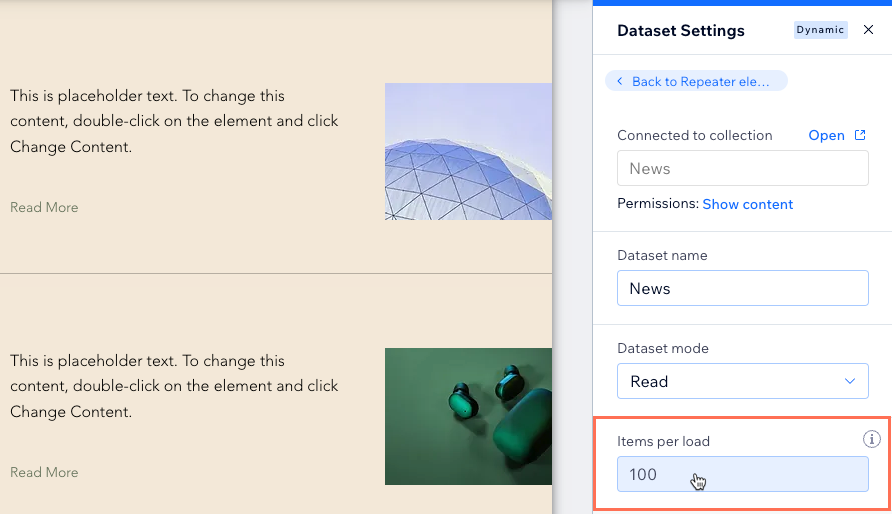
The dynamic page dataset acts as a content facilitator between your collection and the page elements. Go to the dataset settings to adjust the maximum items per load, filter items, and set the order in which they display. You can set the 'Items per load' field to show up to 1,000 items at a time, although you may want to add a 'Load More' button and set a lower number to improve your page's loading performance.
Learn more about using datasets to control your live site content.
Managing your dynamic page SEO settings
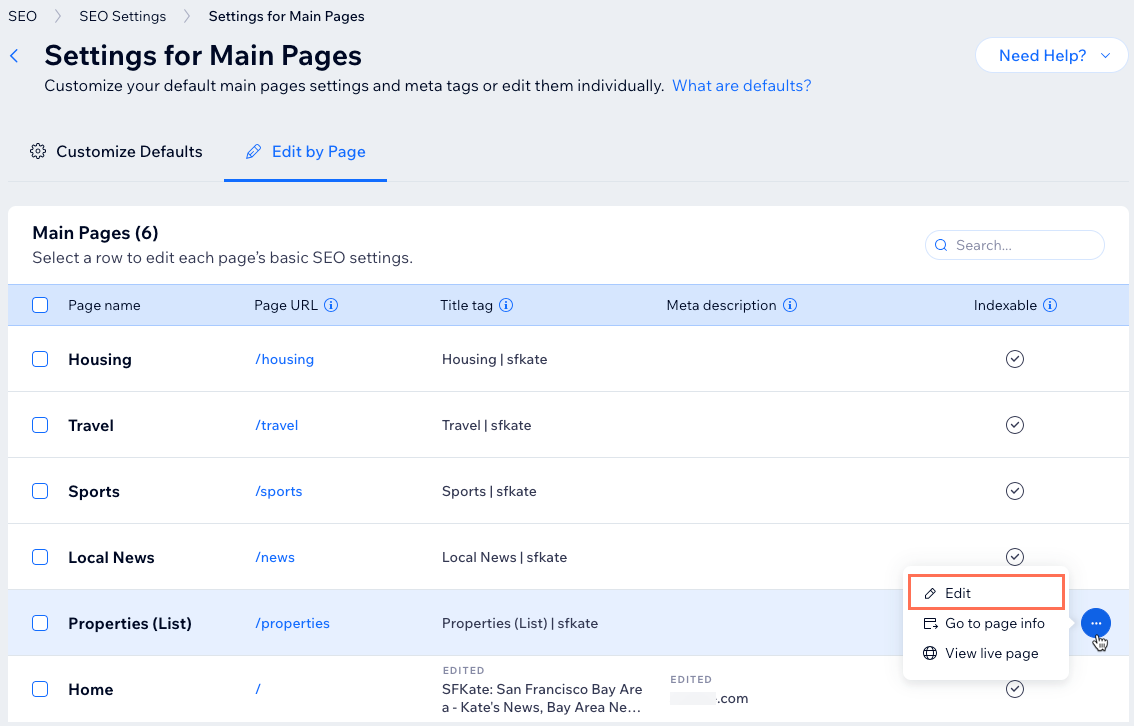
You can edit most of your SEO settings for dynamic pages from your SEO dashboard. For dynamic list pages, go to the "Main Pages" section of the dashboard. For dynamic item pages, go to the "Edit by page type" section. For both types of dynamic pages, go to the SEO tab of the page settings in your Editor to add variables to the URLs.
Learn more about working with your dynamic page SEO settings.
FAQs
Click a below for answers to frequently asked questions about dynamic pages.
How do I link items from a dynamic list page to a dynamic item page?
Dynamic list pages come with a repeater connected to a dataset that binds to your collection. Make sure your repeater contains a button or image element, so you can link to the dynamic item page. This lets visitors click the image or button to navigate to the relevant item in the dynamic item page.
When linking the image or button, click the Click action connects to or Link connects to field and select the dynamic item page that ends with (Item). Learn more about displaying CMS content in repeaters.
Note: If you chose the "Portfolio" preset, the included dynamic list page contains a Pro Gallery instead of a repeater. By default, this gallery is already linked to the dynamic item page.
Can I add a navigation bar to repeaters and galleries?
Yes. You can add pagination bars that allow visitors to switch between pages of items in repeaters and galleries. The maximum number of items in each pagination page is determined by the Items per load field in the dataset settings.
Learn how to add and connect pagination bars in the Wix Editor.
Note: This feature is not available in the Studio Editor.
Can I add 'Next' and 'Previous' buttons to cycle through items?
Yes, you can create 'Next' and 'Previous' buttons or images visitors can click to see other collection items.
To create 'Next' and 'Previous' buttons:
On static pages: Set the dataset's Click action connects to field to Next item or Previous item. When visitors click the buttons, the dataset's connected elements change to reflect the next or previous item retrieved by the dataset.
On dynamic list pages: Set the Click action connects to field to Next page or Previous page. When visitors click the buttons, the next or previous 'page' of items loads in the connected repeater or gallery. The Items per load field determines the maximum items per 'page'.
On dynamic item pages: Set the Click action connects to field to Next dynamic page or Previous dynamic page. When visitors click the buttons, they navigate to the next or previous item's version of the page at the item's dedicated dynamic URL.
Learn more about the various click actions you can set for buttons and images.
Can I show numerous images and videos on a dynamic item page?
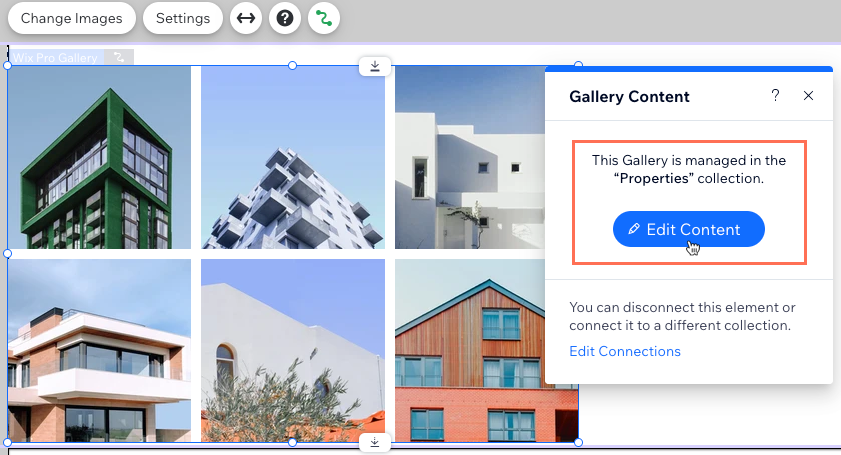
Yes. If you have several media files for each item in your CMS collection, you can display them in a gallery on your dynamic item page.
First, upload the media files for each item to a media gallery field type in your collection. Then connect a gallery on your dynamic item page to the dynamic page dataset that links to your collection. Connect your image sources connect to option to the media gallery field and publish your site to make the changes go live.
Learn more about connecting galleries to the media gallery field in CMS collections.
What is the URL slug structure?
The URL slug structure defines the last part of the web address for each of your dynamic pages. It helps describe the content of each page so that site visitors and search engines understand what it is all about.
Add variables to the URL slug structure if you want to use fields from your collections in each dynamic page's URL.
Learn how to add variables to dynamic page URLs.
Can I convert a static page to a dynamic item page?
Yes. You can convert regular pages into dynamic item pages that use content from a CMS collection.
Go to the Site Pages menu from your editor.
Hover over the relevant page and click the More Actions icon
 .
.Click Convert to Dynamic Page.
Click Start Now.
Select an option to choose where you want to save your content:
New collection: Create a new collection for this page's content. The elements that you want to make dynamic will have fields in the collection to store the content.Enter a name for your collection and click Next.
Select the checkbox next to each element you want to make dynamic. Unselected elements will not become dynamic and will show the same content on every page. You can make the elements dynamic later if you'd like.
Tip: Hover over an element and click the Edit icon to change its field properties.
Click Connect Elements.
Existing collection: Use an existing collection to store the content of this page's dynamic elements.Click the drop-down and choose the collection you want to use.
Click Next.
Learn more about converting static pages to dynamic item pages.
Can my dataset display content from different collections?
Yes. You can use reference fields to associate an item in one collection with an item in another collection. For example, in a "Songs" collection you could reference a field from another "Artists" collection to display both the artist and the song title in the dataset's connected element.
Learn more about using reference fields in your collections.
Can I set a dynamic page as the homepage of my site?
It is not possible to use a dynamic page as the homepage of your site. This is because dynamic pages have unique URL endings that appear after your domain name (e.g. mydomain.com/dynamic-page-url). Since your homepage must use your domain name as its URL, you cannot set a dynamic page as the homepage.
Workaround: You can, however, add a repeater to your homepage and connect it to the relevant CMS collection. As a result, your homepage would appear to visitors the same as a dynamic list page, displaying multiple items from your collection.
This article is credited to the Wix team - https://support.wix.com/
