Invite people to collaborate on your Wixel project. Collaborators can edit your project's assets alongside you, leave comments on the canvas, and see each other's changes in real time.
Inviting and managing collaborators
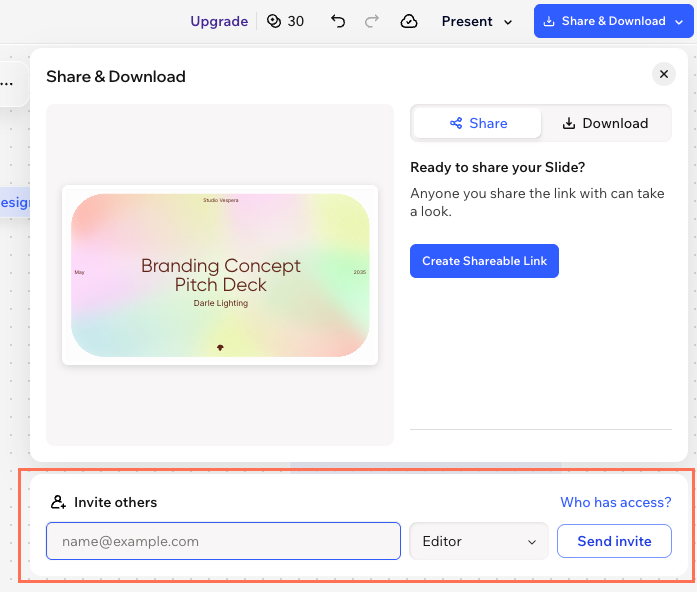
Invite someone to your project by entering their email. They'll get an email invitation and can start editing the project once they accept. Collaborators have access to your whole project, not just a specific asset.
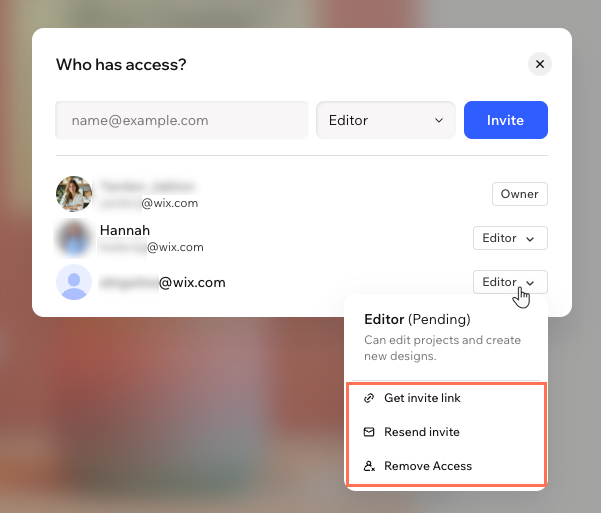
The Who has access? window shows the project owner, active collaborators, and any pending invites.
To invite and manage collaborators:
Desktop browser
Click your project name at the top.
Click Invite to project.
Choose what to do:
Invite a collaborator
Enter the collaborator's email address in the email field.
Click Invite.
Manage a pending invite
Click the Editor dropdown next to a pending invite and choose what to do:
Get invite link: Copy the invite link to send to the collaborator. This is the same link they receive to their email.
Resend invite: Send the invite email again to the collaborator.
Note: Expired invitations appear dimmed on the list.
Remove access: Revoke the collaborator's access to the project. Click Remove Access in the window to confirm.
Remove a collaborator's access
Click the Editor dropdown next to the relevant collaborator's name and click Remove Access. Click Remove Access in the window to confirm.
Set general access
Instead of inviting collaborators one by one, you can make the project accessible to anyone who has the link.
Click the dropdown under General access and select an option:
Restricted: Only people you invite can open the project. This is the default setting.
Anyone with the link: Anyone on the internet with the link can open the project.
Wixel app
Go to your project in the Wixel app.
Tap the More Actions icon

at the top right.
Click Invite to project.
Choose what to do:
Invite a collaborator
Enter the collaborator's email address in the email field.
Tap Invite.
Manage a pending invite
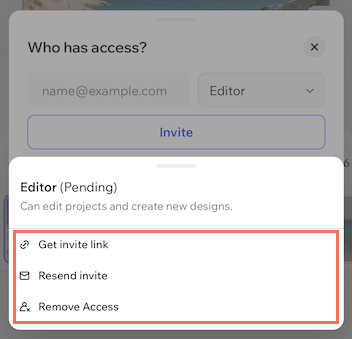
Tap the Editor dropdown next to a pending invite and choose what to do:
Get invite link: Copy the invite link to send to the collaborator. This is the same link they receive to their email.
Resend invite: Send the invite email again to the collaborator.
Note: Expired invitations appear dimmed on the list.
Remove access: Revoke the collaborator's access to the project. Tap Remove Access in the window to confirm.
Remove a collaborator's access
Tap the Editor dropdown next to the relevant collaborator's name and click Remove Access. Tap Remove Access in the window to confirm.
Set general access
Instead of inviting collaborators one by one, you can make the project accessible to anyone who has the link.
Tap the dropdown under General access and select an option:
Restricted: Only people you invite can open the project. This is the default setting.
Anyone with the link: Anyone on the internet with the link can open the project.
Tip:
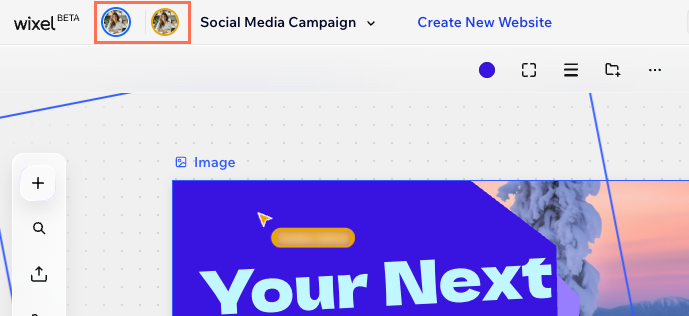
Once collaborators join, you can see who's working on a project with you. Their avatars appear at the top of the project, and their cursors move on the canvas in real time. Hover over an avatar to see who it is and which asset they're editing.
Working with comments
Leave a comment to give feedback, ask a question, or flag something that needs a change in a project or specific asset.
To work with comments:
Click the Comments icon

at the bottom.
Choose what to do:
Add a comment
Click a spot in the project where you want to comment and enter your comment in the field.
While writing the comment, you can:
Click the Image icon

to add an image from your computer.
Click the Mention icon

(or enter @) to select a collaborator's name to mention in your reply.
Note: If that person is not yet a collaborator in your project, they'll receive an invite to join the project.
Manage comments
Resolve a comment: Click the Resolve icon

at the top of the comment.
Edit or delete your comment: Click the More Actions icon

at the top of the comment and click Edit or Delete. You can only edit and delete your own comments.
Get the link to a comment thread: Click the More Actions icon

at the top of a comment thread and click Copy link.
Delete a comment thread: Click the More Actions icon
at the top of a comment thread and click Delete thread.
Hand a comment to the Wixel Agent: Click the Ask agent to fix icon

on a comment to send the comment to the chat and have it handled.
Review a project's comments
Review all the comments in your project or in a specific asset. To review the comments efficiently, set up your view using the following options:
Click the dropdown at the top of the Comments panel to show the comments on a single asset instead of the whole project.
Click Filter & Sort, then select Started by me to show only your own comments or Show resolved to bring resolved comments back into the list.
Show or hide comments
Enable or disable the Show comments on canvas toggle to show or hide comments on the project.

Leaving a project
If you were invited to collaborate on a Wixel project, you can leave it at any time.
To leave a project:
Desktop browser
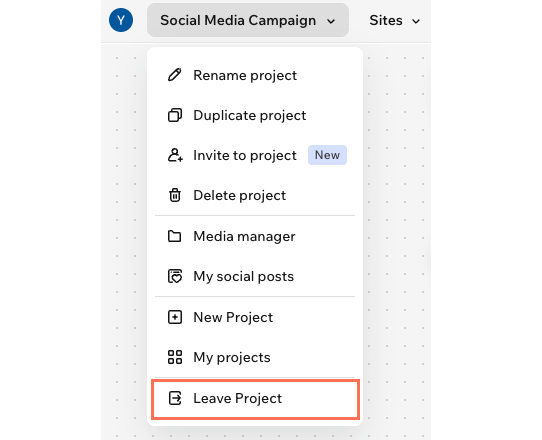
Click the project name at the top of the screen.
Click Leave Project.
Click Leave Project in the window to confirm.
Wixel app
Go to the relevant project in the Wixel app.
Tap the More Actions icon
at the top right.
Tap Invite to project.
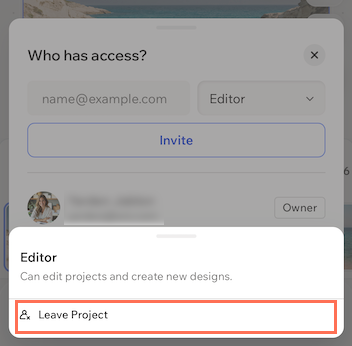
Tap the Editor dropdown next to your name.
Tap Leave Project.
Tap Leave Project in the window to confirm.
FAQs
Click a question to learn more about inviting collaborators.
Can I transfer ownership of a project?
No, ownership transfer is not available at this time.
How many collaborators can I add to my project?
There is no limit to the number of collaborators you can add to a Wixel project.
This article is credited to the Wix team - https://support.wix.com/ and we thank them for that!