Grab your viewers' attention with an eye-catching cover image for your video. You can either upload a cover image, or choose a frame from the video itself.
Changing the cover image of a video
Go to Video Library in your site's dashboard.
Click the Edit icon

next to the relevant video.
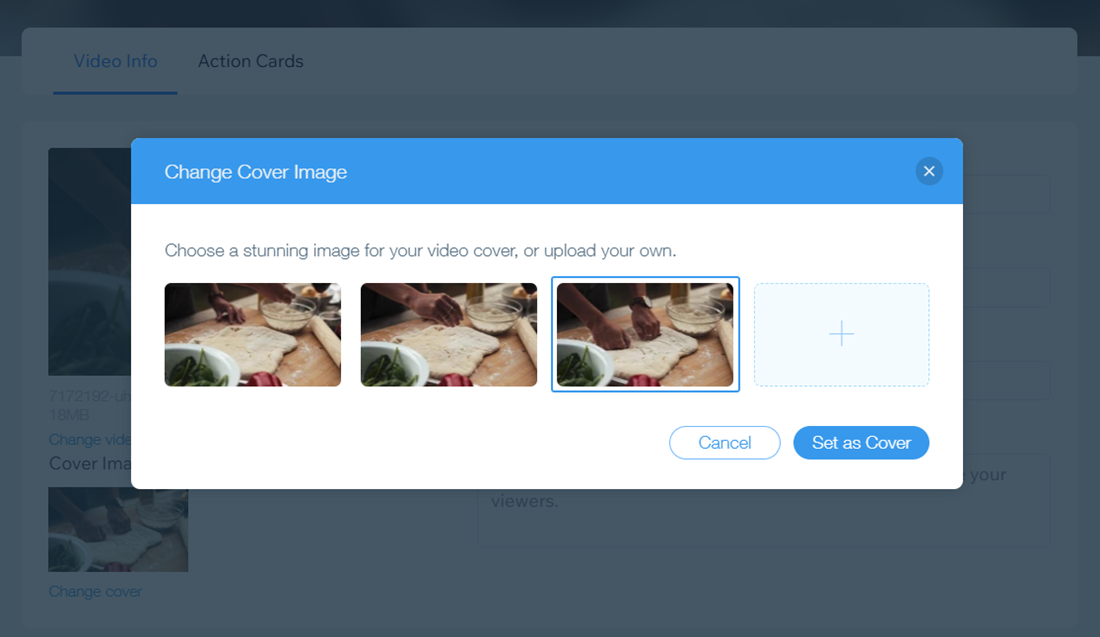
Click Change cover under Cover Image.
Select one of the suggested frames, or click the Add icon

to upload an image.
Click Set as Cover.
FAQs
Click a question below to learn more about changing the cover image of a video.
What file types are supported for cover images?
JPG, GIF, PNG are the supported file types. We recommend an image ratio of 16:9 and 1920 x 1080 pixels for JPG and PNG. For GIFs we recommend 960 x 480 pixels.
My upload failed, what should I do?
If the upload fails, please check your browser settings. Try clearing cache and cookies and check that your internet connection is working.
Can I change the cover image of my single video player?
Yes, you can also change the cover image of your single video player.
This article is credited to the Wix team - https://support.wix.com/ and we thank them for that!