Bring Aria, your AI assistant, into the loop on how your agency actually works. Tell it about your services, pricing and brand so it can answer client questions, draft proposals, and keep your whole team sounding consistent. Add to it as things change, and remove what's outdated.
Setting up the Agency AI Knowledge
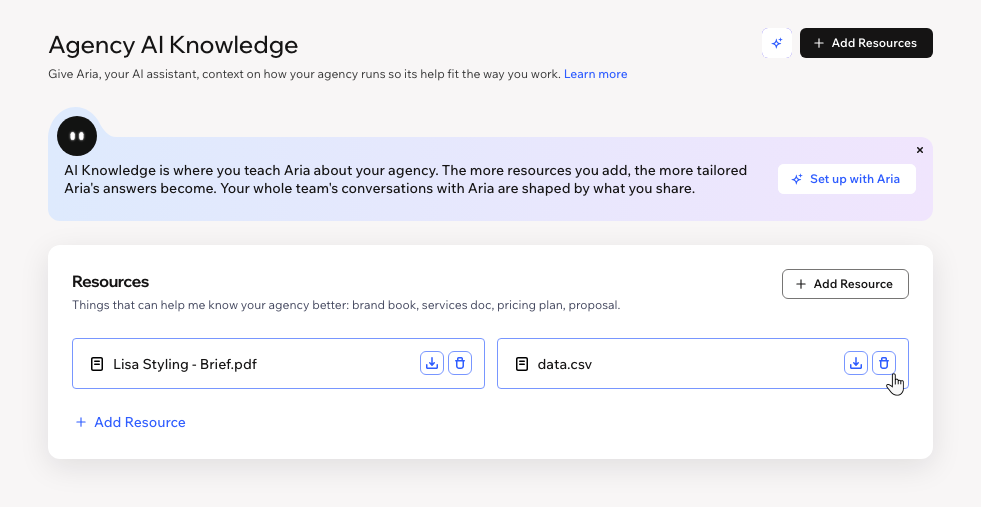
Head over to the Agency AI Knowledge tab in your Studio Workspace to set up Aria's knowledge. Upload documents about your work (e.g. your pricing, services, past proposals), or have Aria walk you through the process in a chat.
Note:
You can upload document files such as PDF, CSV, DOCX, etc. Currently, image files are not supported.
To set up the Agency AI Knowledge:
Go to Agency AI Knowledge in your Studio workspace.
Choose how you want to set it up:
I want Aria to walk me through it
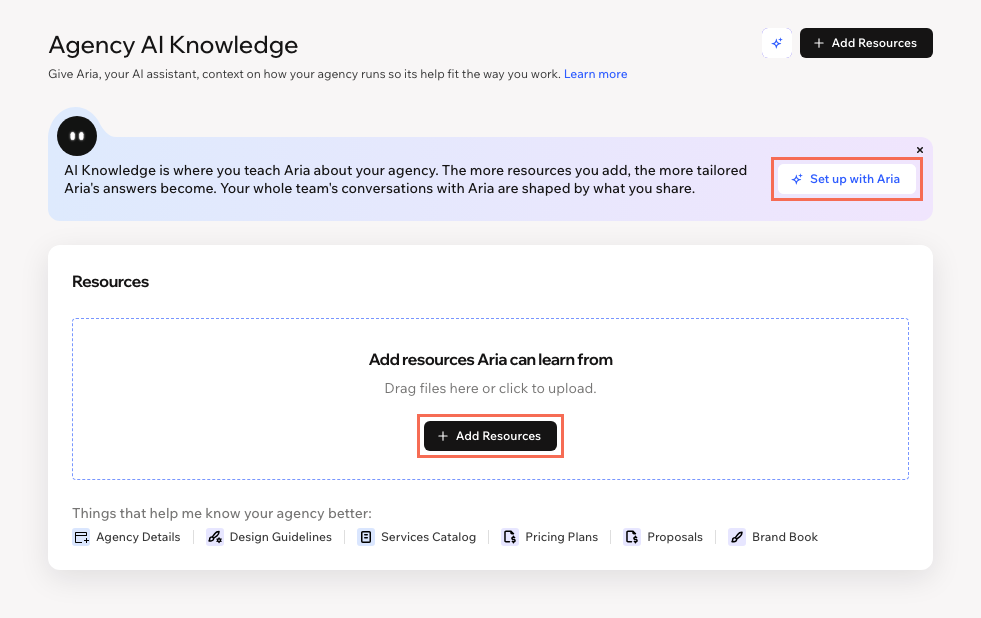
Click Set up with Aria.
(In the chat) Answer Aria's questions and upload the files it asks for.
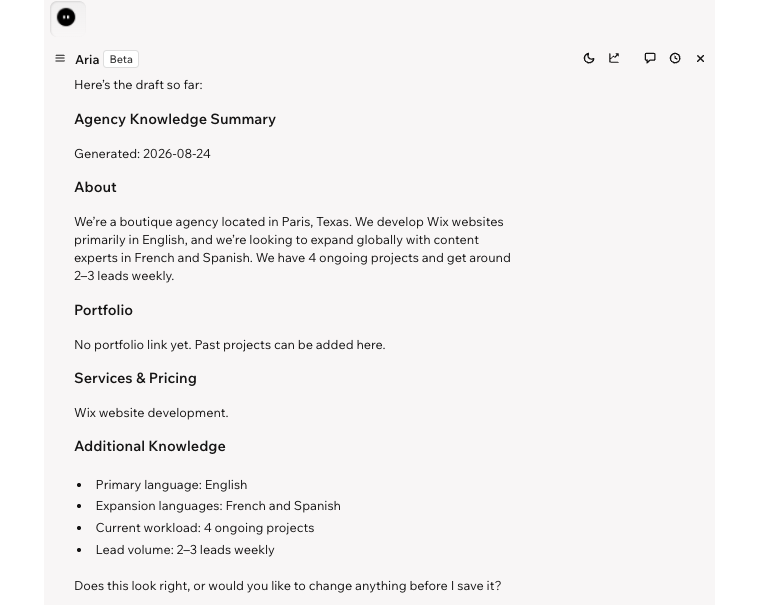
Review the Agency Knowledge Summary provided by Aria.
Approve the summary in the chat to save the info for future chats.
I want to upload my own files
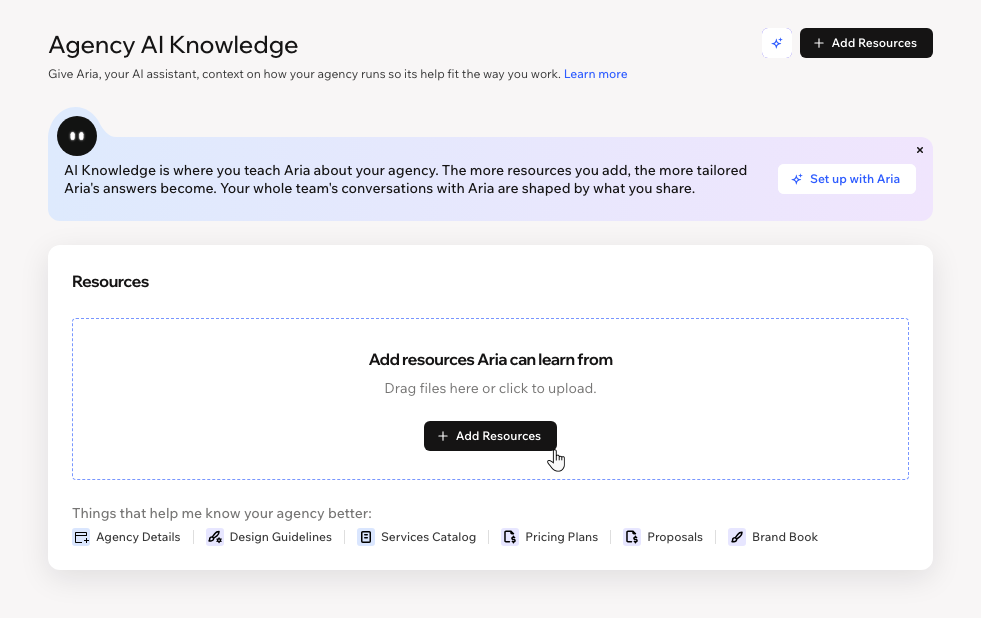
Drag a file into the Add resources Aria can learn from area, or click + Add Resources.
Select a file from your device.
Tip: We recommend uploading documents with your agency details, design guidelines, brand book, services catalog, pricing and proposals.
Adding more resources to the Agency AI Knowledge
As your agency evolves, add more knowledge so that Aria's answers stay up to date. For example, you may want to update your pricing information, upload a new brand book, or add another case study. This ensures Aria's answers are fresh, consistent helpful to you and your team.
To add more resources:
Go to Agency AI Knowledge in your Studio workspace.
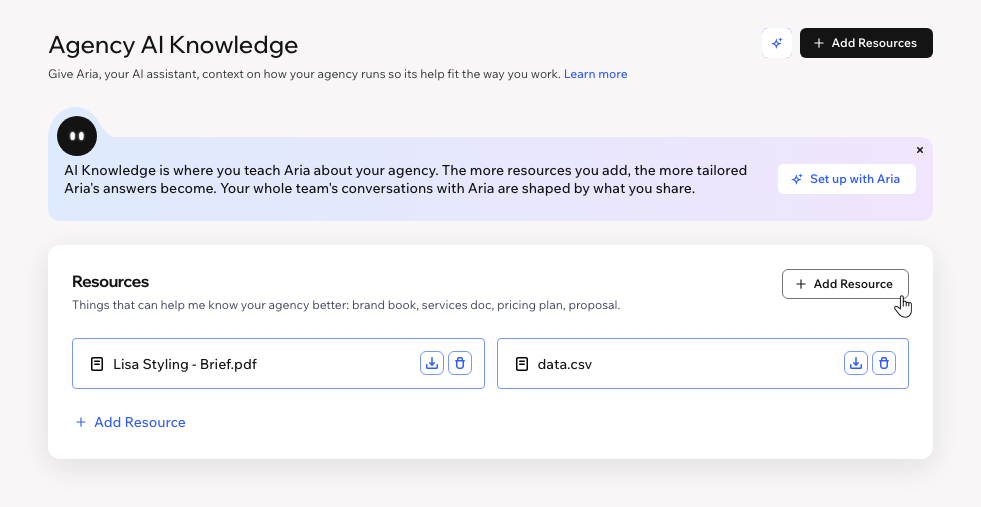
Click + Add Resource.
Select a file from your device.
Removing a resource from the Agency AI Knowledge
Remove a resource once it's outdated or no longer reflects your agency, so Aria doesn't rely on stale info when answering your team.
To remove a resource:
Go to Agency AI Knowledge in your Studio workspace.
Click the Delete icon

next to the relevant resource.
Click Delete in the popup to confirm.
FAQs
Click a question below to learn more.
Can other people on my team chat to Aria?
Absolutely. Any teammate can talk to Aria and get answers and advice shaped by what you share in the Agency AI Knowledge tab.
Can I edit a resource after adding it?
No, it's not possible to edit the file once it's uploaded. To keep Aria's answers fresh, you can remove the outdated resource and add an updated version instead.
How can I check that Aria is using the resources I added?
Ask Aria something related to what you shared, like a question about your services or pricing, and check that the answer reflects your agency's info.
To start a new chat, click the Ask Aria icon

next to + Add Resources.
Does this affect my clients and / or their sites?
No. The information in the Agency AI Knowledge tab only affects Aria's answers to your team, and only within your Studio workspace. It doesn't change any client site.
This article is credited to the Wix team - https://support.wix.com/ and we thank them for that!