Collaborate seamlessly with your team in Wix Studio—build sites, manage subscriptions, and handle key tasks together. As the workspace owner, you can invite teammates, assign roles, and customize permissions to fit their responsibilities. You can also grant tailored access to external collaborators, such as freelancers or clients, ensuring everyone has what they need while keeping full control over your projects.
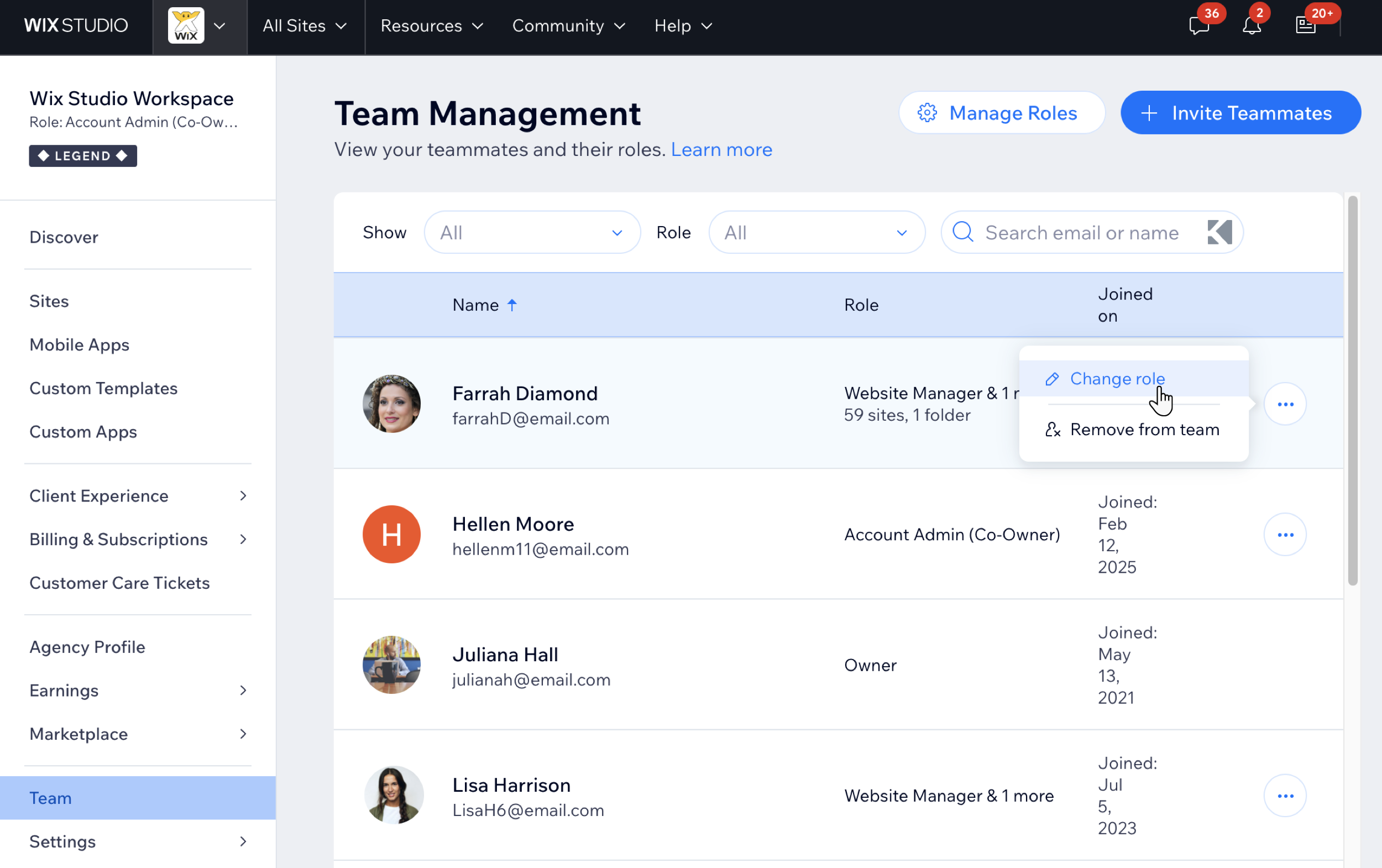
Setting up your team in Wix Studio
Invite professionals to your workspace and assign roles that match their responsibilities. Control their access to sites and folders, ensuring they have the right permissions for their work. You can customize roles, update access anytime, and even assign multiple roles across different projects.
Tip:
The Account Admin (Co-Owner) role has full access to all sites, apps, and workspace settings (including billing, domains, and team management) but cannot close the account.
To send an invite:
Go to Team in your Wix Studio workspace.
Click + Invite Teammates.
Enter the teammate's email address in the Emails field (you can invite up to 50 at once).
(Optional) Under Roles and site access, click Manage Access to specify which sites and folders the teammate can access. By default, access includes All sites and folders.
Under Select Roles, select a predefined role or click Create Custom Role to define specific permissions.
(Optional) Click Assign More Roles to add multiple roles for the teammate across different sites or folders.
Click Send Invite.
What's next?
Once your teammate accepts the invitation, they’ll gain access based on their assigned role.
Managing your team's roles and permissions
Roles in Wix Studio define what teammates and collaborators can access and manage. Assign workspace roles for full access to all sites and assets, or site-specific roles for limited access—ideal for designers, developers, or freelancers. You can update permissions, create new roles, and adjust access as your team evolves.
When managing your team and roles:
Assign workspace roles for teammates who need full access to all sites, assets, and settings.
Assign site-specific roles to limit access to certain sites or folders—ideal for freelancers or project-based team members.
Update permissions or create custom roles as your team’s needs change.
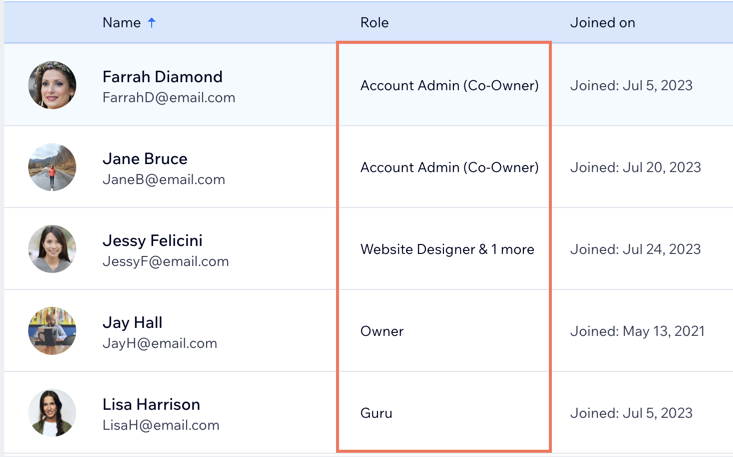
To manage workspace roles and permissions:
Go to Team in your Wix Studio workspace.
Choose what you want to do:
Assign a role to an existing teammate
Click the More Actions icon

next to the relevant teammate.
Click Change role.
Select the checkbox next to the role you'd like to assign this teammate.
Click Save.
Edit the permissions of an existing role
Click Manage Roles at the top of the page.
Click the relevant role.
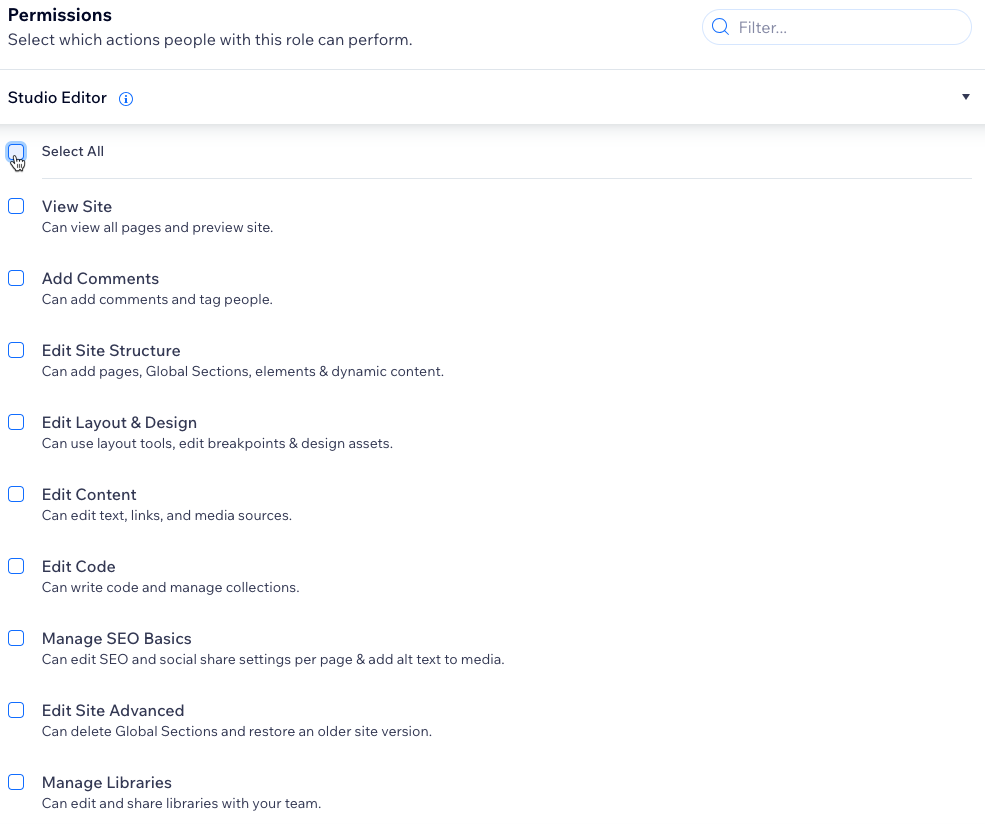
Click each Permissions section to expand it. Select the checkbox next to each permission you'd like this role to include.
Click Save.
Create a new role
You can create a new role based on an existing role or start from scratch.
To create a new role based on an existing role:
Click Manage Roles at the top of the page.
Click the relevant role.
Click Duplicate & edit.
Make any changes required and click Save.
To create a new role from scratch:
Click Manage Roles at the top of the page.
Click + Create New Role at the top right.
Give your role a title, description and set its permissions.
Click Save.
Granting access to the Studio Editor
Assign roles like Website Manager or Website Designer to give teammates access to the Studio Editor. Roles automatically adjust visibility and permissions based on assigned actions. Need more control? Create a custom role with tailored permissions.
Tip:
Collaborate in real time on the same Studio Editor site—changes sync automatically as your team works together.
FAQs
Click a question below to learn more about managing your team in Wix Studio.
Who can collaborate in Wix Studio?
There are two types of collaborators in Wix Studio:
Teammates: Professionals added to the Team tab in your workspace. Their access depends on their role:
Workspace roles: Teammates who require full access to manage assets, subscriptions, and settings across all sites.
Site-specific roles: Teammates who only need access to specific sites or folders, such as designers or developers.
External site collaborators: Professionals like freelancers or clients invited to a specific site. Unlike teammates, they cannot access workspace-wide assets.
Tip: When inviting clients to their site built on Wix Studio, mark them as 'Clients' to automatically set their Studio Editor to content mode.
Can my teammates access the custom apps in my workspace?
Yes, teammates with the necessary permissions can access, create, edit, and use custom apps collectively in Wix Studio.
By default, the Account Admin (Co-Owner), Website Manager, and Website Designer roles can access and manage custom apps. You can also create a custom role and enable the Manage Custom Apps permission under Studio Workspace.
How do I invite clients to collaborate on their sites?
Invite a client to their site from your workspace. You can set their access level and whether they can make changes to the site or dashboard. Learn more about inviting a client to join a site and how clients edit their site.
Can I remove a teammate from my team?
Yes. Removing a teammate means they can no longer access your workspace or sites.
Go to Team in your Wix Studio workspace.
Click the More Actions icon
next to the relevant teammate.
Click Remove from team.
Click Remove Teammate to confirm.
Where can I learn more about roles and permissions?
Learn more about site-level roles and permissions. Wix Studio offers additional roles and advanced permission settings, giving you greater control over team and client collaboration.
This article is credited to the Wix team - https://support.wix.com/ and we thank them for that!