You can assign an existing Premium plan to a Wix Studio site by upgrading your Premium plan to a Studio plan. The upgrade is immediate, and you'll receive a credit from your old plan where applicable.
Before you begin:
You must be the site owner of both sites, or have the relevant billing permissions to reassign a Premium plan. Learn more about roles and permissions.
Assigning and upgrading your Premium plan
Go to Sites in your Wix Studio workspace.
(If needed) Click the Workspaces drop-down at the top of Wix Studio to choose the workspace you want to access.
Hover over the Billing and Subscriptions tab and click Premium Subscriptions.
Click the More Actions icon

next to the plan you want to reassign.
Select Assign to a different site.
Select the checkbox next to the relevant Studio site.
Note: The site must be in the same workspace as the plan you've chosen to reassign. Review the FAQs at the bottom of this article to learn more.
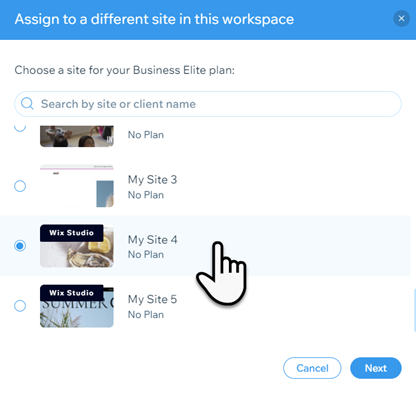
Click Next.
Click Compare Plans.
Note: To upgrade the site, you'll need to select a plan that offers more features than the current plan.
Click Select under your new Studio plan.
Choose your subscription period and click Continue to Checkout.
Enter your payment details and click Submit Purchase.
Credit from your current plan
Any remaining credit from your old Premium plan is deducted from the price of your new upgrade during the purchase process. The credit is deducted after any discounts from a coupon or seasonal sale are applied.
Note:
The credit is only applied if you purchased the original plan in the same Wix account as your Studio site. You won't receive a credit if the plan was transferred to you from another Wix account.
See how credit calculation works
Credit is calculated by dividing the full price of your current plan by the total number of days in the subscription period, and then multiplying this figure by the number of days left in your subscription period.
For example:
For a yearly plan at the cost of $276 with 10 days left, the calculation will be:
$276 ÷ 365 days = $0.76/day
This figure is then multiplied by the remaining days in the subscription period:
$0.76 x 10 = $7.60 credit remaining
FAQs
Click a question below to learn about reassigning a Wix Premium plan to a Wix Studio site.
Can I move from a more advanced plan to a simpler plan type?
No. When reassigning and upgrading to Studio plans, you must select a plan with a comparable or more advanced feature suite.
Can I move from a yearly Premium plan to a monthly Studio plan?
No. When reassigning and upgrading to Studio plans, subscriptions must be for the same duration, or a lengthier duration.
Can I transfer an existing Premium plan to a Studio site without upgrading to a Studio plan?
No. Wix Editor and Wix Studio require different types of plans. You can assign an existing Premium plan to a Wix Studio site only by upgrading it to a Studio plan. Where applicable, you receive credit from your old plan according to the number of days you have left in your subscription.
What happens to my domain when I assign my Premium plan to a Studio site?
When you assign a Premium plan to a Studio site, any primary or redirecting domains associated with the plan will automatically be reassigned to the new site.
Why do I need to pay to upgrade to a Studio plan when I assign a Premium plan to a Studio site?
Wix Studio is our advanced design platform, so it has different costs associated with it. When you are upgrading to a Studio plan, you are also starting a new billing cycle while benefiting from credit from your old Premium plan. The credit is deducted from the price of your new upgrade during the purchase process.
Note: The credit is only applied if you have purchased the original plan in the same Wix account as your Studio site. You won't receive credit if the plan was transferred to you from another Wix account.
What can I do if my plan and my Studio site are not in the same workspace?
Currently, it is not possible to transfer sites between different workspaces in Wix Studio. As a workaround, you can transfer a site to another account and then back to your original account, choosing the desired workspace in the process.
This article is credited to the Wix team - https://support.wix.com/ and we thank them for that!