Streamline your fulfillment process by purchasing shipping labels right in your site's dashboard. Wix has partnered with Shippo to provide you reduced rates via local carriers. Shipping to international destinations is available from most countries.
Wix Shipping is currently available for merchants in the following locations:
Canada
France
Germany
Spain
UK
US
Which carriers are available for my country?
Carriers available include the following:
Canada: Canada Post, UPS
France: Colissimo, Chronopost
Germany: Deutsche Post, DPD Germany
Spain: Correos
UK: DPD UK, Evri (Hermes UK), Royal Mail
United States: USPS, DHL Express, FedEx, UPS
Tip: For information about specific services, check the FAQ section of this article.
Setting up Wix Shipping
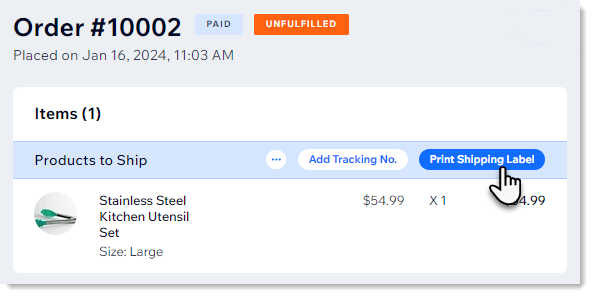
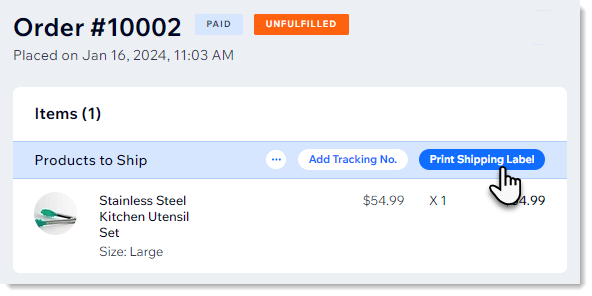
To get started, select an order and click Print Shipping Label. The first time you do this, you'll set up Wix Shipping. The next time you click there, you'll go straight to purchasing and printing the shipping label.
Before you begin:
Make sure you've entered your business address in the Business Info page.
To set up Wix Shipping:
Go to Orders in your site's dashboard.
Select an unfulfilled order that's set to be delivered domestically.
Click Print Shipping Label.
Integrate with Shippo:
If you previously added and set up Shippo on this site: Click Buy Shipping Label.
Note: For Wix Shipping, you can connect one Shippo account to one site.
If your site is new to Shippo:
Click Get Started.
Click Add to Site.
Review the permissions and click Agree & Add.
Create a new Shippo account or log into your existing account.
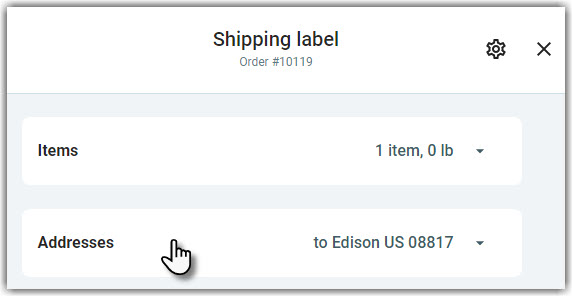
Make sure your sender address is accurate:
Click Addresses.
Click Sender.
If necessary, update your details.
Purchasing and printing a single shipping label
When you go to print a label for an order, you'll see that the items and addresses have already been entered, along with the default settings. Make any changes you need before purchasing and printing the label.
Tip:
The first time you purchase a label, you'll be asked to add a payment method.
To print a shipping label:
Go to Orders in your site's dashboard.
Select an unfulfilled order that's set to be delivered domestically.
Click Print Shipping Label.
(Optional) Update details (e.g. change the package type, select a different carrier, or carrier rate).
Click Buy label and complete the purchase.
Print the shipping label.
Purchasing and printing multiple labels at once
Streamline your workflow by printing shipping labels in bulk. You can select unfulfilled orders to process fulfillment or fulfilled orders to reprint shipping labels or packing slips.
To print multiple labels:
Go to Orders in your site's dashboard.
Select the relevant orders.
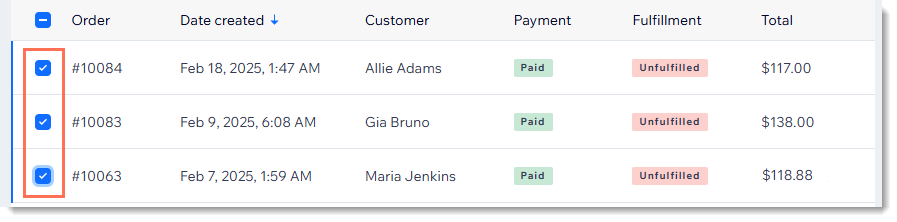
Click Print Shipping Label.
Tip: If you selected both unfulfilled and fulfilled orders, they are displayed in 2 separate tabs.
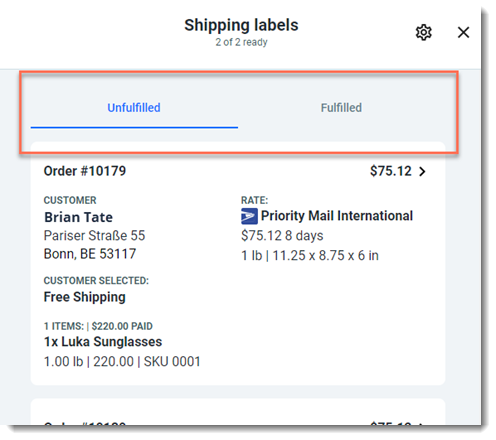
(Optional) Click the price to update the details of any of the orders (e.g. change the package type, select a different carrier, or carrier rate).
Click Next.
Review what you're set to purchase and click Buy labels.
Complete the purchase.
Print the shipping labels.
Tip: If you have this option set up, you can print both shipping labels and packing slips. Learn how to customize your settings.
Creating a custom package size
When you purchase a label, you have the option of selecting standard packages offered by your carrier, packages you used recently, or custom package sizes you created and saved.
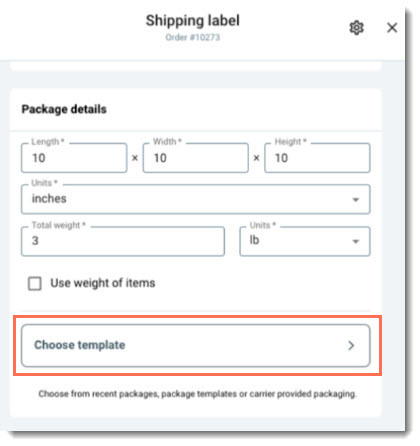
To create and save custom package templates:
Go to Orders in your site's dashboard.
Select an order.
Click Print Shipping Label.
Click Choose template.
Click + New Template.
Enter the package details and click Save.
Customizing your settings
Customize your details and default settings to save time when purchasing labels. You can change your company info and select default label sizes, carriers, insurance and more.
To customize your settings:
Go to Orders in your site's dashboard.
Select an order.
Click Print Shipping Label.
Click the Settings icon

.
Choose what you want to customize:
Enter your company information:
Select Company.
Enter your details and click Save.
Select label defaults:
Select Labels & Packing slips.
Select default label sizes, carriers, etc. and click Save.
Note: When printing any specific label, you can override these defaults.
Select an insurance default:
Select Insurance.
Select a default setting and click Save.
FAQs
Click a question below to learn more about Wix Shipping.
Can I print a label more than once?
You can print a label multiple times, but it can only be used once. After it's scanned by the post office, any other packages with the same label and barcode become invalid.
To reprint a shipping label:
Go to Orders in your site's dashboard.
Click the relevant order.
Click Print Shipping Label.
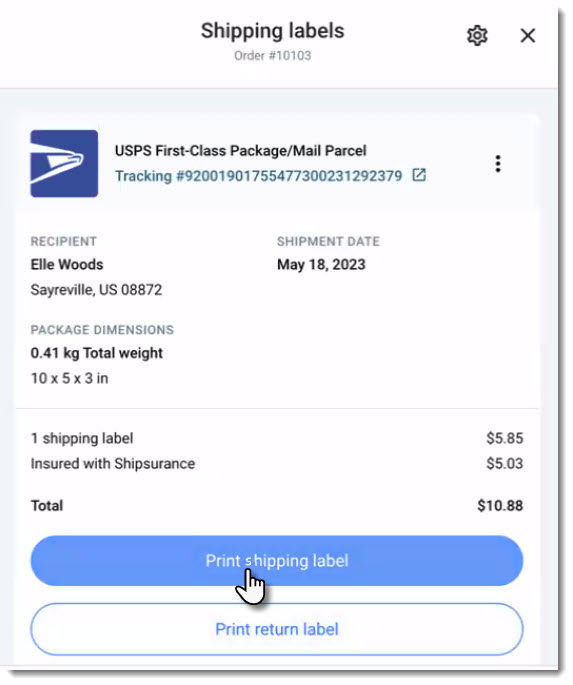
Click Print shipping label to reprint.
How can I customize and print packing slips?
You can customize packing slips in the Shippo dashboard. Learn how to customize packing slips.
To print a Shippo packing slip:
Go to Orders in your site's dashboard.
Select an order for which you purchased a shipping label.
Click Print Shipping Label.
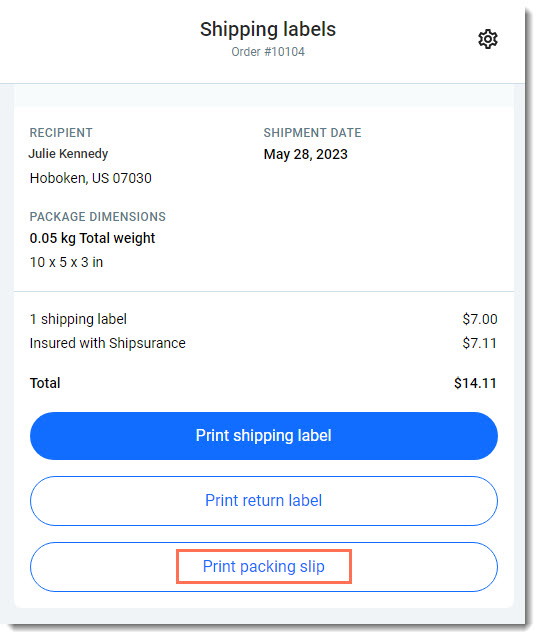
Click Print packing slip.
Tip: You can also print a Wix packing slip by clicking the More Actions icon

at the top of an order and selecting Print Packing Slip.
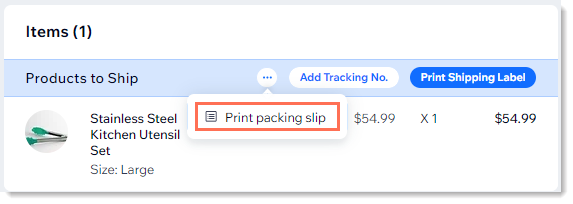
To customize a packing slip:
Go to Orders in your site's dashboard.
Select an order for which you purchased a shipping label.
Click Print Shipping Label.
Click the Settings icon
.
Select Labels and packing slips.
Select an option from the Print Preferences drop-down.
(Optional) Select the Add store policy on packing slip checkbox and enter a policy.
Select or deselect the Show pricing on packing slip checkbox.
Can I void a shipping label?
Yes. You can submit a refund request for your label, directly from your site's dashboard.
Go to Orders in your site's dashboard.
Select the relevant order.
Click Print Shipping Label.
Click the More Action icon

next to the tracking number.
Click Submit refund request.
How do I file an insurance claim?
Click here to file a claim.
Learn more about filing an insurance claim through Shippo.
What is the Tax ID type field?
When you prepare a label for an international shipment, you may be required to add your Tax ID. Tax IDs are referred to by different terms in different countries. For example, in the US, it is known as the Employer Identification Number (EIN).
Check with your local tax authority to find out how to handle customs and whether you are required to add your Tax ID number.
Learn more about customs declarations and Tax ID numbers.
Which carriers and services are available for merchants shipping from Canada?
New carriers and services are constantly being added. Available options currently include:
Canada Post:
Xpresspost USA
Xpresspost International
Xpresspost
Tracked Packet - USA (LVM)
Tracked Packet - USA
Tracked Packet - International
Small Packet USA Air
Small Packet International Surface
Small Packet International Air
Regular Parcel
Priority Worldwide Parcel INT'L
Priority Worldwide Envelope INT'L
Priority Worldwide PAK INT'L
Priority Worldwide Parcel USA
Priority Worldwide Envelope USA
Priority Worldwide PAK USA
Priority
International Parcel Surface
International Parcel Air
Expedited Parcel USA
Expedited Parcel
Which carriers and services are available for merchants shipping from France?
New carriers and services are constantly being added. Available options include:
Colissimo:
Domicile (domestic & international)
Chronopost (domestic only) :
• Chrono 13
• Chrono 10
• Chrono 18
Note: Delivery to pickup points is not currently supported.
Which carriers and services are available for merchants shipping from Germany?
New carriers and services are constantly being added. Available options currently include:
Deutsche Post (domestic and international) :
Postkarte
Standardbrief
Kompaktbrief
Grossbrief
Maxibrief
DPD DE (domestic only) :
DPD Classic
Which carriers and services are available for merchants shipping from Spain?
New carriers and services are constantly being added. Available options currently include:
Correos (domestic only) :
Paquete Estándar
Paquete Premium
Which carriers and services are available for merchants shipping from the UK?
New carriers and services are constantly being added. Available options currently include:
DPD (UK)
Next Day
Two Day
DPD Air Express
DPD Air Classic
DPD Classic
Evri:
Parcelshop Dropoff (domestic & international)
Parcelshop Dropoff Next Day
Postable
Postable Next Day
Which carriers and services are available for merchants shipping from the US?
New carriers and services are constantly being added. Available options currently include:
USPS:
USPS FC Package
USPS Priority Mail
USPS Parcel select
USPS Media Mail
USPS Priority Mail Express
USPS First Class Package International Service
USPS Priority Mail International
USPS Priority Mail Express International
FedEx:
Ground Economy
International Connect Plus
DHL Express:
DHL Express Worldwide
This article is credited to the Wix team - https://support.wix.com/ and we thank them for that!