When actions occur in your store (e.g. a customer places an order, receives a refund, or their order status changes), emails are triggered and sent automatically via Wix Automations.
These are the types of emails that may be sent to your customers:
Order confirmation: Sent when a customer places an order.
Digital download link: Sent in addition to the order confirmation email when a customer pays for a digital product.
Refund confirmation: Sent when a refund is initiated.
Shipping confirmation: Sent when a physical order is shipped.
Ready for pickup notification: Sent to let customers know they can collect their pickup order.
Order canceled: Sent when you cancel an order.
Order updated: Sent when you edit an order.
You can maintain a consistent brand experience from your site through to your customers’ inboxes by customizing the design and text of these emails.
Important:
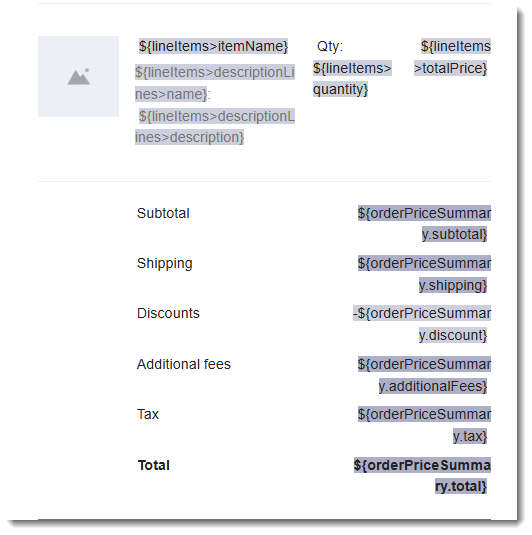
Each email is coded to display dynamic information, such as an image of relevant products or order price details. For the code to work as intended, it's important not to edit any of the highlighted sections of your emails.
Accessing email customizations
To get started customizing your emails, go to the Emails & Notifications tab on the Checkout Settings page.
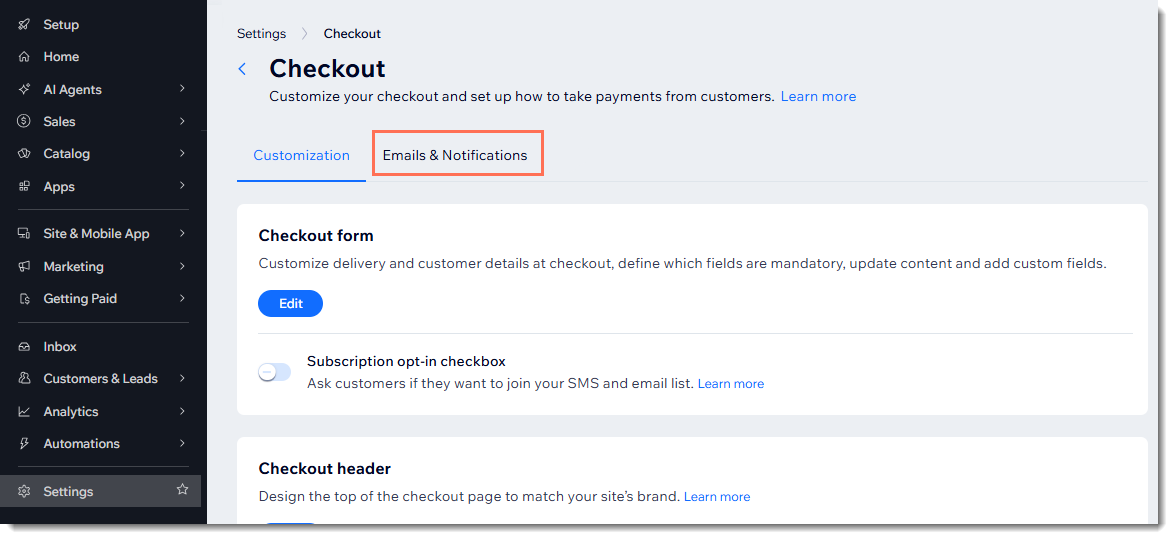
To access email customizations:
Go to Checkout settings in your site's dashboard.
Click the Emails & Notifications tab at the top.
Click Edit next to the relevant email.
Choose what you want to do next:
FAQs
How can I troubleshoot email issues?
Step 1 | Make sure the relevant emails are enabled
Go to Checkout settings in your site's dashboard.
Click the Emails & Notifications tab at the top.
Click the Active toggle next to the relevant email to enable it.
Step 2 | Make a test purchase to see if your store is sending confirmation emails
You can check if your store is sending emails by placing an actual order. To avoid paying for the order, you can temporarily enable the Manual Payment method and then buy one of your products.
Step 3 | Check for customer mailbox issues
If you receive confirmation emails when you ordered from your store but customers do not, ask your customer to:
Check if the email is in their Spam/Junk/Bulk folder.
Contact their email host to check if the email has been blocked.
I made changes and now my emails aren't working. What should I do?
If you made changes that caused a problem, you can always revert to the default email settings.
To revert back to default settings
Go to Checkout settings in your site's dashboard.
Click the Emails & Notifications tab at the top.
Click Edit next to the relevant email.
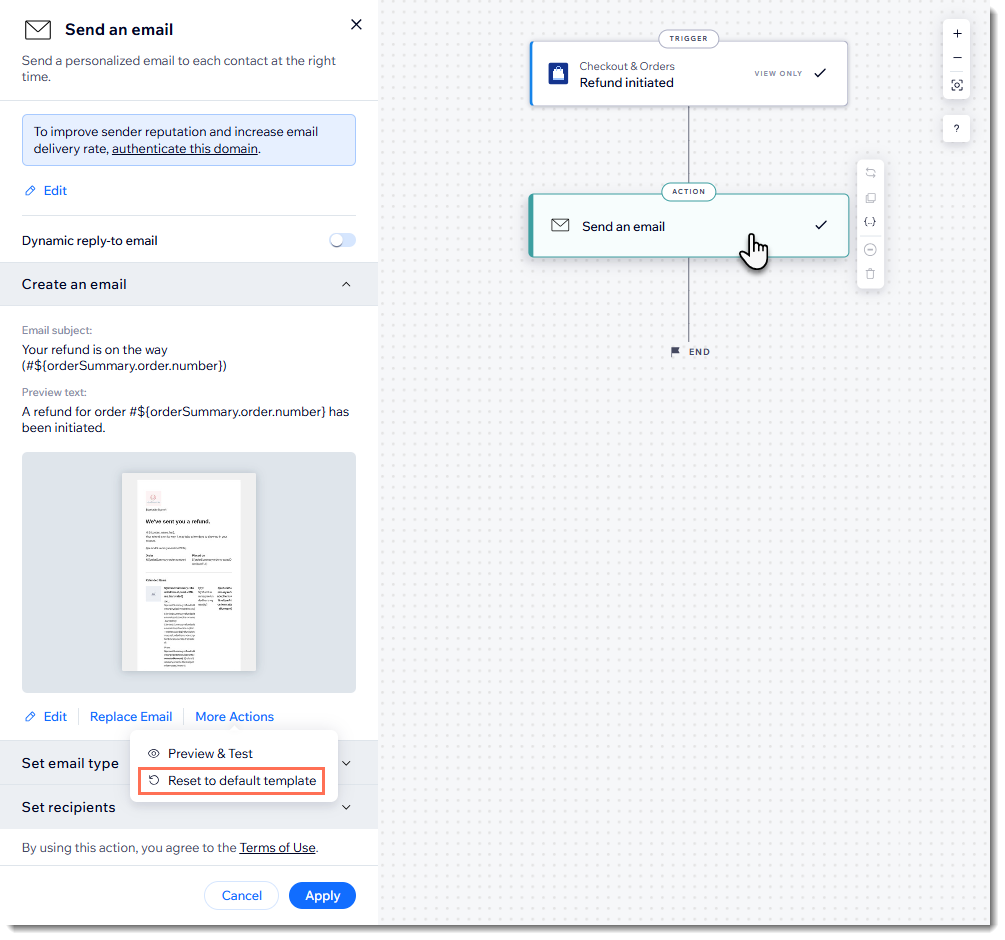
Click the Send an email action.
Click More Actions on the left.
Select Reset to default template.
Are these emails only relevant for Wix Stores?
No, some of these emails are used for multiple business solutions, such as Wix Bookings, Wix Events, and more.
How can I make changes to the notification I receive when an order is placed?
Go to Checkout settings in your site's dashboard.
Click the Emails & Notifications tab at the top.
Click Edit next to Get notified when an eligible order is placed.
How can I create an email marketing campaign?
You can create an email marketing campaign manually or using AI. Learn more about email marketing.
This article is credited to the Wix team - https://support.wix.com/ and we thank them for that!