Important:
We're in the process of releasing a brand-new product creation page. If the first field you see is ' Images and videos', you have the previous version and should follow these instructions on deleting store products.
Keep your list of store products up-to-date by deleting products that you've discontinued.
Warning:
Deleted products cannot be recovered. Instead of deleting permanently, you can hide products from your site.
Deleting a single product
You can permanently delete any product that you no longer carry in your store.
To delete a single product:
Go to Products in your site's dashboard.
Click the More Actions icon

next to the product you want to delete.

Click Delete.
Click Delete to confirm.
Note: This action cannot be undone.
Deleting multiple products at once
Save time by permanently deleting multiple products in bulk. You can delete up to 999 products at the same time.
To delete multiple products at once:
Go to Products in your site's dashboard.
Select what you want to delete:
Delete all products: Select the checkbox at the top left.
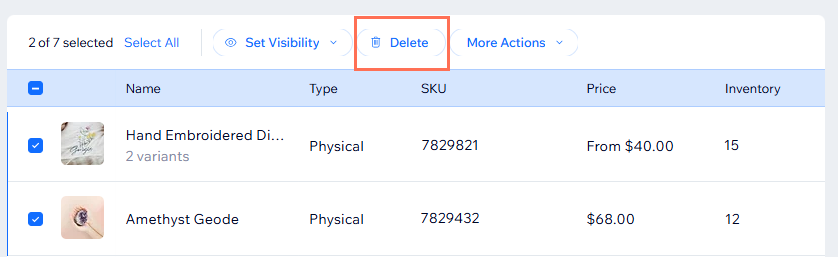
Delete specific products: Select the checkboxes next to the relevant products.
Click Delete.
Click Delete to confirm.
Note: This action cannot be undone.
This article is credited to the Wix team - https://support.wix.com/ and we thank them for that!