Important:
This article is about the new version of product categories. If you click +New Category and your page doesn't look like the image in Step 1 below, you have the original version. If so, click this link to learn how to add and display categories.
Product categories are essential building blocks of your online store. They help you organize your products into groups, making it easier for customers to browse and find exactly what they need. Managing a large number of products? Create subcategories to keep everything structured and accessible.
Once you've set up a category or subcategory, you can display it on your site, use it as a store filter, or apply discounts and coupons to it.
Step 1 | Add the category details
To create a new category, click + New Category and add the category details. The image and description appear in search engine results, when a category is shared in social media, and can optionally appear on the Category page.
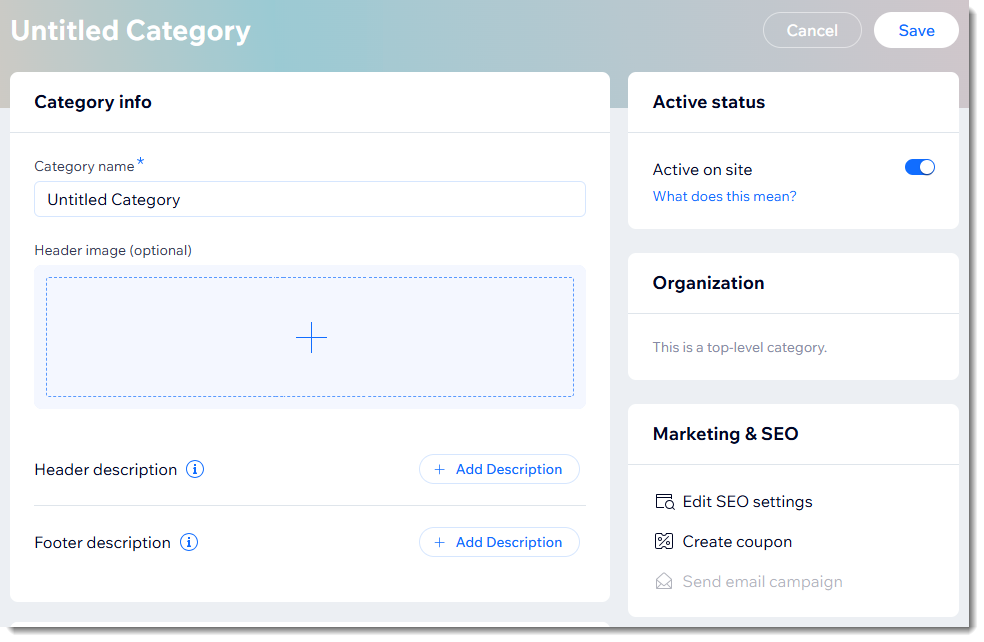
To create a category:
Go to Categories in your site's dashboard.
Click + New Category at the top right.
Enter a category name (e.g. Men).
Add a header image.
Click the Add icon

.
Select an image from your media manager or click Upload Media to upload an image.
Click Add Image.
Enter a header description.
Learn more about effective header images and descriptions.
Step 2 | Set the category as active or inactive
A category's status can be either active or inactive. While setting up your category, you may want to make it inactive until you are ready to display it.
Click below to learn the difference between active and inactive categories:
Active categories
When a category is active, it has its own URL (e.g. www.mysite/category/shirts) which can be discovered by search engines.
Category URLs also make your site more 'SEO friendly'. They help boost SEO ranking by making it easier for search engines to understand what you're selling and how your site is organized.
You can use active categories in any of the following ways:
To add to your site menu (by linking the URL)
To display in the Category page
To display in a Product Gallery on any site page
To use when applying discounts and coupons to a group of products
To create custom shop filters
To share on social media platforms
Inactive categories
You can set a category as inactive when you are not yet ready for it to appear live. You can also use inactive categories for internal purposes, such as when creating discounts and coupons or for your own internal organization.
When you set a category as inactive, it no longer has a URL. This means:
It doesn't show up in search engine results or site search
If you added the link to your site menu, it no longer works
If you displayed it in a Product Gallery, the gallery will display the All Products category instead
If you shared the link, it will no longer work
Note that inactive categories can, however, appear in:
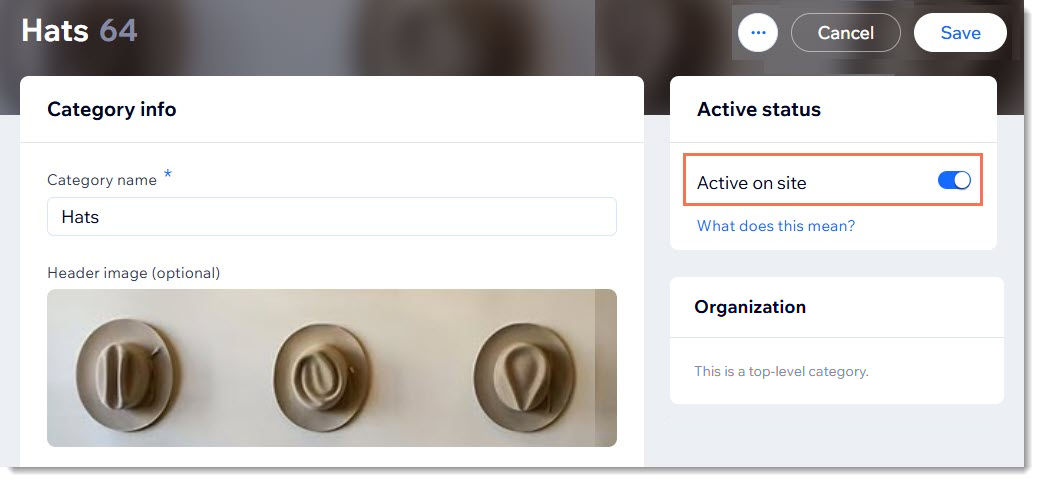
To set the category status, click the Active on site toggle to enable or disable it.
Step 3 | Add products
If your category is active, it's a good idea to add at least a couple products right away to avoid displaying a blank category. You can add or remove products at any time.
To add products to a category:
Click + Add Products.
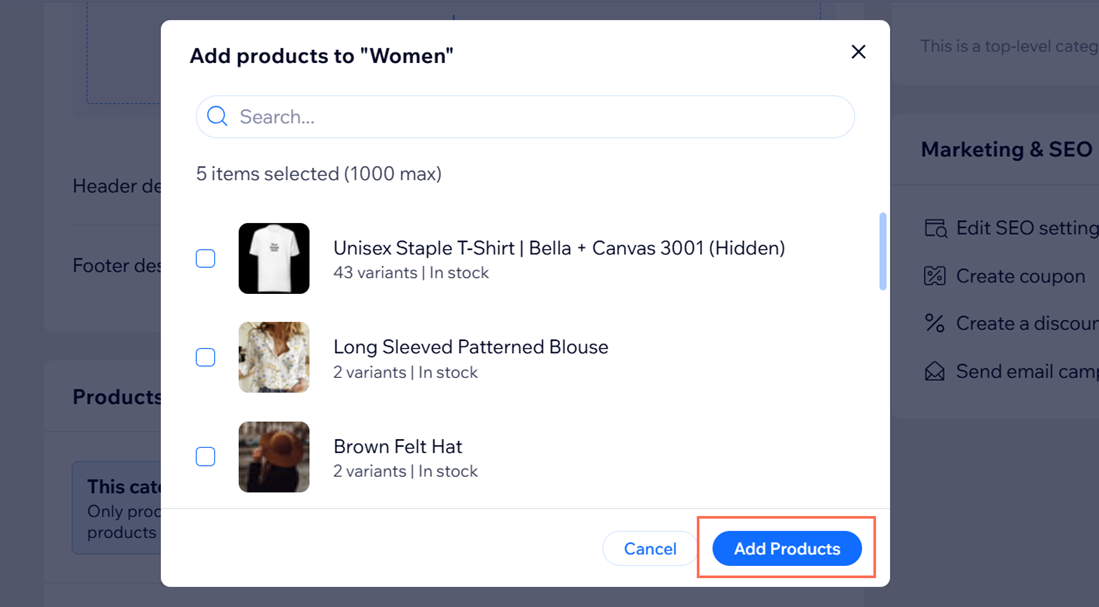
Select the products you want to add.
Click Add Products.
Step 4 | (Optional) Create subcategories
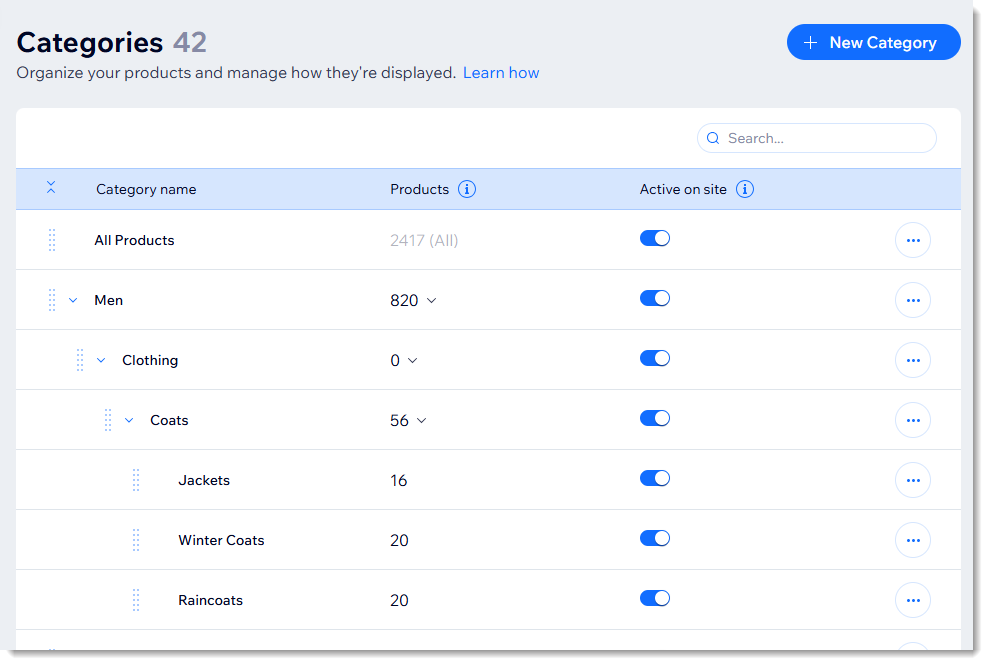
Now that you've created a category (e.g. Men), you can create subcategories (e.g. Shirts, Shoes). In total, you can create 5 levels of subcategories, including the 'All Products' category.
For best performance, it's recommended that you create no more than 1000 categories/subcategories in total.
Notes:
A category can act as a container which holds only subcategories.
The same subcategory cannot exist in 2 places, however, you can create different subcategories with the same name (e.g. a 'Shoes' subcategory under 'Men' and under 'Women').
To create a subcategory:
Go to Categories in your site's dashboard.
Select an option:
Create a new subcategory under a particular category:
Click the More Actions icon

next to the category under which you want to create a new subcategory.
Select + New subcategory.
Create the subcategory just as you would a new category.
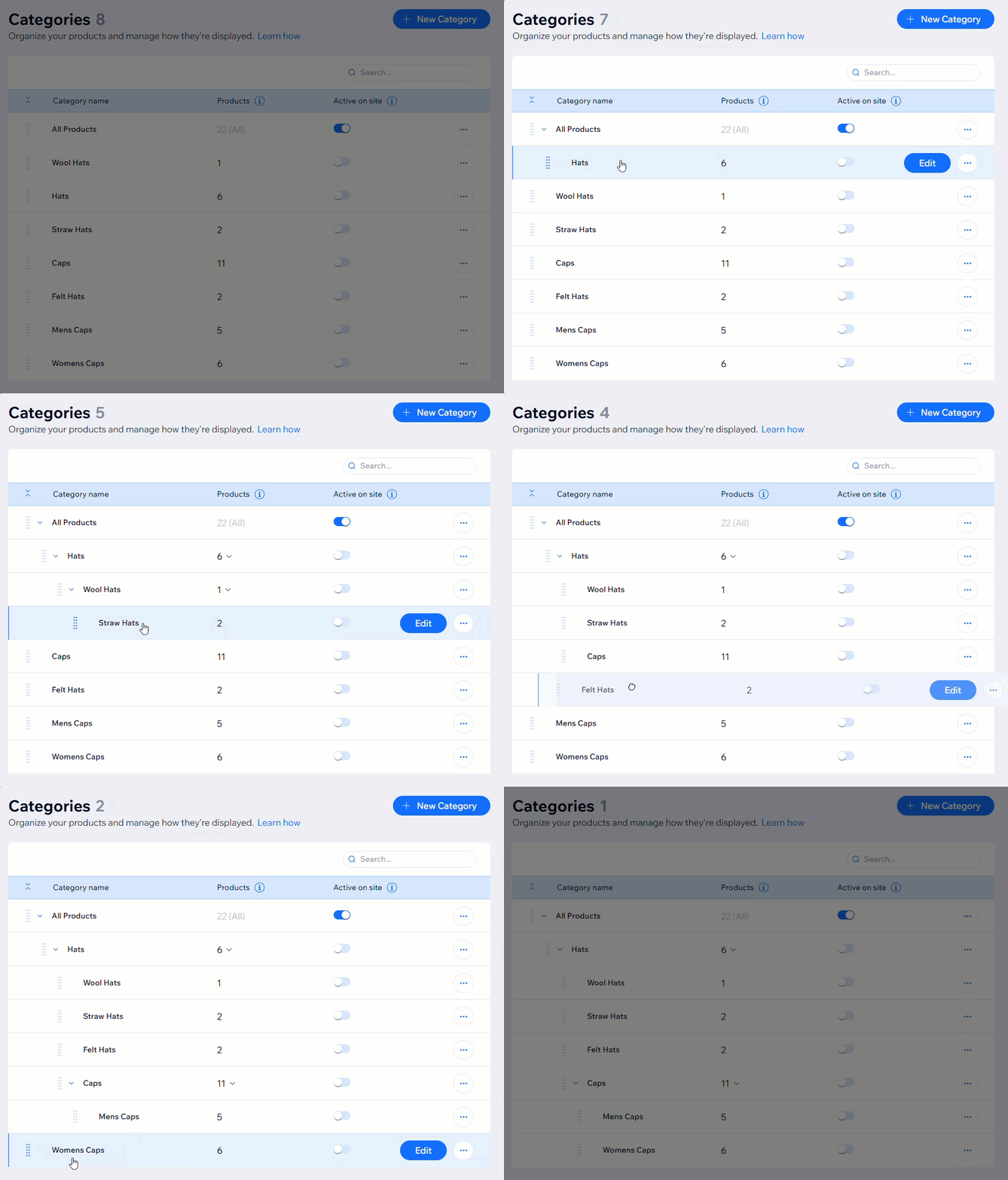
Turn an existing category into a subcategory:
Click and drag the Reorder icon

on the category to move it under and slighlty to the right the relevant parent category.
FAQs
What is a product's primary category and how does it affect the product?
Every product belongs to the All Products category. In addition, you can assign a product to one or more additional categories or subcategories.
Every product's primary category is the All Products category at first, but you can select a different option. A product's primary category affects 2 things:
Breadcrumbs:
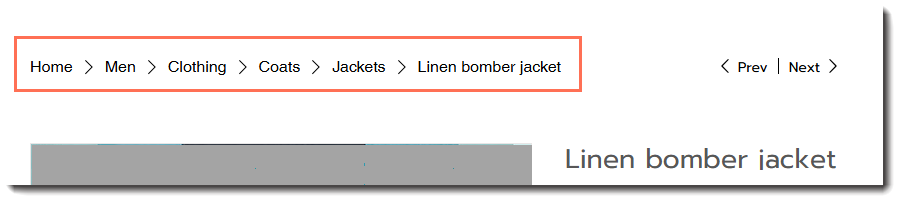
When a product's primary category is 'All Products', the breadcrumbs show Home > All Products > [the product's name]. By selecting a different primary category, you can show the nested subcategories that the product belongs to.
SEO: Selecting a subcategory makes it possible to create the proper taxonomy for search engines.
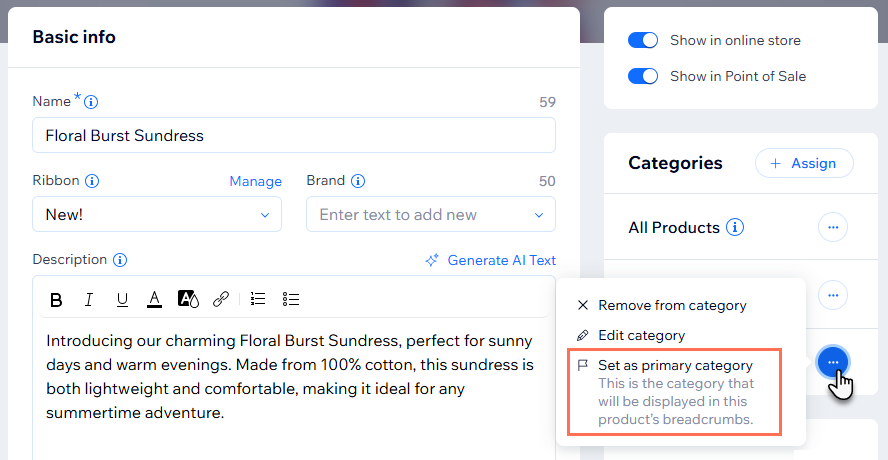
To select a primary category:
Go to Products in your site's dashboard.
Select the relevant product.
Click the More Actions icon
next to the relevant subcategory on the right.
Select Set as primary category.
How can I display categories?
Learn how to display product categories.
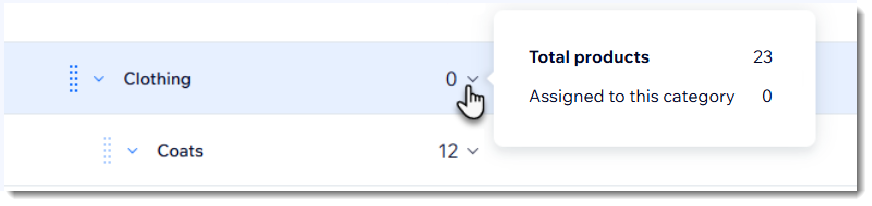
Why does my category show 0 products when there are products in its subcategories?
If you do not add products directly to a category, it'll display 0 products, even though there are products in its subcategories.
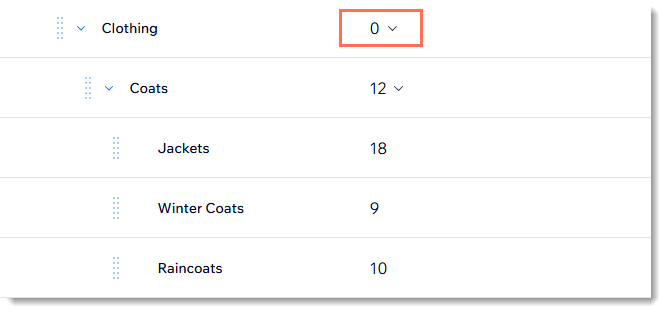
When you hover over the number with your mouse, you can see how many products belong to all the subcategories and sub-subcategories nested underneath.
This article is credited to the Wix team - https://support.wix.com/ and we thank them for that!