Have a brick-and-mortar business using Square POS but no ecommerce presence? Connect Square to Wix to quickly get your online shop up and running. Choose the items from Square that you want to list and start reaching more customers.
Tip:
To keep things easy to manage, products, inventory, and other details are managed in your Square dashboard.
Step 1 | Add the Wix app in Square
Connect your Square account to Wix by installing the Wix app from Square’s App Marketplace. This links your accounts and grants the permissions needed to sync products, inventory, orders, and more.
To add the Wix app:
Log in to the Square dashboard.
Click Settings.
Click App integrations and then click Visit App Marketplace.
Search for and select the Wix app.
Click Get Started, then click Allow.
Enter your business details and click Continue.
Step 2 | Add initial products & create your site
To help get you started, click Sync Products to add a number of recently sold products. Later on, you can add or remove additional products.
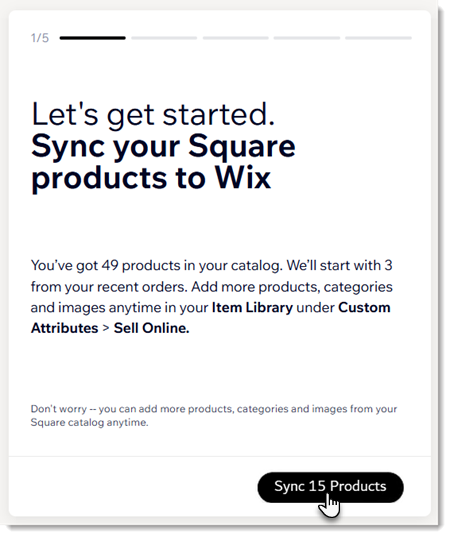
To add products and create your site:
Click Sync Products.
Select a business goal and click Continue.
Select your primary customers and click Continue.
Select a template as a starting point and click Continue.
Note: Every part of your site can be customized later.
Step 3 | Add more products to your site
Now you can review your list of products in Square and decide which ones you want to sell in your online store.
To add products to Wix:
In the Square dashboard, click Items & services.
Under Items, select Item library.
Select the checkboxes next to the products you want to manage or click the checkbox next to Item at the top to select all products.
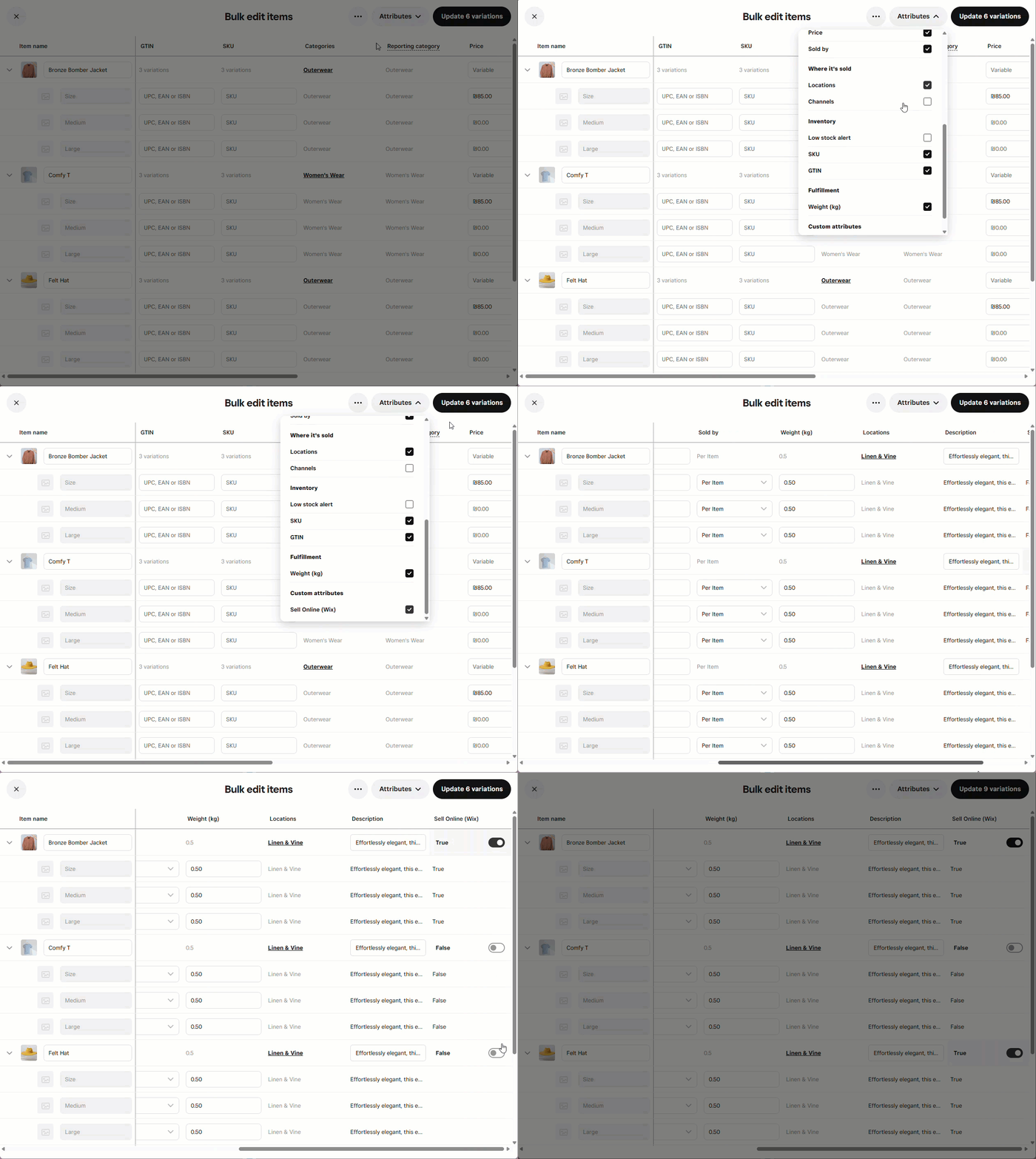
Click Edit items.
Click Attributes.
Scroll down to Sell Online (Wix) and select the checkbox.
Scroll right and click the toggle next to each product to add or remove products from your online store.
FAQs
Click a question below to learn more about managing your store with Wix and Square.
After setup, what can I manage in Square or in Wix?
The elements listed below are managed exclusively in Square. Changes you make in the Square dashboard are instantly updated in your online store.
Product name
Product images
Product options (e.g. size, color)
Price
Inventory quantity
Modifiers
Wix has many additional elements relevant for online businesses. Go to your Wix dashboard or editor to customize these and other elements:
Site design
Shipping & fulfillment settings
Online product categories and subcategories
Product videos
Info sections
SEO metadata
Ribbons
What happens if I update a product name, price, or inventory level in the Wix dashboard?
Since these are managed in the Square dashboard, updates made in Wix will not appear in your online store or Square.
How do inventory levels sync?
When you make a sale in your online store or at your POS, inventory levels immediately update for both.
To manually add new inventory or make any other inventory adjustments, go to the Square dashboard.
How do I manage categories for my online store?
Categories you created in Square are not copied over to Wix. This way you can create categories that make sense for your online store.
Learn how to create categories in Wix Stores.
How often do changes I make in Square sync with my Wix site?
Any changes you make in Square are instantly reflected in Wix.
This article is credited to the Wix team - https://support.wix.com/ and we thank them for that!