Important:
We're in the process of releasing a brand-new product creation page. If the first field you see is ' Images and videos', you have the previous version and should follow these instructions on adding images, GIFs, and videos.
Add images, GIFs, or videos to your products so customers can experience your store's products. High-quality visuals help grab your customers' attention, boost confidence, and encourage purchases.
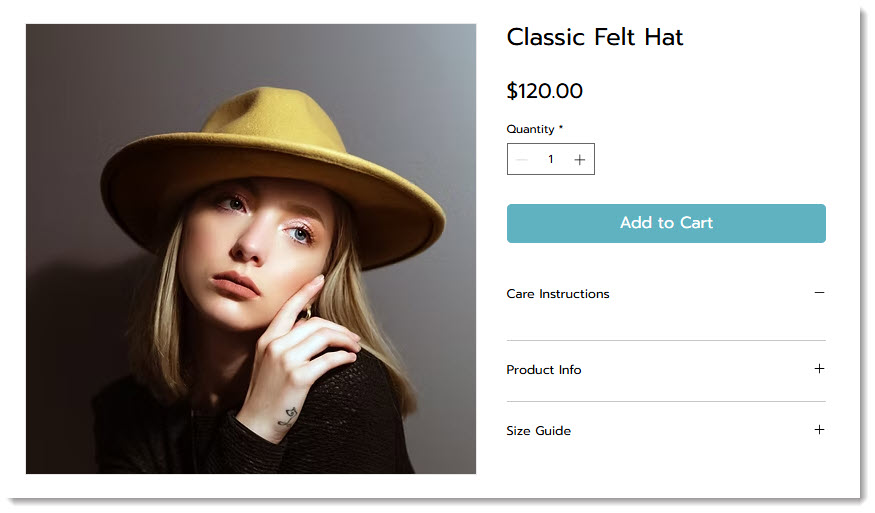
Creating effective product images
Great product images can make the difference between making a sale or losing out on one. Since customers can't touch or try your product in person, your images, GIFs, and videos are key to showing them exactly what you have to offer.
Quality matters: Even your best products may not look enticing if the picture quality is poor. Use high-resolution images, proper lighting, and a tripod for sharp results.
Variety: Customers love to see images of products taken from multiple angles. Include close-ups to showcase details such as fabric stitching, textures, or craftsmanship.
In-context visuals: Show your product in action or being used. For example, instead of only showing a close-up of earrings resting on a table, include an image of someone wearing them.
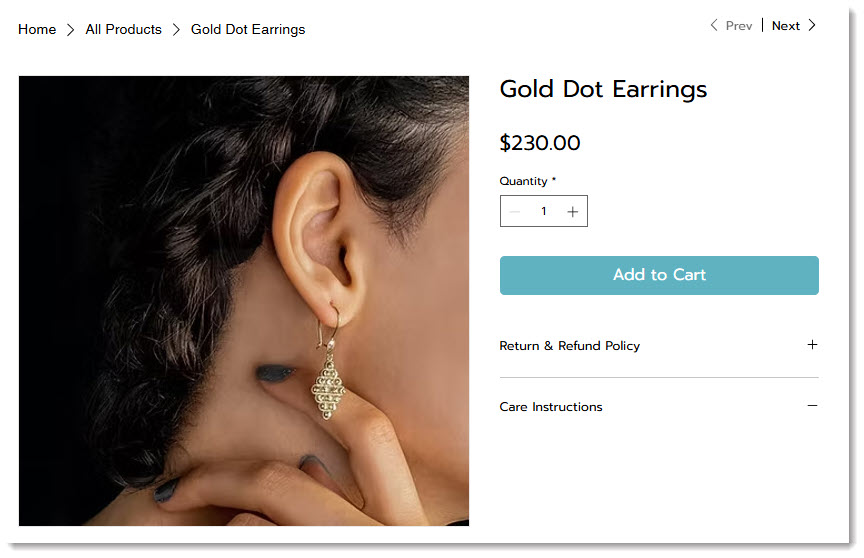
For many more helpful tips on creating outstanding product images, check out this guide.
Adding media to products
When creating your images, make sure you pay attention to image ratios (image width vs height). Follow these recommendations for optimal display:
Recommended image sizes and resolutions:
Minimum resolution: 3000 x 3000 pixels
Image ratios: 16:9, 3:2, 4:3, 1:1, 3:4, 2:3, 9:16
Recommended ratio for mobile: 1:1 (a square picture).
Recommended for desktop: The Classic Product Page layout supports all image ratios. Other layouts look best with wider images.
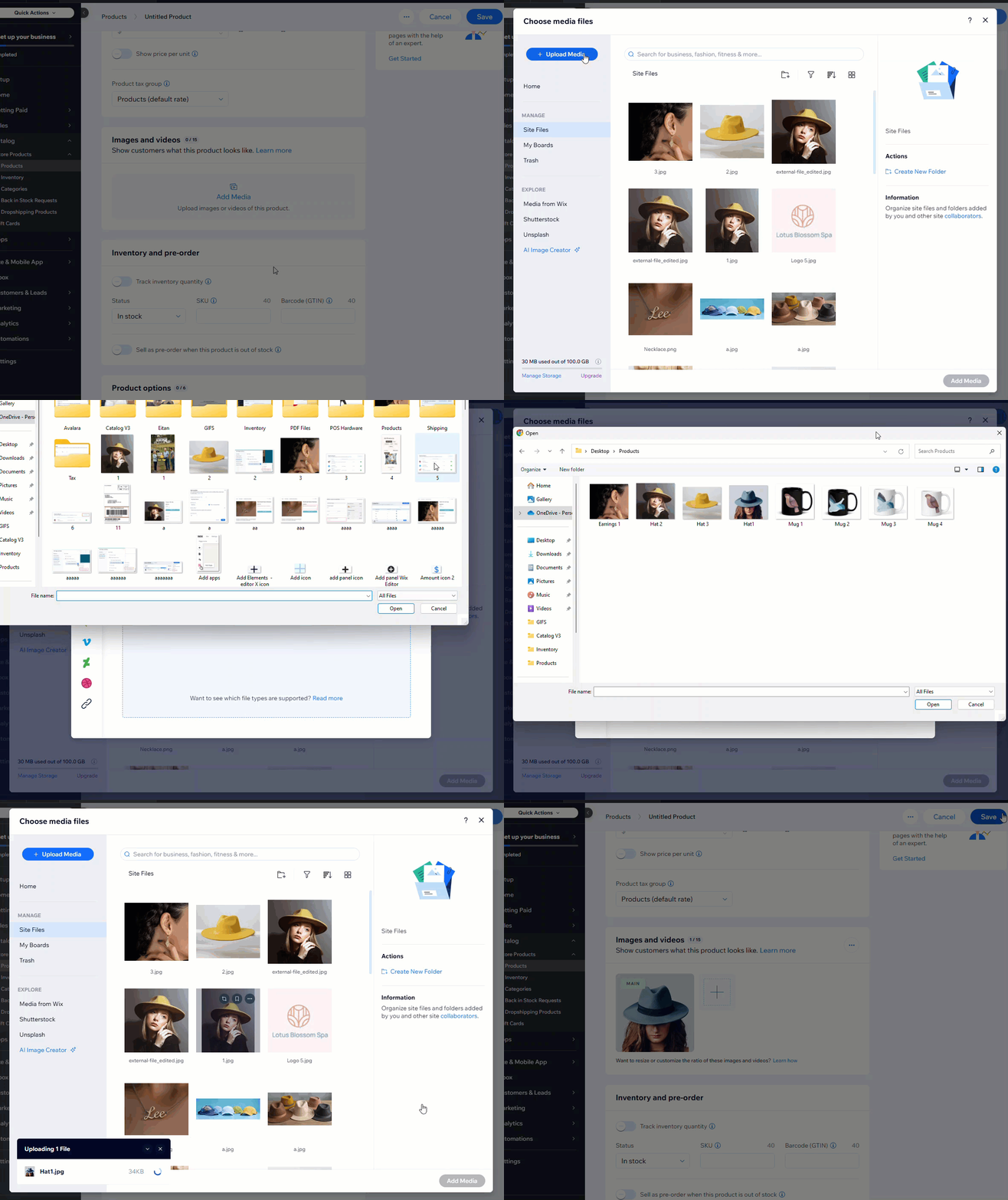
To add images or GIFs to a product:
Go to Products in your site's dashboard.
Click to select a product.
Click Add Media.
Select images or GIFs or click + Upload Media to add them.
Click Add Media.
Editing and cropping images
After you upload an image, you can access the Wix Photo Studio from right in the Products tab to make changes. You can:
Crop images
Adjust the brightness, contrast, or saturation
Change the background color
Remove the background
And more...
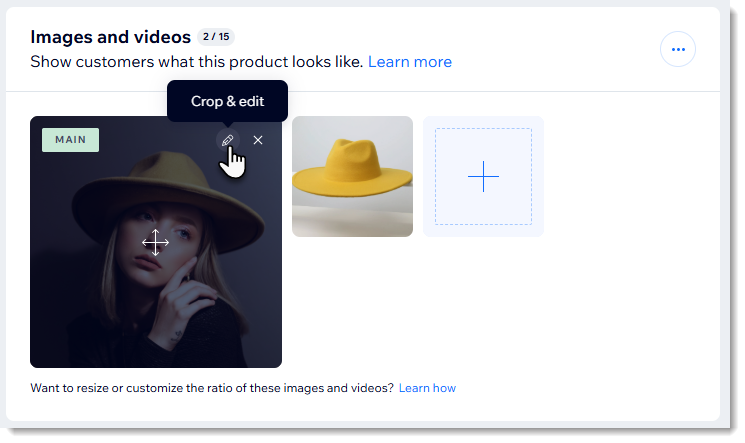
To access the photo studio in Wix Stores:
Go to Products in your site's dashboard.
Click to select a product.
Hover over the image you want to edit.
Click the Crop and edit icon

.
Learn more about the advanced tools available in the Wix Photo Studio.
Adding alt text to images
Improve your SEO and accessibility by adding alt text to product images. Alt text is a short description of your image. Search engines and screen readers (used by site visitors with visual impairments) use these to understand what's in the image.
For example, the alt text for a leather handbag could be "Brown leather handbag with gold detailing and adjustable strap".
To add alt text:
Go to Products in your site's dashboard.
Click to select a product.
Click the More Actions icon

in the Images and videos section.
Click Edit Alt Text.
Enter the alt text.
(Optional) Click Copy to all to apply the same text to all images.
Click Apply.
Adding product videos
Product videos are the next best thing to experiencing a product in person. They can give customers the confidence they need to make a purchase.
Recommended formats and sizes:
Video formats: AVI, MP4, MOV, MPEG
Size: Up to 50 MB
To add videos to your store products:
Go to Products in your site's dashboard.
Click to select a product.
Click Add Media.
Select a video or click + Upload Media to add videos.
Click Add Media.
Displaying different media with product options choices
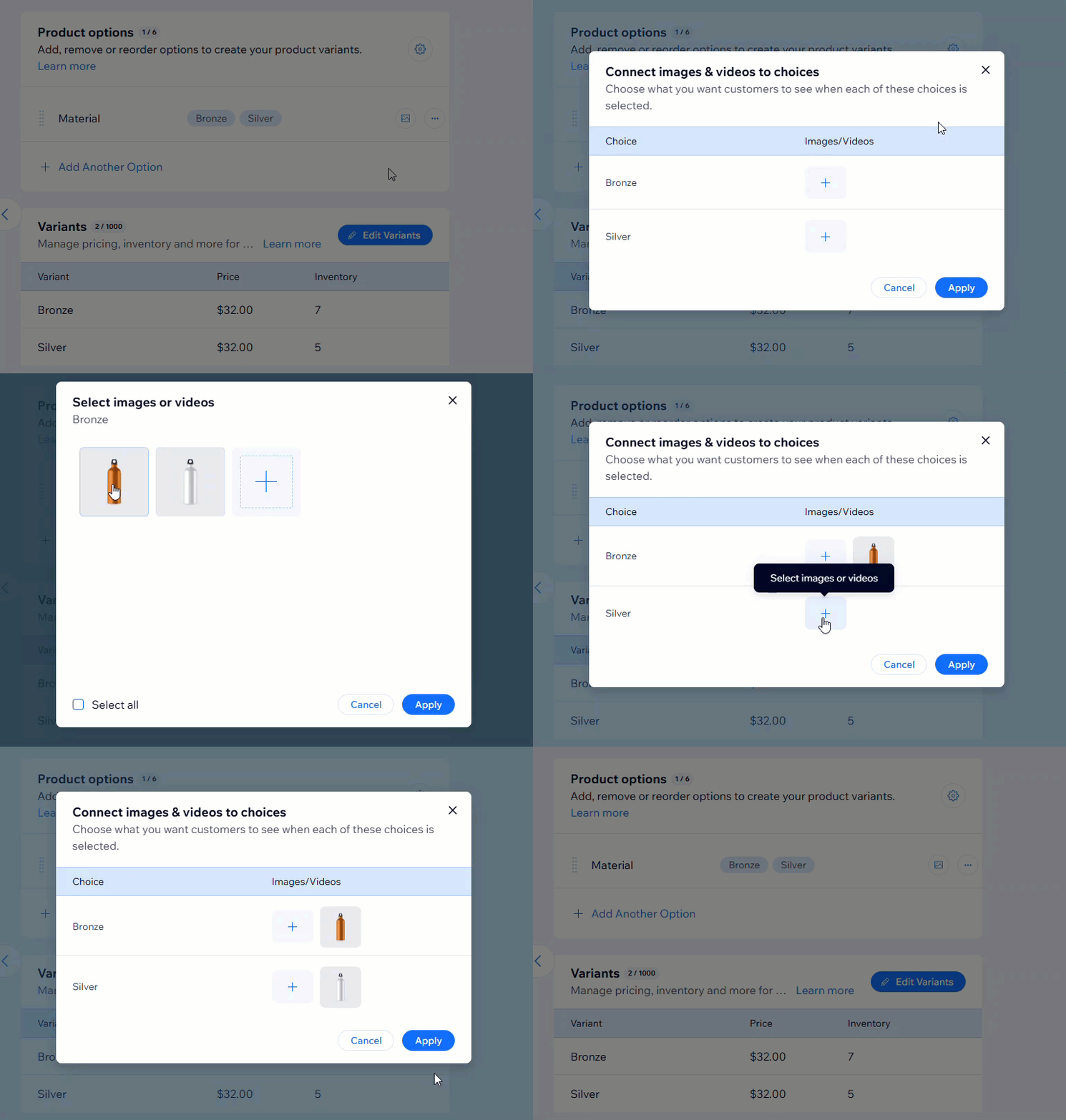
Showcase your product variations (e.g., colors or styles) by linking specific images to each product option. This helps customers visualize precisely what they’re purchasing.
Note:
You can link images to each option, but not to each variant. Vote for this feature.
To link images, GIFs, and video to product options choices:
Go to Products in your site's dashboard.
Select a product with product options.
Scroll down to the Product options section.
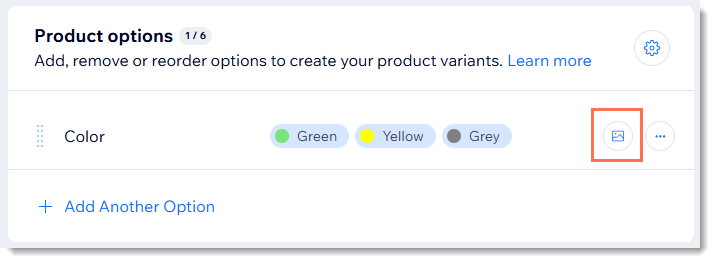
Click the Connect images & videos icon

.
FAQs
Click a question below to learn more about adding product images, GIFs, and videos:
Can I protect my store images from being copied by visitors?
To stop store images from being copied by visitors, try the following methods:
Right Click Protect App: Add the Right Click Protect app from the Wix App Market to prevent visitors from right-clicking and saving images.
Add a watermark: Add text to serve as a watermark using Wix Photo Studio.
Note: These methods do not provide 100% protection, as visitors can still use other methods like print screen or accessing the site's source code.
How can I set a specific product image to display first?
Reorder your product images by dragging them into your desired order. The first image will appear as the default.
How can I link videos hosted on external platforms like YouTube?
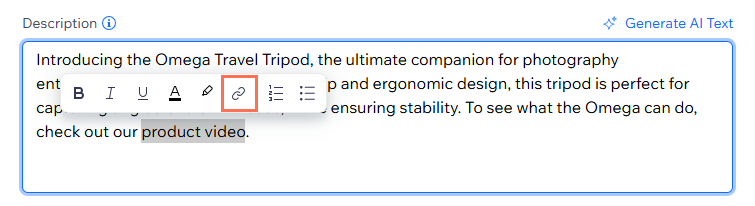
You can link a video hosted elsewhere by adding it either to the product description or by adding it to your product's info section. Highlight the link text to access the link option.
Can I display different media with each modifier?
Yes, you can connect an image, GIF, or video to each modifier option, but not to each variant. Note that the media appear in thumbnails along with the product images.
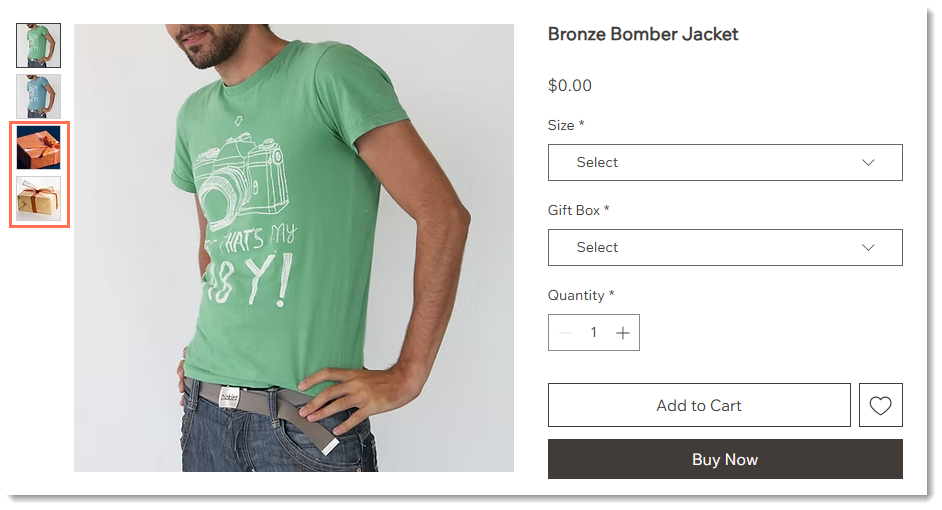
To start connecting media to modifier options, click the Connect images & videos icon
next to the relevant modifier.
This article is credited to the Wix team - https://support.wix.com/ and we thank them for that!