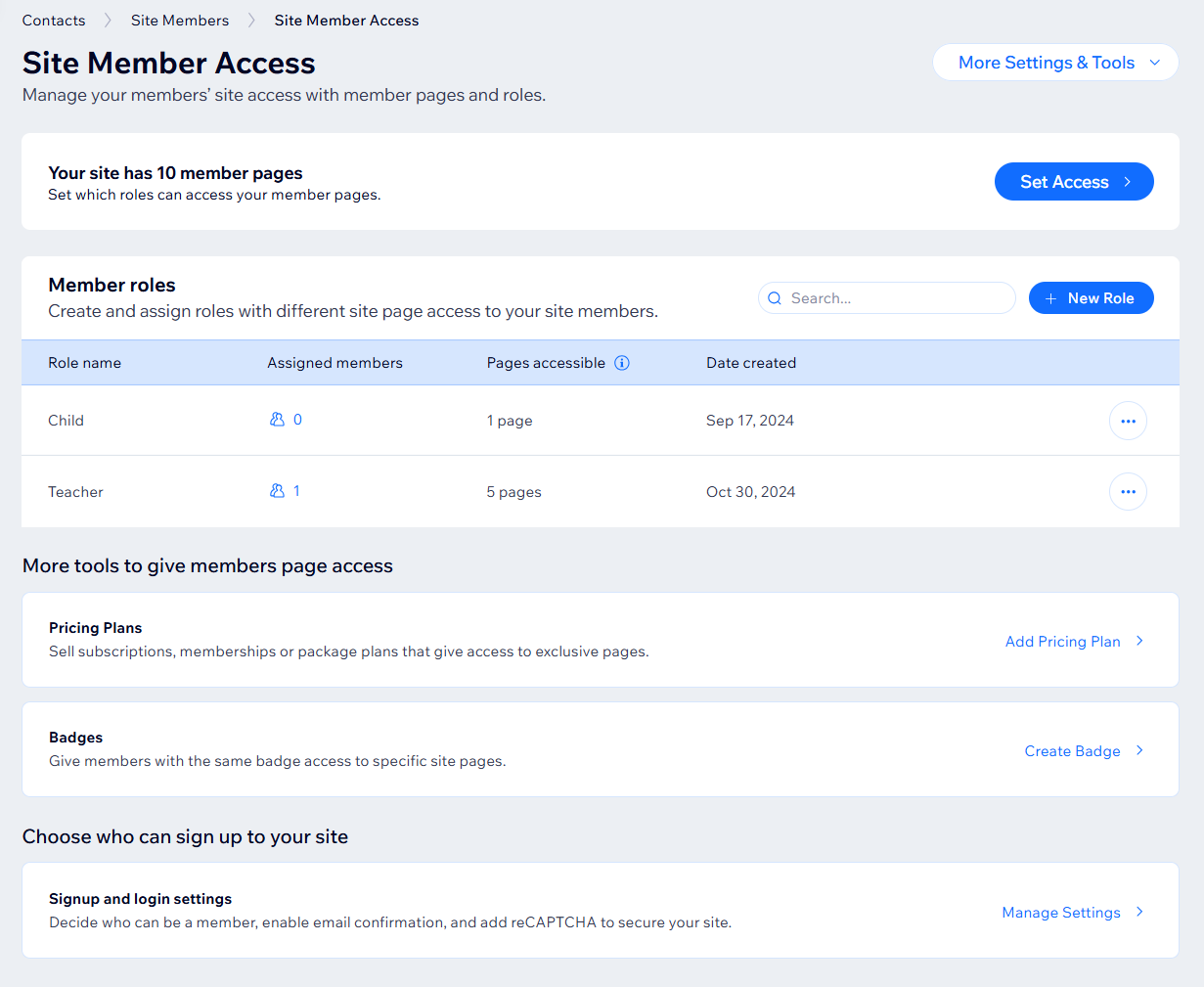
You can control who accesses specific areas of your site by managing member roles from your site's dashboard. This allows you to edit role details, assign and remove roles from members, and create or delete roles as needed.
Before you begin:
Add Wix Members Area to your site or code using Wix Velo.
Create members-only pages or restrict existing pages on your site.
Managing your member access
Customize your member access to ensure that your site remains organized and secure. For example, if you run an online course, you can give students access to course materials while restricting administrative sections to staff only.
To manage your member access:
Go to Site Member Access in your site's dashboard.
Choose what you want to do next:
Create a new role
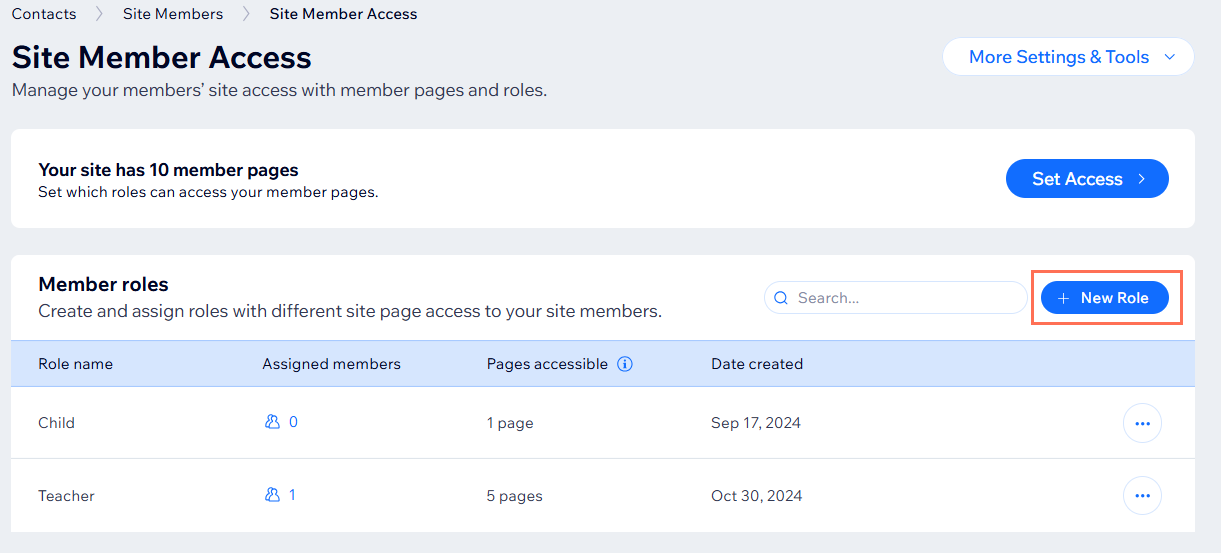
Click + New Role to create a new role.
Edit a role's information
You can update the name and description of your roles.
Click the More Actions icon

next to the relevant role.
Select Edit Role.
Change the role's information in the Info tab:
Enter a name to identify the role under Role Name.
Enter a brief description of the role under Description.
Note: This description is not visible to site members.
Click Save.
Change a role's access
Hover over the relevant role and click Role Access.
Assign or unassign a role
Click the More Actions icon
next to the relevant role and select Manage members.
Choose what you want to do:
Assign a role: Click + Assign Role to Members, select the relevant member(s) and click Assign to Role.
Unassign a role: Click the More Actions icon
next to the relevant member and select Remove. Then, click Remove to confirm.
Delete a role
Deleting roles in your members area removes access from the members who held that role. Members lose permissions to any pages associated with that role. For example, if you delete an "Author" role, anyone who had it will lose their ability to write blog posts. If you want to keep a page restricted, you'll need to change the permissions of your member roles.
Click the More Actions icon

next to the relevant role.
Click Delete role.
Click Delete role to confirm.
Set access permissions to a member page
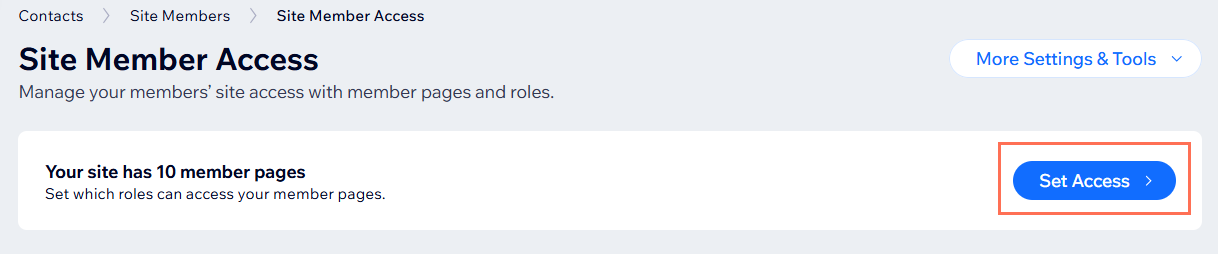
Click Set Access to set which member roles can access your member pages.
FAQs
Click a question below to learn more about your site member access settings.
How can I change the signup & login security?
You can strengthen your site's signup and login security to combat bots and spam in your site dashboard.
Go to Site Member Access in your site's dashboard.
Click More Settings & Tools.
Click Signup & login security under Security & privacy.
Customize your settings:
Who can be a site member?
Ask new members to confirm their email
Use reCAPTCHA for signup and login
How can I change members privacy?
Set who can be public members and who can see them.
Go to Site Member Access in your site's dashboard.
Click More Settings & Tools.
Click Member Privacy under Security & privacy.
Decide who can set their profile to public? (Members with a public profile can share their activity and interact with others.) Select All site members or No one.
How can I customize my member signup and login form?
You can choose whether to show the default member signup form or create your own customized version in your site's editor.
How can I choose the information displayed on 'My Account' and 'Profile' pages?
You can choose what information is displayed in your members 'My Account' and 'Profile' pages in your site's dashboard.
Go to Site Member Access in your site's dashboard.
Click More Settings & Tools.
Click Member account and profile info under More member tools.
How can I create and assign a badge to a member?
You can create and assign badges that grant specific page access to members who share the same badge, making them easily identifiable within your community.
How can I control who can sign up for my site?
You can decide who can be a member, enable email confirmation, and add reCAPTCHA to secure your site.
Go to Site Members in your site's dashboard.
Click Manage Settings next to Choose who can sign up to your site.
Customize your settings:
Who can be a site member?
Ask new members to confirm their email
Use reCAPTCHA for signup and login
This article is credited to the Wix team - https://support.wix.com/ and we thank them for that!