Alt text is a type of text in your site's code that describes an image on your site. Adding alt text to your images gives search engines and AI agents valuable information about them. Alt text is also important for accessibility.
The Wix SEO Checklist checks your site's images for alt text and lets you know when it's missing. If you see an error about alt text in your SEO checklist, you can try the troubleshooting steps in this article to resolve it.
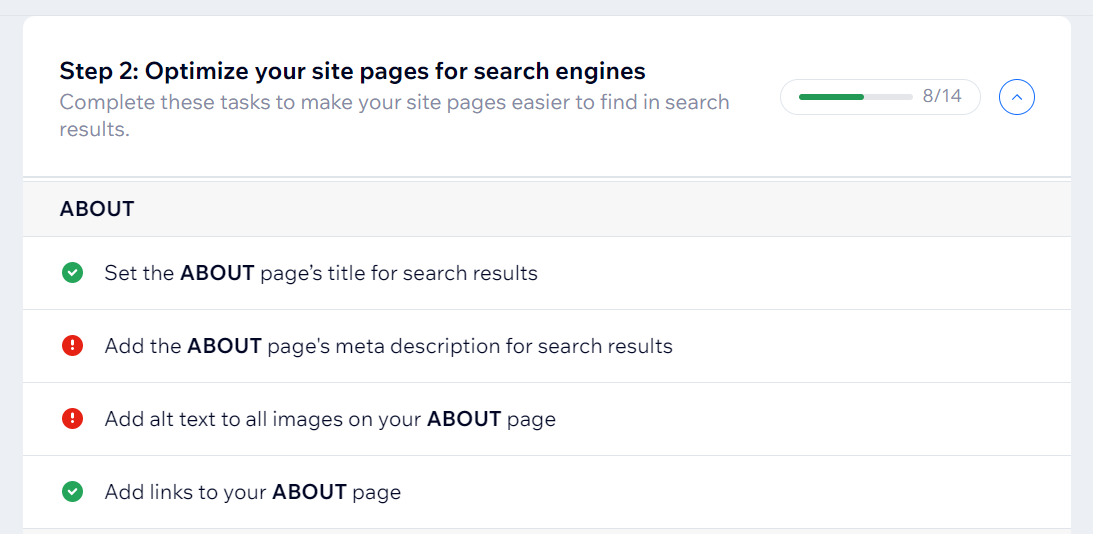
Check the alt text of your images, vector art, and shapes
The main reason that you might see an error is that some images, vector art, or basic shapes on your page don't have alt text. Go through your page that your SEO Checklist identified carefully and look for any images that are missing alt text.
Tips:
It's a good idea to consider the context of what a user sees in the image and use that to write your alt text. For example, "Freshly baked bread on a kitchen table".
Avoid using the name of your file for your alt text (for example, "bread.jpg").
To check your images, vector art, and shapes:
SEO Checklist
Go to the SEO Setup Checklist in your site's dashboard.
Open step 2.
Hover over the Add alt text to all images error and click Go for it.
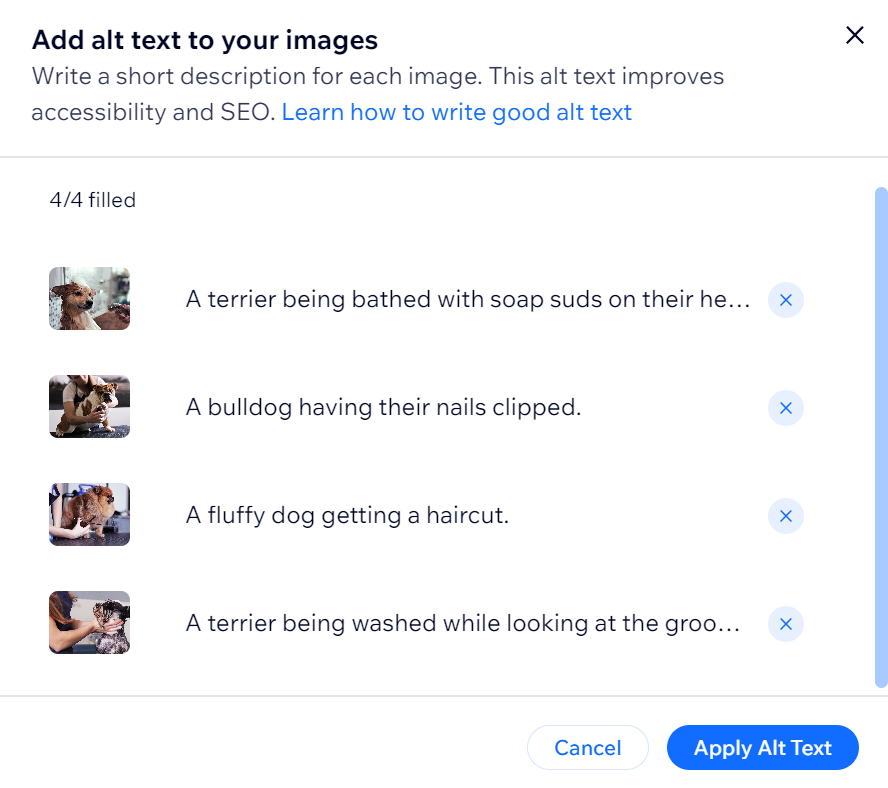
Click Add Alt Text.
Enter appropriate alt text next to each image.
Click Apply Alt Text.
Wix Editor
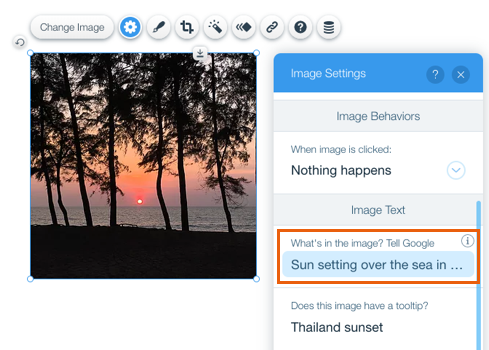
Click the relevant image.
Click the Settings icon

.
Enter a description of the image under What's in the image?.
Studio Editor
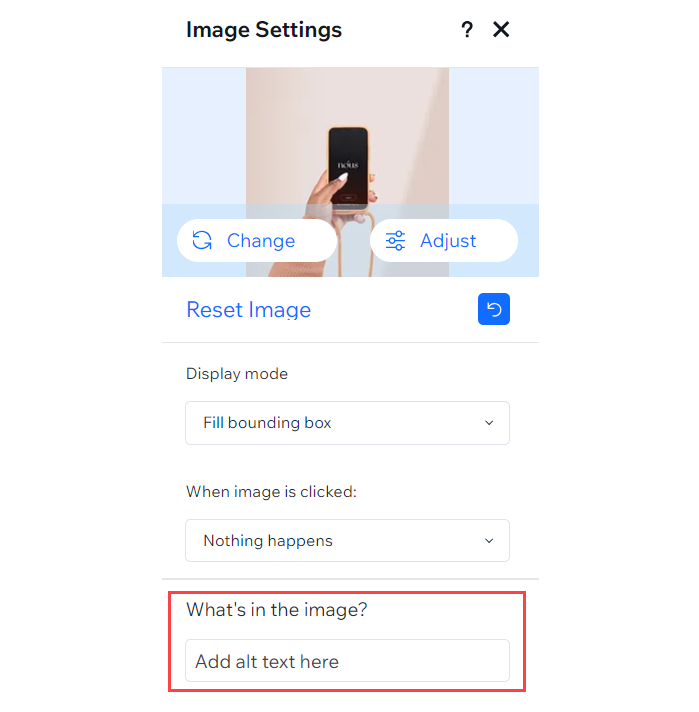
Click the relevant image.
Click the Settings icon

.
Enter a description of the image under What's in the image?.
Tip:
Make sure that you also add alt text to your gallery images. For galleries, the alt text is the image's title and description. Learn more about gallery images
Check if any images are hidden behind other elements
If you check all of your images and can't find any with missing alt text, it's possible that the image is hidden behind another element. In this case, the SEO Setup Checklist still identifies it as missing alt text even if it's not visible on your live site.
There are a few ways you can look for hidden elements. Select an option below to learn more.
Find elements using the Layers panel
Open the Layers panel:
Wix Editor: Click Tools in the top right and select Layers.
Studio Editor: Click the Layers icon

.
Click Header, Page, or Footer.
Click the relevant element from the list.
Find elements using right-click
Right-click an element.
Check if it has any element behind it.
Wix Editor: Hover over Overlapping Items and check the list.
Studio Editor: Hover over Arrange and check the options.
Find elements using Ctrl + M
Click to select any element.
Press Ctrl + M repeatedly to cycle the through the elements on the page
Tip: Press Ctrl + Shift + M to cycle through the elements in the opposite direction.
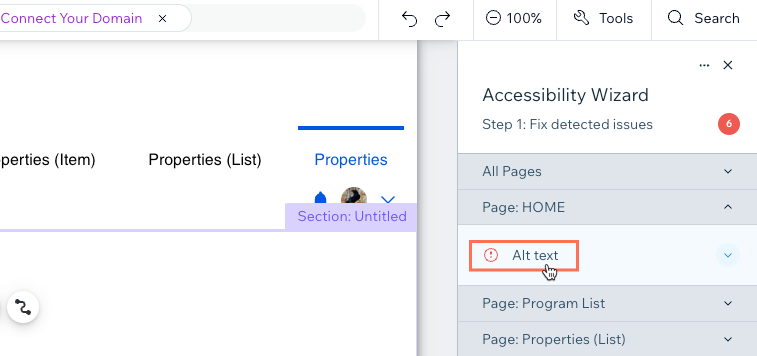
Find the alt text issue with the Accessibility Wizard
If you still can't find the element that has missing alt text, you can use the Wix Accessibility Wizard to help you find it.
To use the Accessibility Wizard:
Select Settings at the top of the editor.
Select Accessibility Wizard.
Select Scan My Site on the right.
Click Alt Text in the relevant section.
Enter a description of the image under What's in the image?
Click Set Alt Text.
Repeat these steps for any other alt text issues in the list.
Publish your site.
This article is credited to the Wix team - https://support.wix.com/ and we thank them for that!