With the Table Reservations app, you control your availability and the dining experience. Manage last-minute bookings, set party size limits, and ensure smooth transitions with precise turnover times, keeping your restaurant running smoothly.
You can also pause new online reservations temporarily when your restaurant gets busy, and set them to resume automatically at a specific time.
Setting your availability
Set up your online reservations to match the way your restaurant operates. You can control how far in advance guests book, limit party sizes, manage pacing, and choose which reservations need approval.
Dashboard
Go to Table Reservations in your site's dashboard.
Click Settings at the top right.
Click Online reservations.
Set the following availability details:
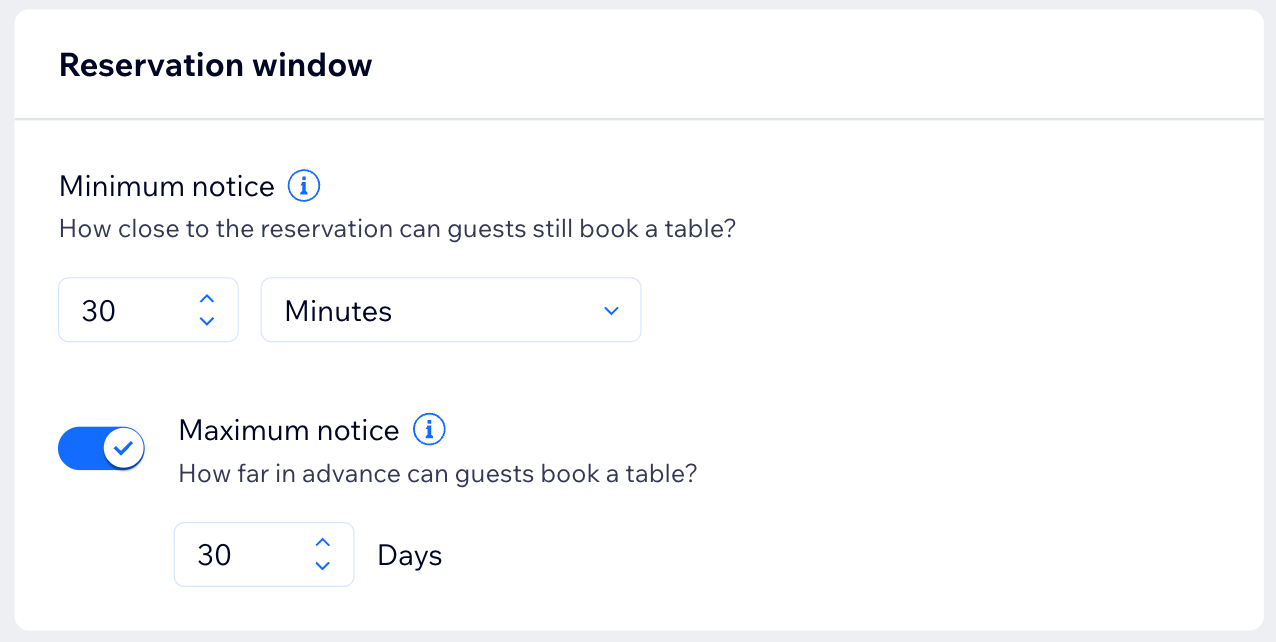
Reservation window
Specify the minimum and maximum notice required for online reservations:
Minimum notice: Set how close to the reservation time guests can still make an online booking. For example, if you set the minimum notice to 30 minutes, bookings for 8:00 PM will close at 7:30 PM.
Maximum notice: (If disabled) Click the toggle to set how far in advance guests can book a table. For example, if the maximum notice is set to 30 days, guests can only reserve tables up to 30 days ahead.
Party size
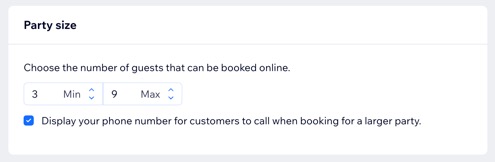
Set the number of guests allowed for online bookings.
Set the Min and Max number of guests that can be booked online under Party size.
(Optional) Select the Display your phone number checkbox to have guests call your restaurant when booking reservations for larger party sizes.
Turn time
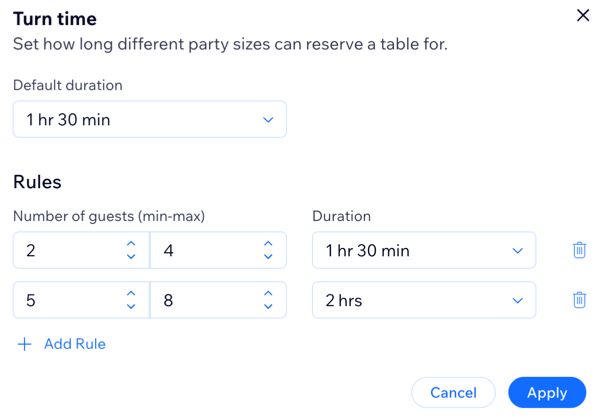
Manage table transitions by setting turnover times based on party size.
Click Edit under Turn time.
Click the Default duration drop-down and set the duration for all table reservations.
(Optional) Click + Add Rule to add rules to the duration of the reservation based on the number of guests. For example, you may allow longer durations for bigger parties, and shorter durations for small ones.
Click Apply.
Time slots
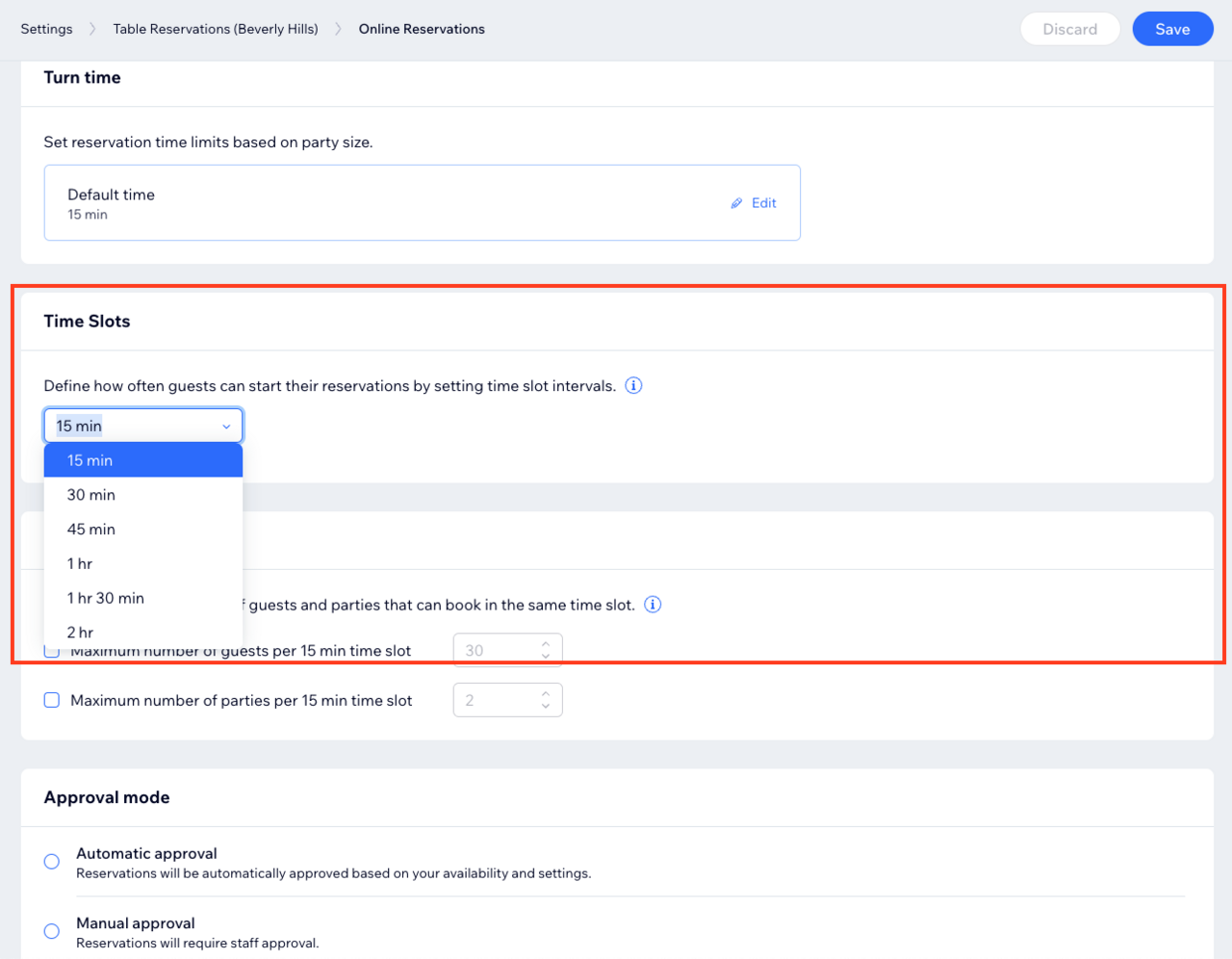
Set the frequency of reservation start times by adjusting time slot intervals. For example, with a 15-minute interval, reservations can begin at 7:00, 7:15, and 7:30.
Pacing
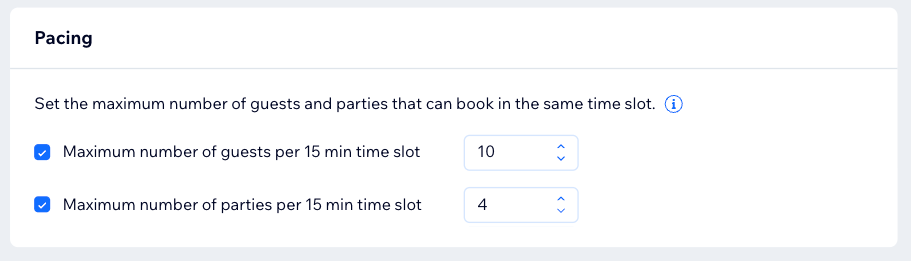
Set the number of guests and parties that can arrive within the same time slot to avoid overloading your staff under Pacing:
Select the Maximum number of guests per time slot checkbox and set how many guests can arrive in the same 15 minute time frame.
Select the Maximum number of parties per time slot checkbox and set how many parties can arrive in the same 15 minute time frame.
Approval mode
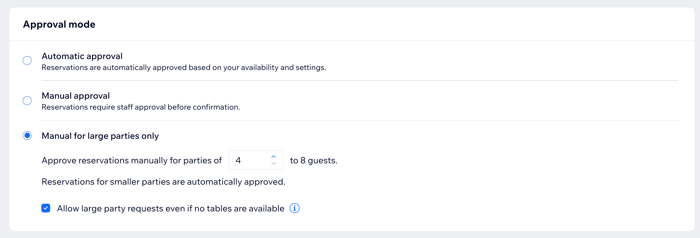
Require approval before confirming specific online reservations:
Automatic approval: Reservations are automatically confirmed based on table availability and your reservation settings, without needing your approval.
Manual approval: Each reservation requires your approval before being confirmed.
Manual for large parties only: Reservations for large parties require your approval. Specify the party size that requires approval.
(Optional) Select the Allow large party requests even if no tables are available checkbox to let guests view available time slots and request a table for large parties, even if no tables are available.
5. Click Save at the top right.
Wix app
Go to your site in the Wix app.
Tap Manage

at the bottom.
Tap Table Reservations and select Table Reservations.
Tap the More Actions icon

at the top right.
Tap Settings.
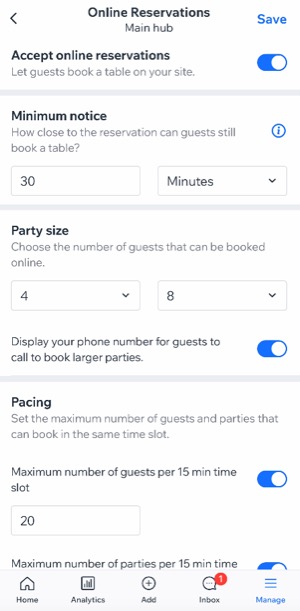
Tap Online reservations and choose what you want to set up:
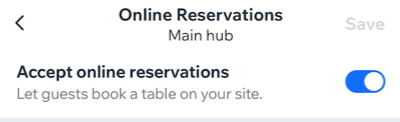
Accept online reservations
Enable the toggle to let guests book a table on your site.
Reservation window
Specify the minimum and maximum notice required for online reservations:
Tap Edit next to Reservation window.
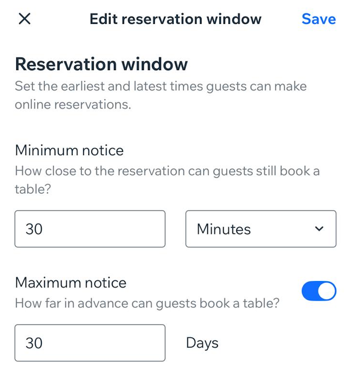
Set the minimum and maximum notice required for online reservations:
Minimum notice: Set how close to the reservation time guests can still make an online booking. For example, if you set the minimum notice to 30 minutes, bookings for 8:00 PM will close at 7:30 PM.
Maximum notice: (If disabled) Tap the toggle to set how far in advance guests can book a table. For example, if the maximum notice is set to 30 days, guests can only reserve tables up to 30 days ahead.
Tap Save.
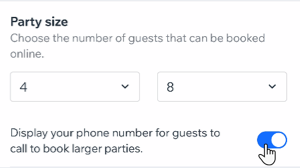
Party size
Choose the number of guests that can be booked online.
Set the minimum and maximum number of guests that can be booked online under Party size.
(Optional) Tap the Display your phone number for guests to call to book larger parties toggle to have guests call your restaurant when booking reservations for larger party sizes.
Pacing
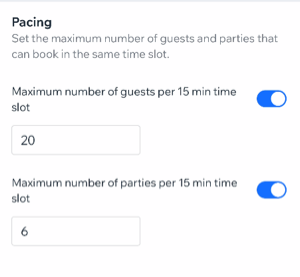
Set the number of guests and parties that can arrive within the same time slot to avoid overloading your staff under Pacing:
Tap the Maximum number of guests per 15 min time slot toggle and enter how many guests can arrive in the same 15 minute time frame.
Tap the Maximum number of parties per 15 min time slot toggle and enter how many parties can arrive in the same 15 minute time frame.
Turn time
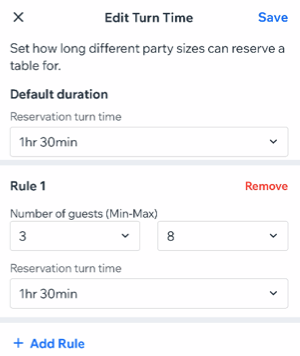
Set reservation time limits based on party size.
Tap Edit under Turn time.
Tap the Default duration drop-down and set the duration for all table reservations.
(Optional) Tap + Add Rule to add rules to the duration of the reservation based on the number of guests. For example, you may allow longer durations for bigger parties, and shorter durations for small ones.
Tap Save.
Time slots
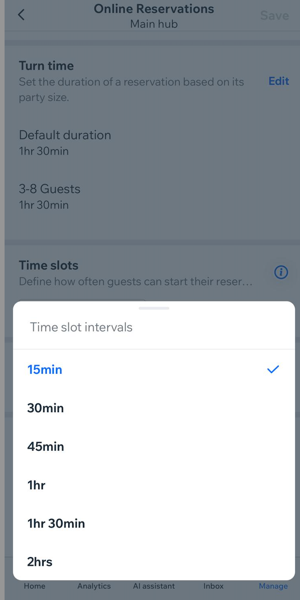
Set the frequency for reservation start times, allowing guests to book at the intervals you specify. For example, if you set a 30-minute interval, guests can book reservations every 30 minutes.
Approval mode
Require your approval before specific online reservations are confirmed.
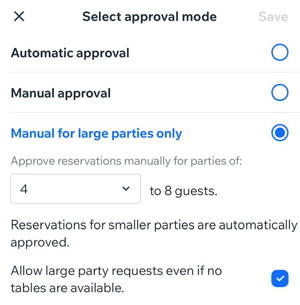
Tap Edit next to Approval mode and select the relevant option:
Automatic approval: Reservations are automatically confirmed based on table availability and your reservation settings, without needing your approval.
Manual approval: Each reservation requires your approval before being confirmed.
Manual for large parties only: Reservations for large parties require your approval. Specify the party size that requires approval.
(Optional) Select the Allow large party requests even if no tables are available checkbox to let guests view available time slots and request a table for large parties, even if no tables are available.
Tap Save.
7. Tap Save at the top right.
Pausing your reservations temporarily
Temporarily pause online reservations for time slots within a specific period when your restaurant gets unexpectedly busy. Guests can still book future available time slots after that period, and if you manage multiple locations, you can pause reservations separately for each one.
Dashboard
Go to Table Reservations in your site's dashboard.
(Multiple locations only) Select the relevant location.
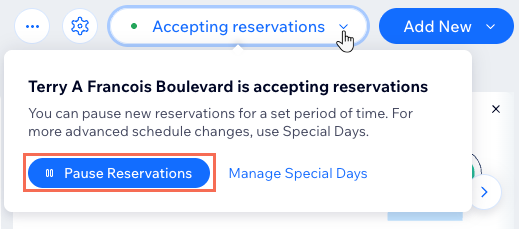
Click Accepting reservations at the top right.
Click Pause reservations.
Choose when online reservations should resume automatically.
Click Pause.
Wix app
Go to your site in the Wix app.
Tap Manage
at the bottom.
Tap Table Reservations and select Table Reservations.
Tap the Availability icon

at the top right.
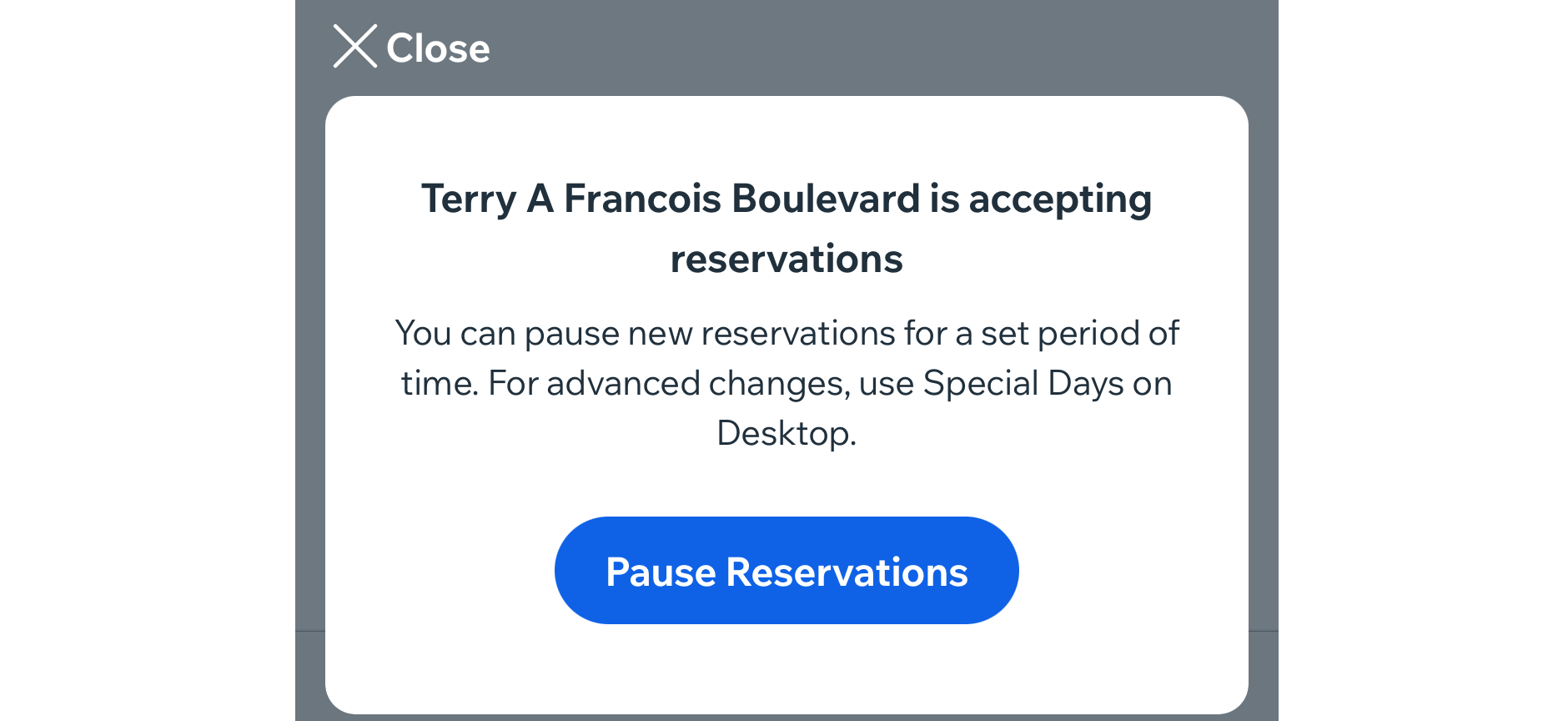
Tap Pause Reservations.
Choose when online reservations should resume automatically.
Tap Pause.
FAQs
Click a question below to learn more.
Can I start accepting reservations again before the scheduled resume time?
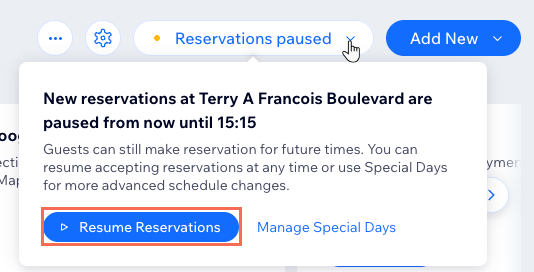
Yes, you can always resume your online reservations manually – no need to wait for the time you originally scheduled.
Go to Table Reservations in your site's dashboard.
(Multiple locations only) Select the relevant location.
Click Reservations paused at the top right.
Click Resume Reservations.
What's the difference between pausing reservations and setting 'special days'?
Pausing reservations is a temporary way to stop new online reservations immediately when your restaurant gets busy. Existing confirmed reservations are not affected, and online reservations resume automatically at the time you choose.
Special days are for planned changes to your reservation schedule, such as holidays, events, or one-off opening or closing hours.
Use special days when you want to adjust your schedule in advance, and pause reservations when you need to stop new online bookings right away.
This article is credited to the Wix team - https://support.wix.com/ and we thank them for that!