Set up payment protection to prevent no shows and last-minute reservation cancellations. Choose whether to save a guest's card or collect a prepayment, and configure the fee and policy for the method you choose. You can also choose to skip protection altogether if you don't feel it's necessary for your restaurant.
Tip:
Payment protection requires Wix Payments. If it isn't connected, your settings are still saved, but protection stays inactive until you connect it.
Setting up payment protection
Choose a protection method and configure its fee and policy.
Dashboard
Go to Table Reservations in your site's dashboard.
Click Settings at the top right.
Click Payment protection.
Select a protection method and follow the steps:
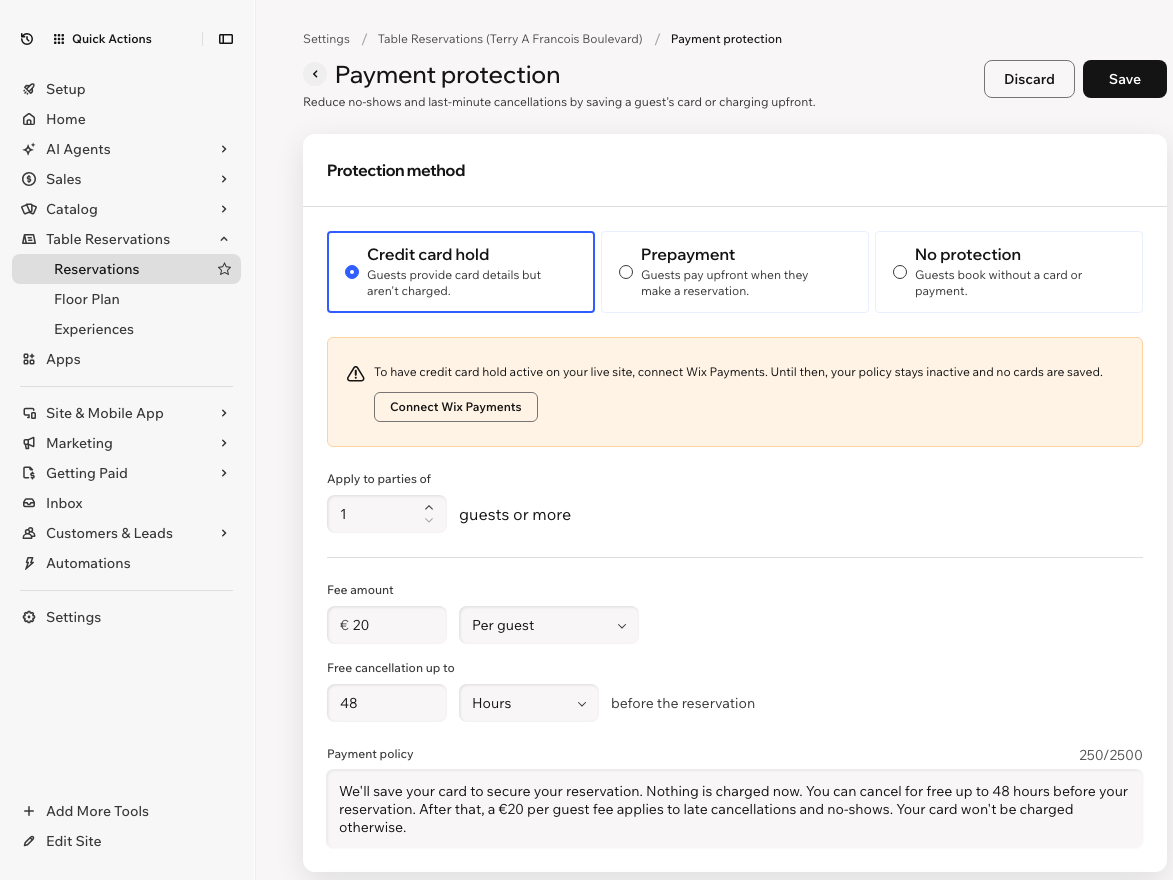
Credit card hold
Guests provide their card details, but they’re not charged yet. If they don’t show or cancel too late, you have the option of charging them.
Set the minimum party size under Apply to parties of.
Enter an amount under Fee amount and choose Per guest or Per party.
Enter a number and select a unit under Free cancellation up to (e.g. 48 hours).
Enter your policy in the Payment policy field.
Prepayment
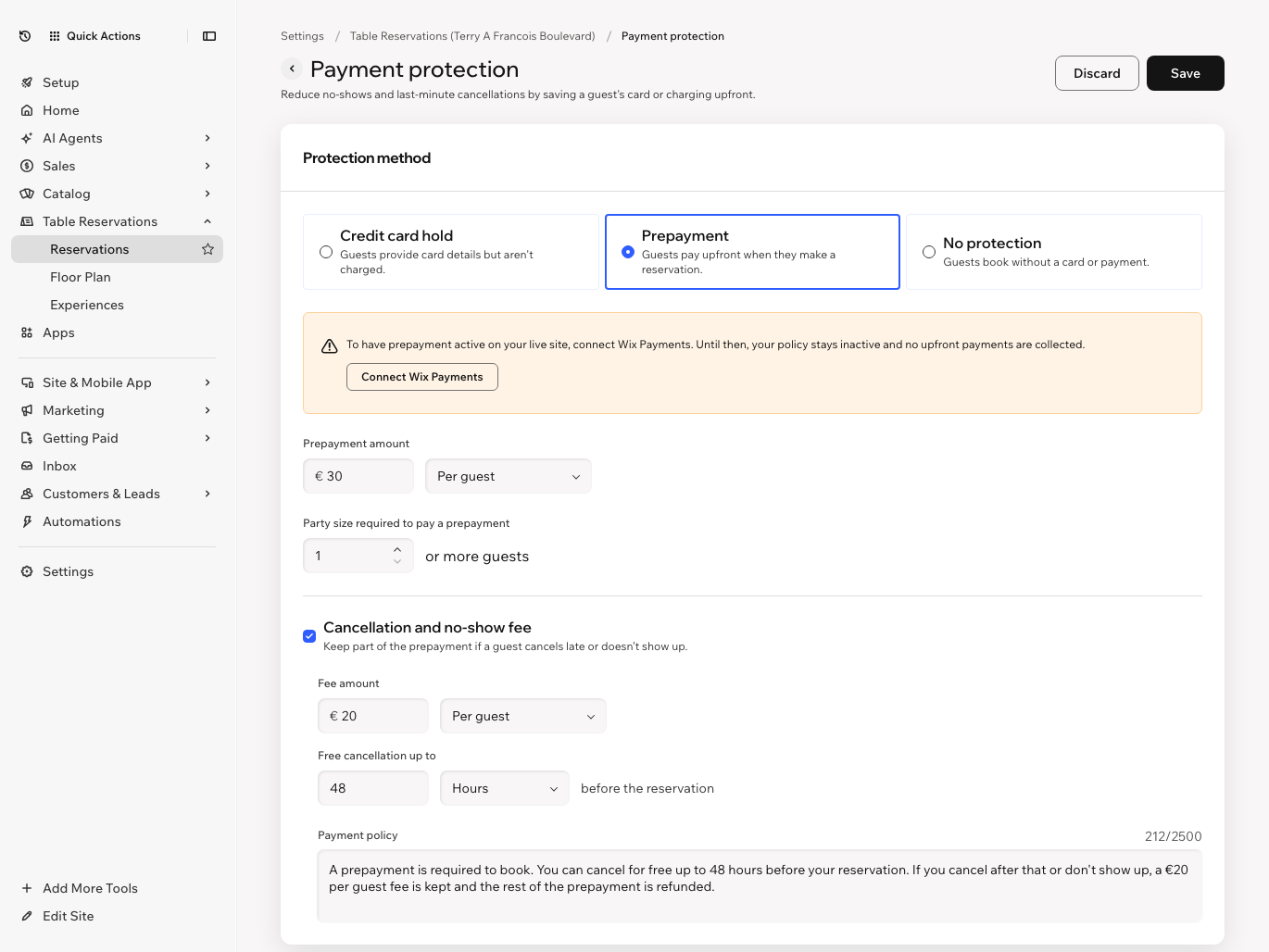
Guests make a payment on your site to reserve a table.
Enter an amount under Prepayment amount and choose Per guest or Per party.
Enter the minimum party size under Party size required to pay a prepayment.
(Optional) Select the Cancellation and no-show fee checkbox to keep part of the prepayment when a guest cancels late or doesn't show up.
Enter an amount under Fee amount and choose Per guest or Per party.
Enter a number and select a unit under Free cancellation up to (e.g. 48 hours).
Enter your policy in the Payment policy field.
No protection
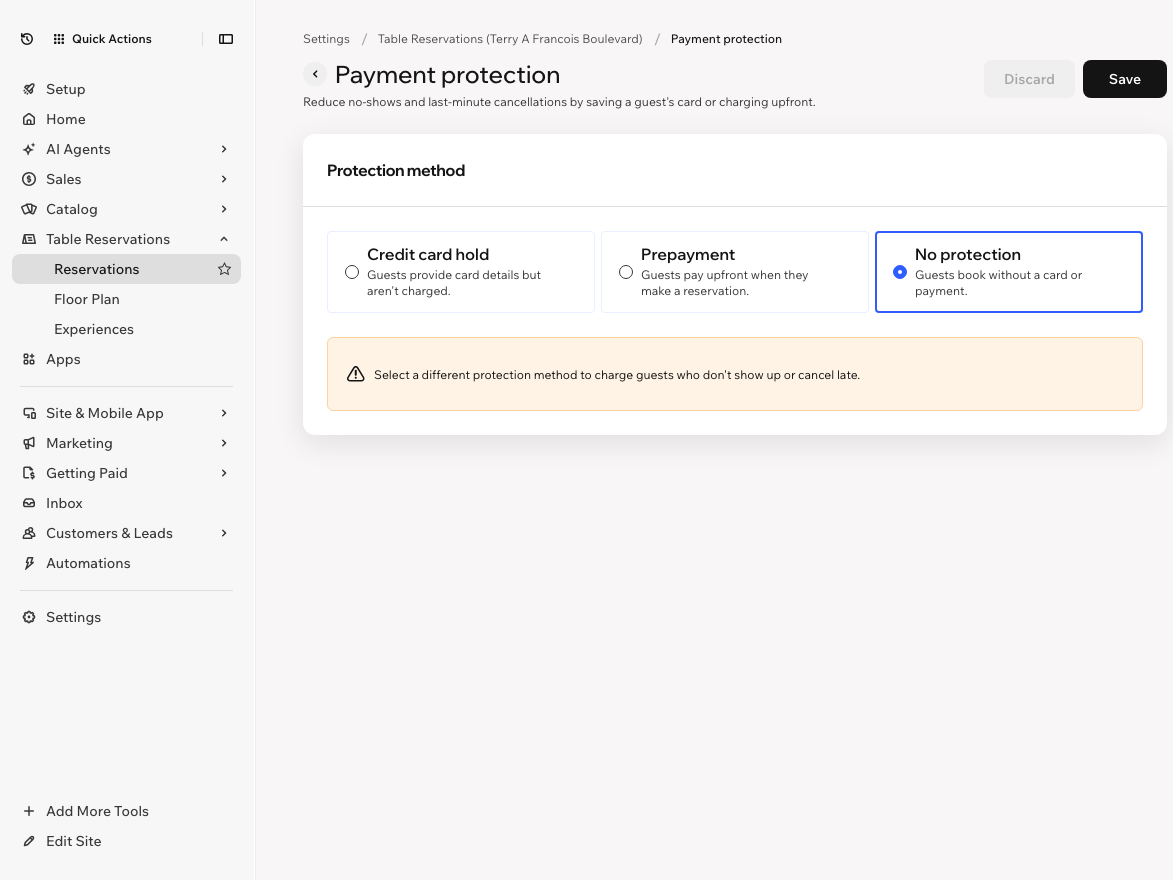
No further setup is needed. Guests can book without providing a card or making a payment.
Click Save.
Wix app
Go to your site in the Wix app.
Tap Manage at the bottom.
Tap Table Reservations and select Table Reservations.
Tap the More Actions icon

at the top right.
Tap Settings.
Tap Payment protection.
Select a protection method and follow the steps:
Credit card hold
Guests provide their card details, but they’re not charged yet. If they don’t show or cancel too late, you have the option of charging them.
Set the minimum party size under Party size required to save a card.
Enter an amount under Fee amount and choose Per guest or Per party.
Enter a number and select a unit under Free cancellation up to (e.g. 48 hours).
Enter your policy in the Payment policy field.
Prepayment
Guests pay upfront when they make a reservation.
Enter an amount under Prepayment amount and choose Per guest or Per party.
Enter the minimum party size under Party size required to pay a prepayment.
(Optional) Select the Cancellation and no-show fee checkbox to keep part of the prepayment when a guest cancels late or doesn't show up.
Enter an amount under Fee amount and choose Per guest or Per party.
Enter a number and select a unit under Free cancellation up to (e.g. 48 hours).
Enter your policy in the Payment policy field.
No protection
No further setup is needed. Guests can book without providing a card or making a payment.
Tap Save at the top right.
What's next?
Start collecting payments for table reservations.
FAQs
Click a question below to learn more about payment protection for table reservations.
Can I customize the table reservation form?
Customize your table reservation form to include information about your table reservation fees for your guests.
How do I change the currency on my site?
To change the currency on your site, go to Language & Region in your site's dashboard.
How do I set up tax?
To set up tax for your site, go to Tax in your site's dashboard.
What happens to a prepayment if I don't approve the reservation?
When you choose to manually approve table reservations and set a prepayment, customers don’t get charged when they request to reserve – instead, their credit card details are saved for a potential charge:
If you decline the reservation, the customer does not get charged.
If you approve the reservation, you then have the option to initiate a prepayment from the saved credit card.
Can I edit the Terms & Conditions or Privacy Policy guests see when they book?
Yes. Go to Reservation form settings, under your Table Reservations settings in your site's dashboard.
This article is credited to the Wix team - https://support.wix.com/ and we thank them for that!